


If you have a recording of dits and dahs and want to know what it says, many web tools only go the other way: they turn typed text into dots and dashes. Decoding from audio often means uploading the file to a server, or the feature is missing altogether. For a teaching drill, a radio assignment, or a puzzle attachment, creating an account and sending the file out can be more than the job is worth.
The Morse Code Translator site folds this into two pages. One translates between text and Morse code, and can play or download a WAV. The other decodes audio: you can upload a WAV or MP3, or use the microphone. The site states that translation, playback, export, and audio decoding all run in the browser, and that the files are not sent to a recognition API. No account is required. On November 15, 2026 we ran a prepared phrase through the text translator, then decoded two homemade recordings. What follows is only what we actually saw, and where the tool is clearly a poor fit.
Who it is for, and what to check first
It is a good fit if you want to practice Morse, produce a playable WAV for teaching material, or decode a recording that is a single, steady tone. It is not a general speech transcriber, and it is not meant to turn talking, music, or several stations stacked together back into text. If what you have is speech rather than a dit-dah signal, see our write-up of Media to Words: it turns a local audio or video file into an SRT in the browser, without uploading the file.
| Item | Details (reviewed and tested on November 15, 2026) |
|---|---|
| Text translator | https://morse-code-translator.app/ |
| Audio decoder | https://morse-code-translator.app/morse-code-audio-translator |
| Account and price | No sign-in required. We did not see a paywall. |
| Text page | Results appear as you type. You can play the tone, optionally with a screen flash or vibration; adjust speed, Farnsworth spacing, and pitch; then copy, download a WAV, or generate a share link. |
| Audio page | Upload a WAV or MP3, limited to 25 MB and 3 minutes. A microphone option is also offered (we did not test it this time). |
| Decode range | Tone 300–1500 Hz, speed 5–50 WPM. Auto-detection is available, or you can set the values yourself and click Decode again. |
| Privacy | The privacy policy, effective November 12, 2026, says text, WAV exports, and audio files are processed in the browser. A share link puts the plaintext into the address bar — do not put private content there. The site uses Google Analytics 4, and the host keeps access logs. |
The page has a flash option, and a reminder to turn Flash off if flashing light bothers you. We did not generate a share link.
As with tools such as keeplocal and GPX Converter, “processed in the browser” is not the same as staying completely offline. Opening the page and loading scripts still contacts the server, and the traffic includes analytics requests. We did not inspect every network request to confirm that the audio file itself was never uploaded, so we are reporting the privacy policy’s wording and the fact that we completed the flow and got a result — not that we audited all of the traffic.
How to translate once, then how to check the result
Text, both ways:
- Open https://morse-code-translator.app/. No account is needed. No cookie banner appeared when we opened it this time. The default example is HELLO WORLD.
- Type the message in the Text box, or type dots and dashes in the Morse code box. The other side updates as you go; there is no Submit button. Separate letters with a space, and words with a
/(three or more spaces also mark a word break). - To hear it or keep a sound file, click Play or Download WAV. Check the current Speed and Pitch first — the file is generated from those values.
- When you check the result, walk through the dots and dashes against the spaces and slashes. Missing one separator will glue letters together, and the reading will no longer be the original sentence.
Audio decoding:
- Open the audio decoder page. Upload a WAV or MP3 that is no larger than 25 MB, no longer than 3 minutes, and, as far as possible, a single steady tone.
- When the status becomes Decoded, check that Tone and Speed match the source of the signal before you trust the Text.
- If the result is wrong and you know the original pitch or speed, enter those values under Detection settings and click Decode again. The page itself notes that uneven hand-keyed timing, several stations overlapping, or Farnsworth spacing being treated as a word break can all produce errors.
- Treat the decoded text as a draft and listen to the original again, especially for call signs, numerals, and key phrases. A
#means a stretch could not be matched to a known character.
Do not decode a recording you have no right to process, and do not use a share link to pass along private content.
What we actually tested: text translation and two homemade recordings
The test was on November 15, 2026, in Chrome on this machine, without signing in.
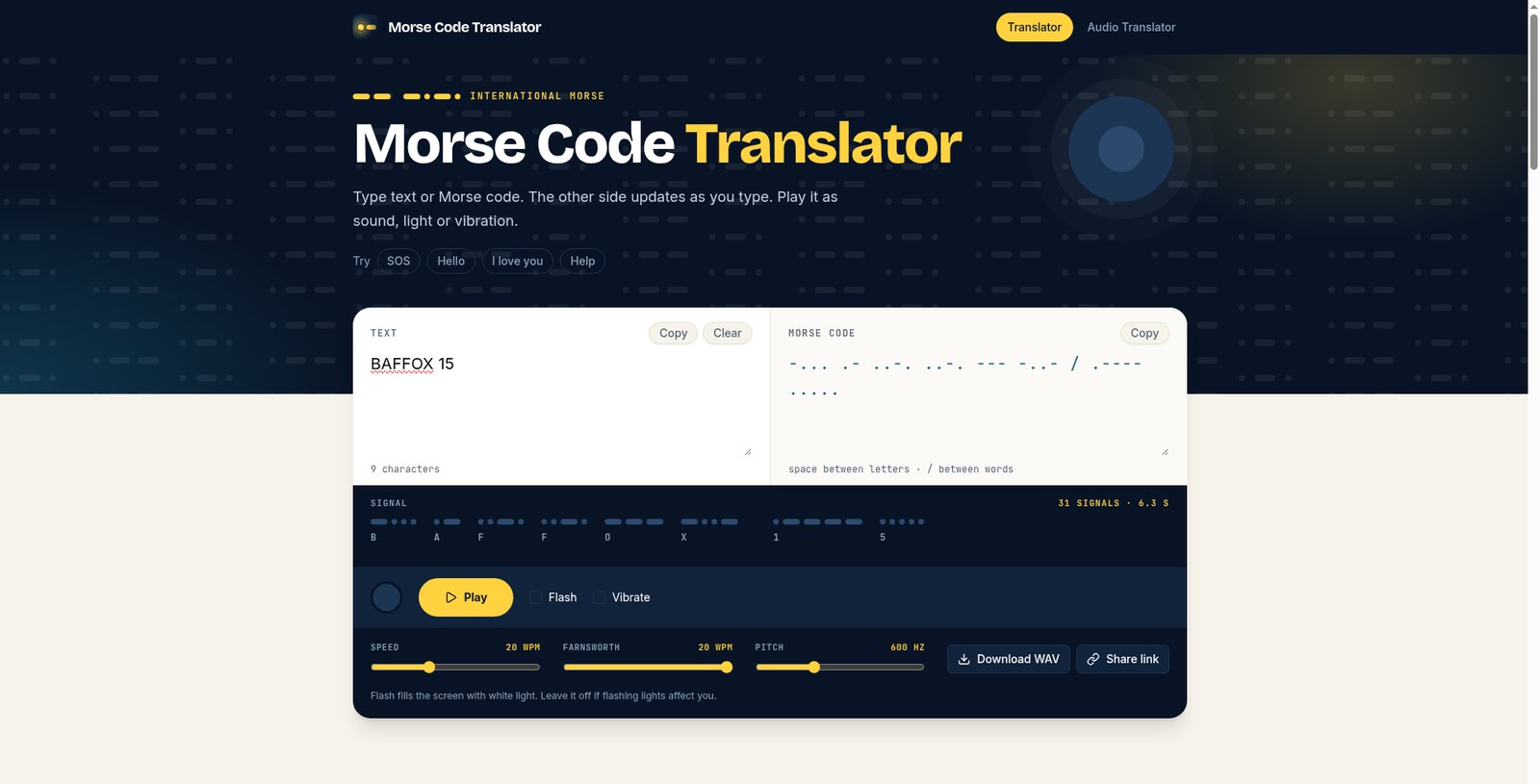
After we typed BAFFOX 15 on the text page, the Morse code box immediately became:
-... .- ..-. ..-. --- -..- / .---- .....The page showed 9 characters, 31 signals, and about 6.5 seconds. The paper-tape display labeled the letters B, A, F, F, O, X, 1, and 5. Speed and pitch were still the defaults, 20 WPM and 600 Hz. We clicked Download WAV and received morse-code.wav, 286,694 bytes, mono, 22,050 Hz, 6.5 seconds long. That file was generated at the page’s then-current 600 Hz, and is not the same as the 700 Hz homemade test tones we used later.
For audio decoding we used two WAV files we had prepared in advance. The content was still BAFFOX 15, generated at 20 WPM with a 700 Hz sine wave, 44.1 kHz mono, each about 7.0 seconds and 617,444 bytes. One was a clean signal. The other had the level lowered and a layer of noise added, to see whether auto-detection would break.
After we uploaded the clean file, the status became Decoded. It was identified as Tone 700 Hz and Speed 20.2 WPM. The Morse and the text matched the text page exactly: the body was BAFFOX 15. Auto-detection also reported 700 and 20.2, so we did not have to enter the values by hand.
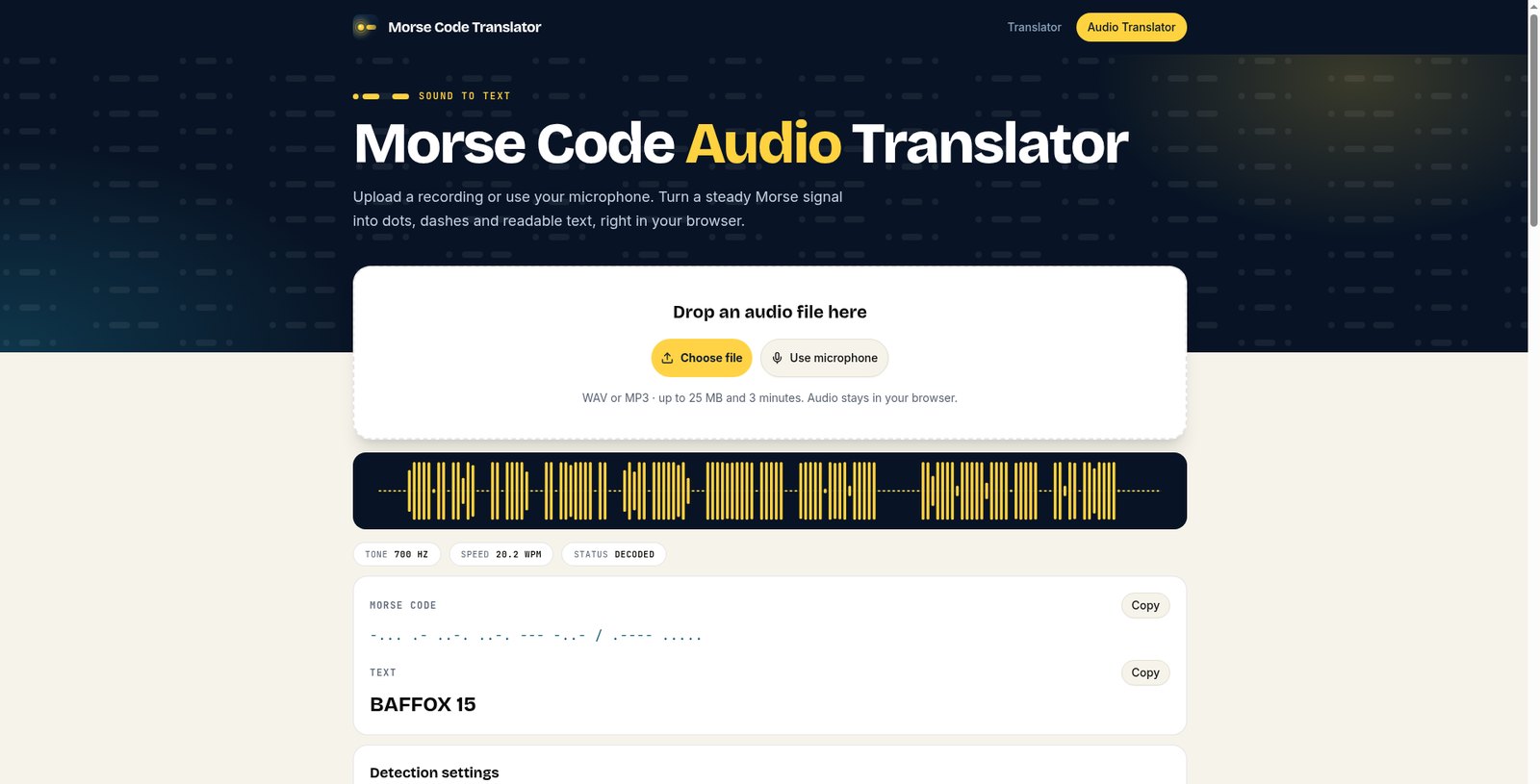
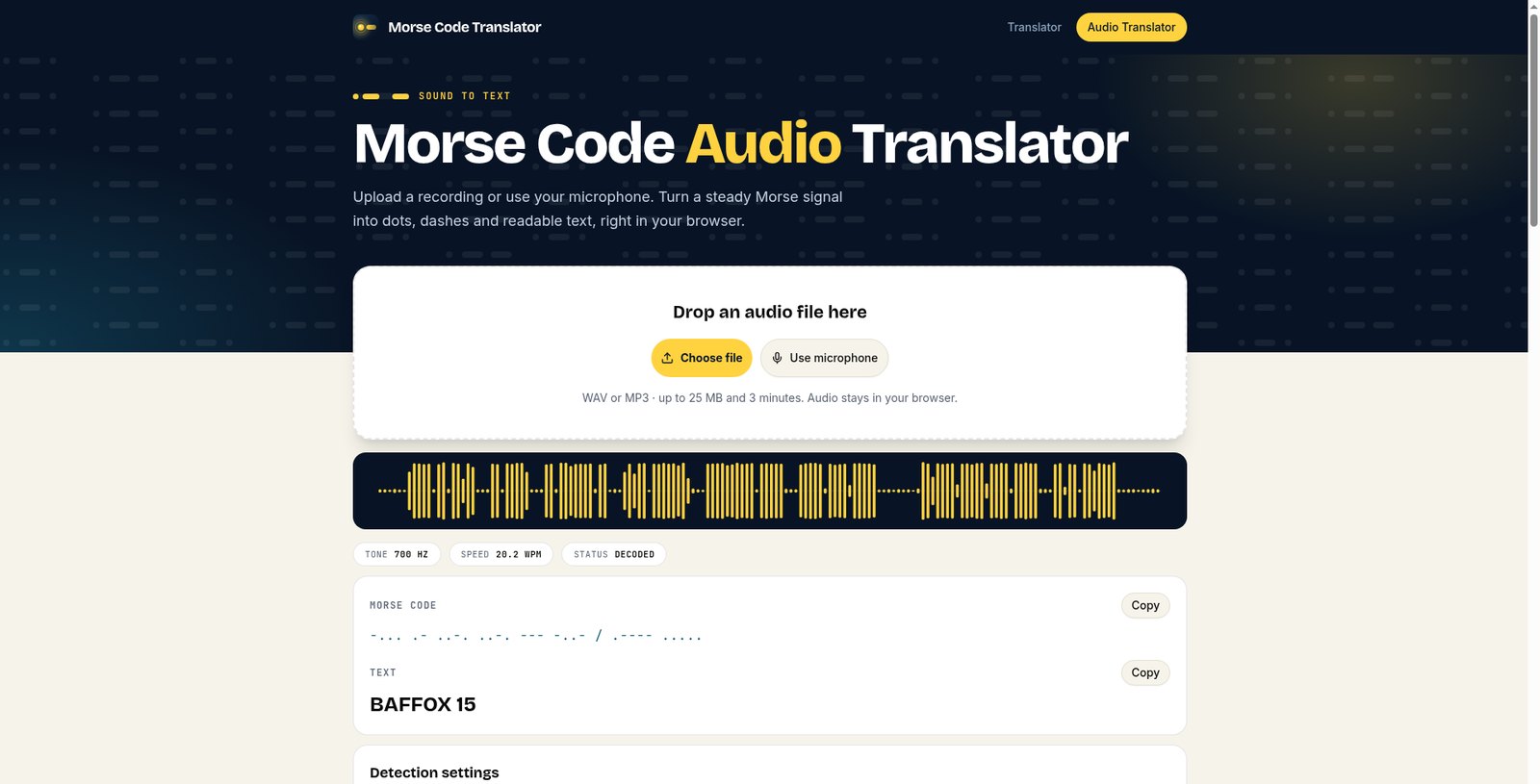
We then uploaded the same content with noise added and the level lowered. Auto-detection reported the same pitch, speed, Morse, and text as the clean file. That only shows that, with the tone still clear and merely quieter with a little background noise, this run did not misread it. It does not stand in for uneven hand-keyed Morse, several stations stacked together, or speech or music in the background. The page already lists those limits; we did not make separate failure samples this time. We also did not test the microphone.
If you often do small conversions like this in the browser, TINKER Online collects a number of other web utilities that open without installing anything. It is not the same site, but the way you use it is similar.
Common failures and limits
- If letters are missing spaces, or words are missing a
/, the whole string runs together and no longer reads as the original message. When you paste dots and dashes from somewhere else, check the separators before you doubt the content itself. - Audio decoding is aimed at a single, steady tone. If the hand keying is uneven, several signals overlap, or there is speech or music in the background, treat the output as a draft and check it against the original sound.
- A longer Farnsworth space (extra space between characters) may be treated as a word break. If you know the actual character speed, decode again with a manual speed.
- Uploads are limited to 25 MB and 3 minutes. For a longer recording, cut out the useful stretch first.
- A share link puts the plaintext into the URL, which will show up in browsing history and in the server’s access logs. Do not use it to send a private sentence.
- The flash can be uncomfortable for people who are sensitive to light. Leave Flash off when you need to.
- We did not test the microphone path, sending a WAV downloaded from the site back into the decoder, or characters that Morse cannot represent, such as Chinese text or letters with heavy accents. The page marks unmatched characters with
#; do not treat that mark as a letter.
Bottom line
This site is useful when you want to move between text and Morse in the browser, or decode a short, clean tone recording without first sending the file to a server. Our two homemade WAVs of BAFFOX 15 both came back correctly, including a quieter, slightly noisy copy. That is not a substitute for messy hand keying, overlapping stations, or speech. Treat the output as a draft, and do not put private text into a share link.


