


A photo you snap on your phone often carries the place it was taken, the camera model, and the time, tucked inside the file. Before you send it to someone, upload it to cloud storage, or drop it into a spreadsheet, a lot of people want those details removed first. Search for “remove EXIF” or “strip GPS,” and many sites will ask you to upload the original to their server. Once the location has left your machine, deleting your local copy only deletes your copy.
keeplocal puts small jobs such as stripping metadata and counting PDF pages in the browser, and does the work with WebAssembly on your machine. The product page says there is no server sitting around to receive files. On November 11, 2026 we took a test JPEG that contained GPS, walked through view, strip, and download on the metadata scrub page, and checked the exported file and the network requests. Below: who it is for, how to do it, how to verify the result, and what it cannot do.
Who it is for, and what to check first
It is a good fit if you have a JPEG, PNG, or PDF, want to see what is hidden in the file, and then download a copy with location and similar data removed — without sending the original to a converter you do not know. It is not a substitute for the system “remove location when sharing” option on a phone, and it is a poor fit for cleaning a whole camera roll: you have to drop files on the page one at a time.
| Item | Details (reviewed on November 11, 2026) |
|---|---|
| Entry points | keeplocal.tools; scrub page: scrub.keeplocal.tools |
| Other tools in the same set | PDF (count, merge, organize, compress), images (resize, convert, compress and strip EXIF/GPS), archives, and image-to-PDF |
| Formats the scrub page accepts | The site lists PDF, JPEG, and PNG. HEIC, WebP, and RAW are not listed |
| Price and accounts | Free, no signup. The site says there are no ads and no analytics cookies (theme preference is stored in localStorage on the device) |
| License and source | MIT; repo github.com/mtclab/localbench (the engine and repo are named localbench; the product name is keeplocal) |
| Project status | On the day we checked, GitHub showed 0 stars, the last push was around 2026-07-29, and there were no GitHub Releases. The scrub-page receipt listed the local core as v0.1.0 · WebAssembly. This is a very small open-source project; the conclusions below are based on this test, not on popularity |
The scrub page says JPEG and PNG pixels are kept “byte for byte,” and PDF page content is kept. What it removes is EXIF/GPS, XMP, IPTC/Photoshop, JPEG comments, PNG text and time chunks, and PDF document information and XMP. JFIF and the ICC color profile are left in place. It is explicit that it strips metadata, not picture content.
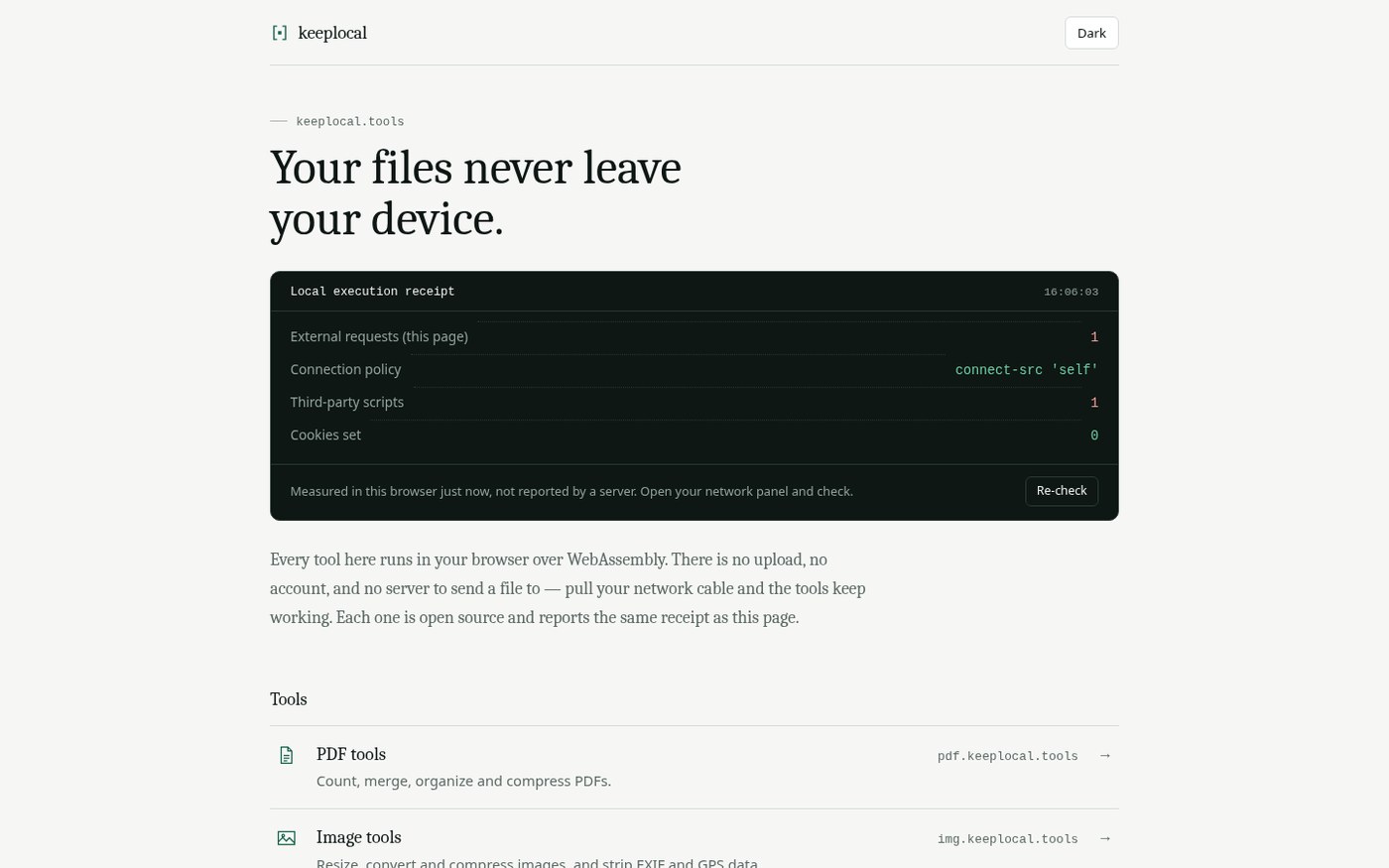
The homepage and each tool page have a “local execution receipt” on the right. It counts external requests, the connection policy, whether third-party scripts are present, and the number of cookies, and it tells you that you can open the Network panel in developer tools and check for yourself. The receipt is not a guarantee issued by a server. When we opened the homepage this time, it showed: 1 external request, 1 third-party script, 0 cookies, and a connect-src ‘self’ policy. In Network, that one external request and third-party script corresponded to Cloudflare Web Analytics at static.cloudflareinsights.com/beacon.min.js. File processing itself was not redirected because of it, but “the page has no third parties at all” does not match the receipt. Go by the receipt and the panel.
How to strip the location from a photo
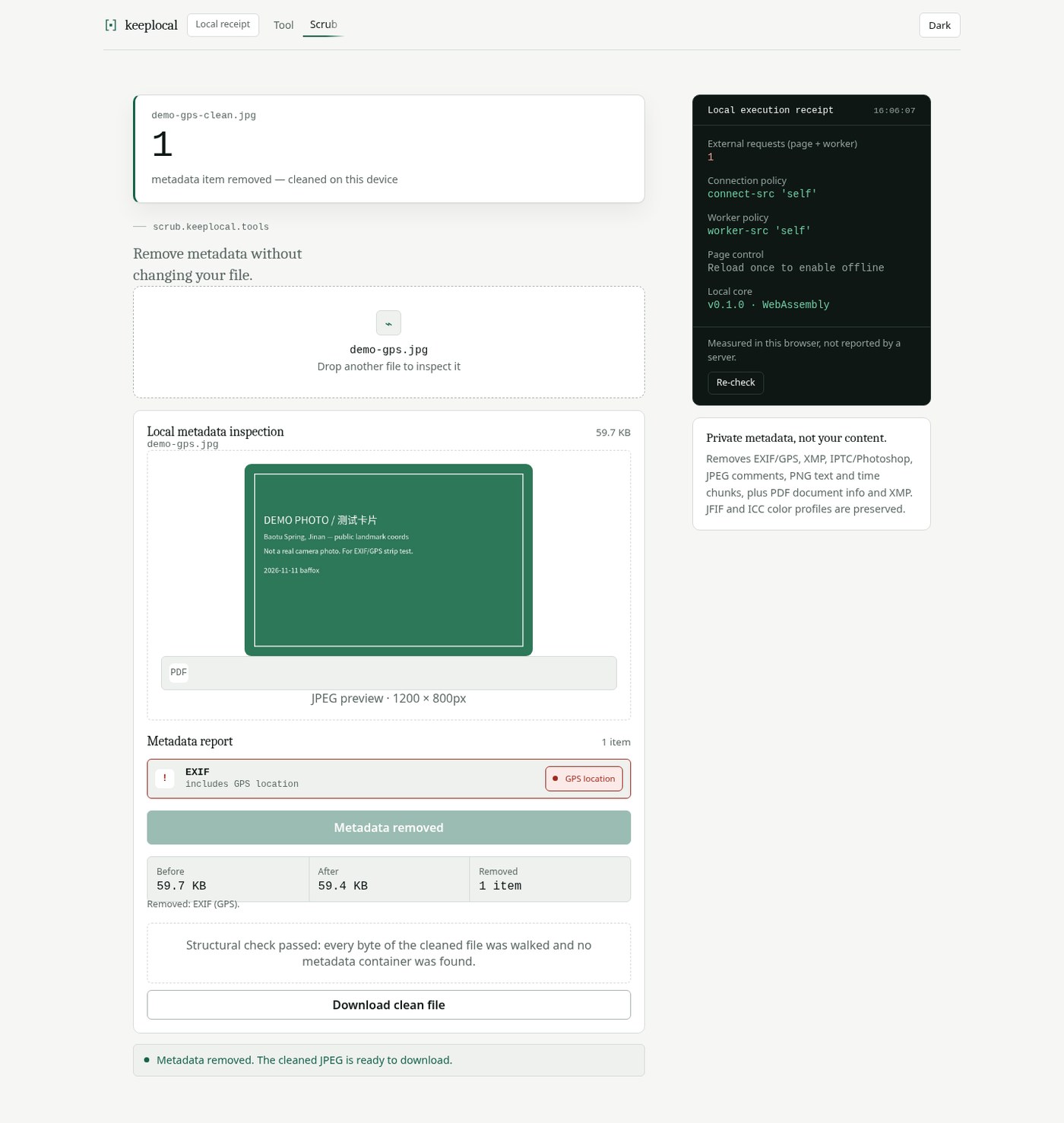
- Open scrub.keeplocal.tools. Wait until Local core on the right-hand receipt changes from Loading to a version number (v0.1.0 · WebAssembly this time), and the status bar no longer says “Loading the local processing core.” The first visit still has to fetch the core script and the .wasm file, which can take a few seconds. If the receipt says “Reload once to enable offline,” the offline cache only takes effect after another refresh — we did not re-test with the network off.
- Drop a JPEG, PNG, or PDF onto the dashed box, or pick a local file. Do not send the untreated original anywhere yet.
- Read the Metadata report first. If it has a location, you will see EXIF, flagged as GPS location. If there is no metadata, the page will say the file is already clean.
- When the list looks right, click Remove all metadata (or Metadata removed, once it has finished). Check the Before / After sizes, and which items Removed lists.
- If you see Structural check passed, click Download clean file. That saves a new file; the original is still on your disk.
- Open the download in a local tool that can read EXIF, and confirm whether the location, camera model, and capture time are still there. Do not rely only on the page saying the data has been removed.
iPhone photos are often HEIC by default. On the day we checked, the scrub page did not list HEIC as a supported format. To clean an original iPhone photo, convert it to JPEG on your machine first, or use “remove location” in the system share sheet. Do not assume that dropping a HEIC on the page will rewrite it.
What we actually cleaned: a test image with GPS
The test was on November 11, 2026. The source was not a real camera photo. It was a homemade green test card whose picture said DEMO PHOTO / 测试卡片, with a public coordinate near Baotu Spring in Jinan, China (about 36.6609° N, 117.0150° E), manufacturer DEMO-CAM, artist baffox-test, and a capture time of 2026:11:11 16:00:00. It was only used to check whether GPS would be recognized and whether it was still there after cleaning. It is not a stand-in for a multi-megabyte travel photo on your phone.
After we dropped it in, the page previewed a 1200×800 JPEG. The report listed 1 EXIF item, flagged as GPS location. After cleaning: Before 59.7 KB, After 59.4 KB, Removed 1 item, described as EXIF (GPS). The page reported that the structural check passed: it had walked the cleaned file byte by byte and found no further metadata containers. The download was named demo-gps-clean.jpg.
We then read the downloaded file with a local program: the EXIF and GPS segments were empty, and the strings that had been in the original — DEMO-CAM, TEST-CARD, baffox-test, 2026:11:11 — were also gone from the cleaned file. That only shows that these fields were removed from this one JPEG. It does not mean every format and every hidden field will necessarily be found.
On whether the file was uploaded: after we opened the scrub page, Network showed same-origin scripts, styles, a Web Worker, and localbench_core_bg-….wasm, plus the Cloudflare analytics script mentioned above. After we dropped in the test JPEG, the new request was a blob: preview URL (a local browser object). We did not see the image POSTed or uploaded to another host. During processing, the receipt still showed 1 external request. That only describes the network behavior of this session; it is not a warranty for a later redesign or for browser extensions you have installed. To check again, you could turn on airplane mode after the core has loaded and drop the file in once more (we did not re-test offline).
Separately, a legitimate two-page PDF, run through Page count at pdf.keeplocal.tools, came back as “2 pages — counted on this device.” An earlier handwritten PDF with a malformed trailer was rejected, with “couldn’t parse input: invalid file trailer.” Merge, compress, image resize, and archive tools were not tested this time.
Common failures and limits
- According to the site, the scrub page currently accepts only PDF, JPEG, and PNG. Do not assume it can handle HEIC, many camera RAW formats, or anything not on the list.
- A damaged original, or a file that is not an image or a PDF at all, will fail to parse. The broken PDF above is an example.
- The project is still v0.1.0, the repo is not updated often, and it has almost no stars on GitHub. Whether it will stay online, and whether its behavior will change, is something you should check again on the page and in the source.
- The receipt will show third-party scripts honestly. On the day we checked, both the homepage and the tool pages loaded Cloudflare’s analytics script. “The file is not uploaded” and “the page makes no external requests at all” are not the same claim.
- Offline use requires a successful first load and a refresh when prompted. We did not verify that a cleanup can finish after the network is unplugged.
- This is not a forensics-grade metadata tool. We only tested JPEG EXIF/GPS. PDF document information, PNG text chunks, and the rest should be taken from the site’s notes and spot-checked with your own files.
How it sits next to other options
If what you need to handle is a movement track rather than a location inside a photo, this site has covered GPX Converter: FIT, GPX, KML and similar formats are converted in the browser, with the same emphasis on not handing the route to someone else. If you mainly want to merge, split, or compress PDFs, pdf.iceai.cloud is more of a PDF toolbox: some operations stay local, while conversion features may still upload, which is not the same design as keeplocal’s “every tool runs in WASM on this machine.” To shrink a video to a target size without uploading it, see Make Video Smaller (EN pending).
To strip many images in a batch on your own computer, a desktop command-line tool such as ExifTool is still a better fit — you just have to install it. When sharing from a phone, iOS and Android can also turn location off in the system share options; that is provided by the operating system, and it does not go through this webpage.
Bottom line
If your problem is “this JPEG may have a location in it, I want it gone before I send it, and I do not want to upload the original to an online converter,” start at keeplocal’s scrub page. Walk through a non-sensitive test image first: see whether the report shows GPS, confirm the download with a local tool, and open Network yourself to check whether dropping the file in triggers an upload. Only then process the photo you actually need to send. For HEIC, a large album, or batch work, use a system option or a desktop tool instead. This is a very small open-source project; go by the page you open that day and by your own checks.


