


When you need subtitles for a walkthrough, an interview, or a meeting you recorded yourself, the usual path is to upload the file to a cloud transcription site, or to create an account and wait for credits. That gets awkward if the recording is something you would rather not send off your computer, or if you only need subtitles once and do not want another account for it.
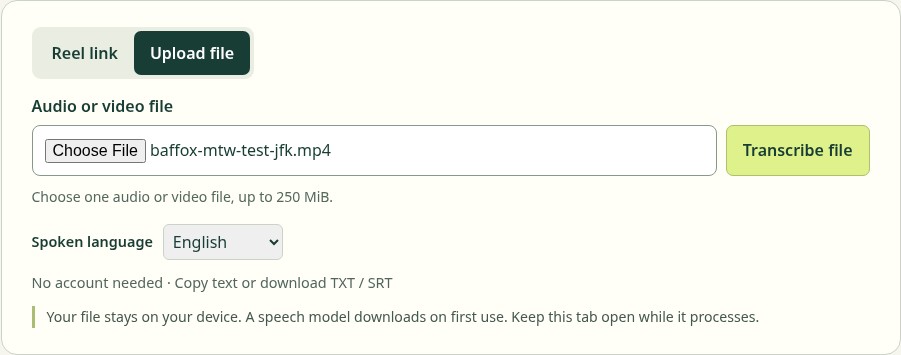
Media to Words turns this into a web page: you pick a local audio or video file, the speech is recognized in the browser, and you can copy the text or download a timestamped TXT or SRT file. The page says that in Upload file mode the recording stays on your device and recognition runs in the browser. The first run still needs a network connection, because it downloads a speech model. On November 13, 2026 we walked two test clips with known scripts through that path, and used Chrome DevTools to look at the network requests at the time. What follows is only what we actually saw, and where the tool is clearly a poor fit.
Who it is for, and what to check first
It is a good fit if you already have an audio or video file you have the right to process, you just want an editable transcript or an SRT file quickly, and you do not want to register first or send the whole recording to a cloud recognition service. It does not translate. It does not label speakers. We also did not find a paid upgrade page (/pricing returned 404). The interface is currently in English.
Before you start, confirm that you have the right to turn this recording into text or subtitles. Automatic recognition still has to be checked against the original audio, especially names, numbers, proper nouns, and noisy passages.
| Item | Details (reviewed and tested on November 13, 2026) |
|---|---|
| Address | https://mediatowords.com/ |
| Modes | The default is Reel link (paste a public Instagram link; we did not test that path). We tested Upload file |
| Input | One local audio or video file, up to 250 MiB. The page does not publish a fixed extension whitelist; whether a file can be decoded depends on the browser and the audio track inside it |
| Languages | The dropdown includes Auto-detect, plus English, Spanish, French, German, Indonesian, Portuguese, Chinese, Japanese, Korean, Arabic, Hindi, and Italian. Both of our tests explicitly selected English. We did not test Chinese or Auto-detect |
| Output | An editable, line-by-line transcript on the page, plus Copy text, Download TXT, and Download SRT. The TXT file has a start time on each line; the SRT file has standard start and end times for each cue |
| Account and price | No login required. We did not see a paywall or a plan page |
| Recognition model (from this session’s network capture, not a marketing claim) | The browser downloaded Xenova whisper-tiny ONNX models from this site, with scripts and WASM from jsDelivr. This is a small Whisper model. Do not expect the accuracy of a large transcription model |
“The file stays on your device” is not the same as fully offline. The first use has to go online to download the model and scripts, and we also saw a few very small analytics requests. The privacy policy says Cloudflare serves the site and the model files, and jsDelivr serves the transcription scripts; those connections expose your IP to the respective providers. If you submit an Instagram link, that is a different path: the link is first sent to their Cloudflare relay to fetch the public video, and recognition then runs in the browser. We did not test that path.
How to transcribe a file, then how to check the result
- Open mediatowords.com and switch to Upload file. You do not need an account first. No cookie banner appeared when we opened it.
- Click Choose File and pick an audio or video file no larger than 250 MiB, with clear speech in it. The page should show the file name.
- In Spoken language, choose the language actually spoken in the recording. If you know it is English, choose English; do not rely on Auto-detect — we did not test Auto-detect this time.
- Click Transcribe file and leave the tab open. The controls become unavailable while it works. On a first use you will see “Reading audio…,” “Preparing speech recognition…,” and “Downloading speech model file: … MiB received.” The percentage may jump back to a smaller number when a new file starts downloading; that is not necessarily a hang. Our first run took 3 minutes 36 seconds from the click to a result, mostly spent downloading the model. Later the same day, with the model already cached in the browser, a second file took about 4.1 seconds.
- The result card says “Complete · Transcribed on this device.” Check two verification lines first: Recording length, and Last recognized speech ends at. If the last recognized speech ends well short of the recording length, do not export yet — listen to the end in the in-page player. The page itself warns that a gap at the end may just be silence, and the timecodes alone do not prove the transcript is complete.
- Edit every line against the audio, especially names, numbers, and technical terms. You are editing the text; the subtitle timing stays the same. In our test, a download after edits included the changes in both the TXT and the SRT, and the SRT start and end times did not change.
- Download TXT if you want a plain-text note, or SRT if you will import the cues into an editor. Save the file before you close the page; a refresh discards a result you have not downloaded.
Keep the network available until the model has finished downloading. Do not use this flow with confidential or unauthorized recordings.
What we actually tested: two clips with known scripts
The tests were on November 13, 2026, in Chrome on this machine, without signing in.
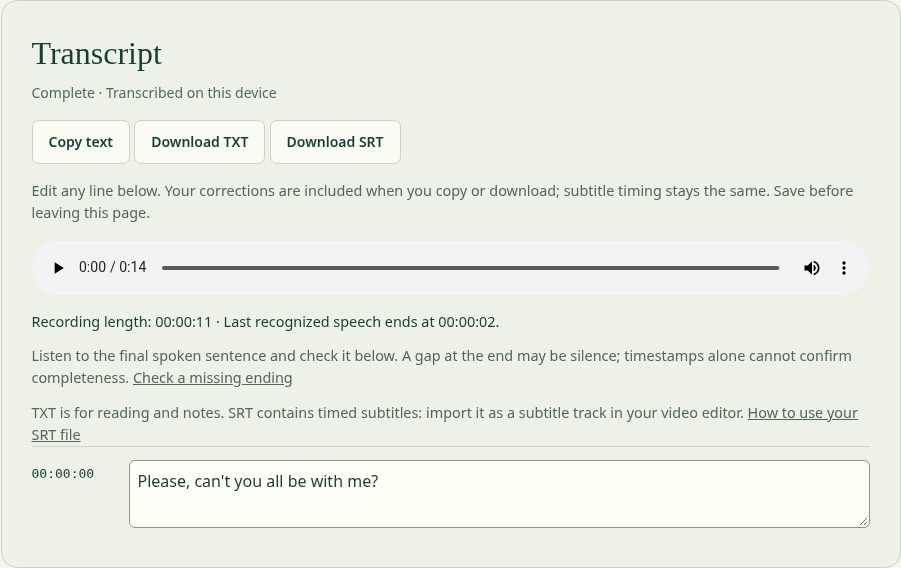
The first clip was an English reading we synthesized with espeak-ng and wrapped in an MP4. The script was written in advance and included the name Alice Chen, the date November thirteenth, the time three thirty, the amount two thousand four hundred dollars, and the file name Project River draft three. The audio was about 12 seconds; the wrapped video was about 14.44 seconds (a little extra picture at the end). We set the language to English. This was the first use, and it took 3 minutes 36 seconds from the click to a result. The in-page player showed 0:14, but the card reported a Recording length of 00:00:11 and Last recognized speech ends at 00:00:02. The entire transcript was a single line:
Please, can't you all be with me?
Apart from the opening Please, it did not match the script. The exported SRT cue ran 00:00:00,000 –> 00:00:02,000, which matches “only recognized through second 2.” This was electronic synthetic speech, very different from a real voice, so it is not a conclusion about how the tool handles natural speech. It only shows that the flow can finish and a file can be exported — recognition quality cannot be assumed.
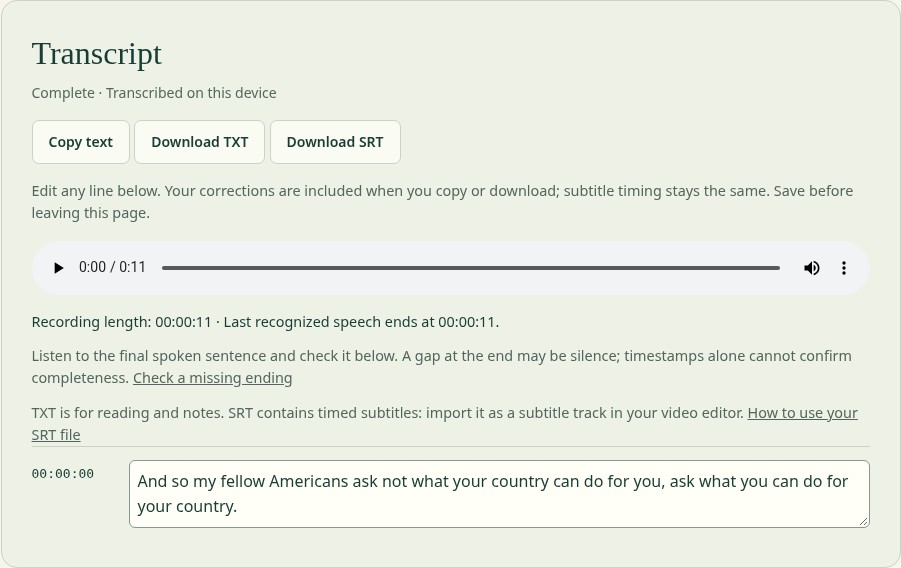
Later the same day we switched to a common test clip from the OpenAI Whisper repository, tests/jfk.flac — about 11 seconds of recorded human speech — also wrapped as an MP4, still with English selected. This time there was no model-download prompt, and it took about 4.1 seconds from the click to “Transcript ready.” The player, Recording length, Last recognized speech ends at, and the end time in the exported SRT were all 11 seconds, and they agreed with each other. The full on-page result was a single line:
And so my fellow Americans ask not what your country can do for you, ask what you can do for your country.
Against the commonly quoted text, the words and their order matched: no omissions, additions, or substitutions. The only differences were punctuation: no comma after so, no colon after Americans, and a comma rather than a dash before the second ask. For a first-pass subtitle, that is already usable; you will still want to adjust the punctuation to your own style.
These tests do not stand in for Chinese, a noisy room, overlapping speakers, or a long lecture recording. The site uses the relatively small whisper-tiny model. With synthetic speech, a heavy accent, or loud music underneath, treat a listen-back as a required step, not an optional one.
On where the file went: during the first test we opened DevTools Network and kept the log. The test MP4 was about 190 KB, but all POST requests together were only about 2.6 KB, with status 204. Opening one of them showed the address https://mediatowords.com/count/home/file/txt, which looks more like a click counter for the export than an upload of the media file. The large transfers were the model download: the decoder about 30.8 MB, the encoder about 10.1 MB, plus the tokenizer and the scripts and WASM on jsDelivr — about 23 requests and about 43.6 MB transferred in this session. In-page playback used a local blob: URL. We did not open the body of every request, so this is not “we inspected every payload,” but by size and visible URLs we did not see this MP4 being uploaded to a recognition API. That conclusion applies only to this Upload file run. It does not extend to the untested Instagram-link mode.
One more detail: after we clicked Copy text, the button label did not change to “Copied,” and no toast appeared. We did not independently check the clipboard on this machine, so we are not treating “copy definitely worked” as verified. If you need to keep the result, rely on the downloaded TXT or SRT.
Common failures and limits
- Do not upload audio or video you have no right to process, and do not paste a link you are not allowed to fetch. Turning something into text or subtitles does not give you the right to publish it.
- Automatic recognition will be wrong. Names, numbers, terms, and passages with loud background music especially need a listen-back. In our synthetic-speech test, the result was almost unusable.
- Check whether “last recognized speech ends at” is clearly shorter than the recording. If it is, listen to the ending before you decide to use the subtitle file.
- You can process only one file at a time, and it cannot be larger than 250 MiB. The page does not promise that every extension will decode. If it says the file cannot be decoded, export a common audio format locally and try again.
- The first use downloads tens of megabytes of model files, which takes time and a network connection. After the model is cached it is much faster, but a different browser or a cleared cache may need another download.
- We did not see a switch for a larger model, and we did not test Chinese, Auto-detect, batch processing, or files close to the 250 MiB limit.
- Instagram Reel link mode sends the public link to their server to fetch the video. That is not the same path as “the local file is not uploaded,” and we did not test it.
- This is an independent web tool. The model and the flow may change. Go by the page and the privacy policy on the day you use it.
How it sits next to other options
If you are working from a public course or a long tutorial on YouTube, Bilibili (a major video site in China), or Douyin (the Chinese counterpart of TikTok), and you want timestamped notes and a mind map rather than an SRT you will tidy yourself, see a2md on this site (EN pending). That is a cloud service that requires an account and uploads the file — the opposite trade-off from Media to Words.
If what you want is not “turn a recording you already have into a transcript,” but “speak and have the words pasted into the current text field,” and you want that fully offline, see Handy (EN pending). That is an open-source dictation app you install on your computer, not a web transcriber.
If you also want voice cloning and video dubbing on your own machine, and you want transcription in the same local workflow, see VoiceStudio (EN pending). It is heavier than this web page, and more complete.
If the video is simply too large and you want to shrink it in the browser without uploading it, see Make Video Smaller (EN pending). That is compression, not transcription.
Bottom line
Upload file on Media to Words is a good fit if you occasionally need an editable TXT or SRT from a recording of your own, you do not want to register first, and you do not want to send the audio to a cloud recognizer. In two tests on November 13, 2026, the flow, the export, and a download after edits all worked. The first model download was slow; later runs in the same browser took only a few seconds. A common recorded-English test clip got the words and word order right; a clip of synthetic English was almost entirely wrong. Treat it as a tool that produces a first draft you still have to check against the audio, not as a subtitle machine you can publish without listening.


