


When you want a recorded demo of a web-page interaction, the usual routes are a full-desktop screen recorder, or recordVideo in Playwright or Puppeteer. The second path still goes through Chrome’s older Page.startScreencast interface: each frame is compressed as a JPEG, shipped out over the debugging protocol, and then handed to ffmpeg to mux. The frame rate often cannot keep up, and after you stop recording you still wait for a transcode.
chrome-capture is an open-source command-line tool and library by Paul Irish, a member of the Chrome team. It uses Page.startScreenRecording, available from Chrome 153: frames go from the compositor straight into the encoder, and Chrome writes an AV1 MP4 as it records. It can also include the current tab’s audio, with no extra ffmpeg pass. It is aimed at people who already use Chrome for page demos or automated tests. It is not a point-and-click screen recorder for general use.
On November 15, 2026 we ran the command line on Linux with the machine’s own Chrome 156, and checked the frame rate and audio with ffprobe. What follows is only what we actually saw, and where the tool is clearly a poor fit.
Who it is for, and what to check first
It is a good fit if you need a high-frame-rate video of a web interaction: showing a colleague the steps, keeping evidence from an automated test, or playing back an animation or a scrolling effect. You need to be able to run a command in a terminal, and the machine needs a recent enough Chrome and Node.
It will not replace the operating system’s full-desktop recorder, and it will not edit, caption, or compress the file to a target size for you. If the recording is simply too large to send, we also wrote about Make Video Smaller (the article is still in Chinese): you enter a target size in the browser and compress the video without uploading the file.
| Item | Details (reviewed and tested on November 15, 2026) |
|---|---|
| Project | https://github.com/paulirish/chrome-capture, Apache-2.0 |
| Demo page | https://paulirish.github.io/chrome-capture/ |
| How to use | The CLI is npx chrome-capture. It can also be called from Playwright, Puppeteer, or raw CDP. This time we only tested the command line. |
| Requirements | Chrome 153 or newer. The official package.json requires Node 24.11.0 or later. |
| Default output | 1280×720, 60 fps, AV1 video. Audio is on by default: 48 kHz stereo Opus. Use --no-audio to turn it off. |
| This test environment | Linux, Google Chrome 156.0.8078.47, a portable Node 24.11.0, in headless mode with no graphical interface. |
| Not tested | 120 fps (the notes say you need a 120 Hz display and a headed Chrome), Windows / macOS, the library API, and side-by-side DevTools recording. |
If the system Node is still 20 or 22, a plain npx may fail. We ran the same command with Node 20.19.2: the process exited immediately, with WebSocket is not defined. It only ran normally after we switched to 24.11.0.
How to record once, then how to check the result
- Confirm that
google-chrome --version(or whatever command launches Chrome on your machine) is at least 153, and thatnode -vis at least 24.11.0. - In a terminal, run a command like the following, replacing the URL, output file, and duration with yours:
npx --yes chrome-capture https://paulirish.github.io/chrome-capture/ demo.mp4 5s --chrome=/usr/bin/google-chrome- Audio from the tab is recorded by default. Add
--no-audioif you only want the picture. Resolution and frame rate can be changed with--width,--height, and--fps. - When the command finishes you should immediately see a line starting with
Savedand an.mp4name, together with the byte size, duration, resolution, and frame rate. After you stop, it should not sit on an ffmpeg transcode — in both of our recordings, the file was already complete when that line appeared. - Watch it in a local player, and check it with ffprobe (or a similar tool): the video codec should be
av1/av01, and the frame count should be close to duration × frame rate, not a handful of frames stretched out. If there is sound, you should also see an Opus track at 48,000 Hz. - To confirm that the picture is actually moving, do not rely on the file properties alone. Extract a frame from the beginning, the middle, and the end, and compare them. The official demo page has its own frame counter and in-page FPS, which makes this check easy.
Do not record and circulate a confidential page, a signed-in admin screen, or a frame that contains someone else’s likeness or content you are not allowed to share. The command line will have the local Chrome open the target URL; confirm for yourself that it is opening the page you mean to record.
What we actually recorded: two clips
The test was on November 15, 2026, on this Linux machine, with Chrome 156 and Node 24.11.0, without signing into any site. The first attempt, using the system Node 20.19.2 with the same npx command, did not start a recording.
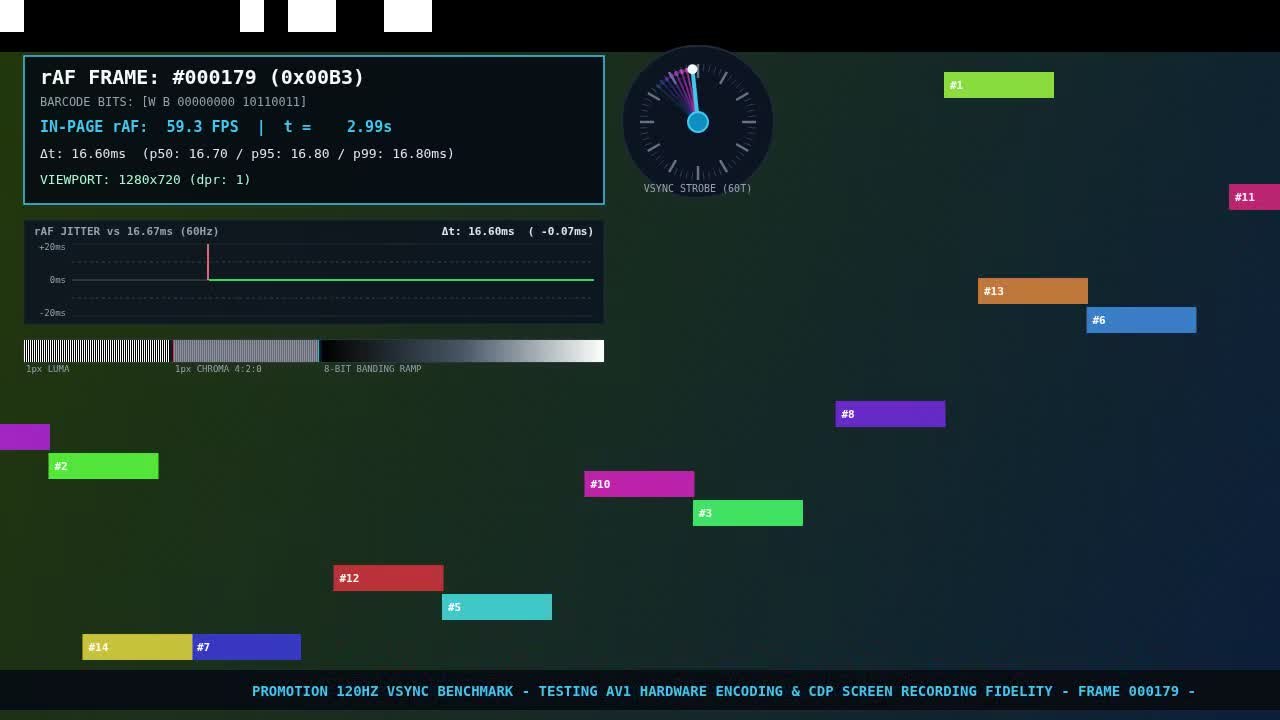
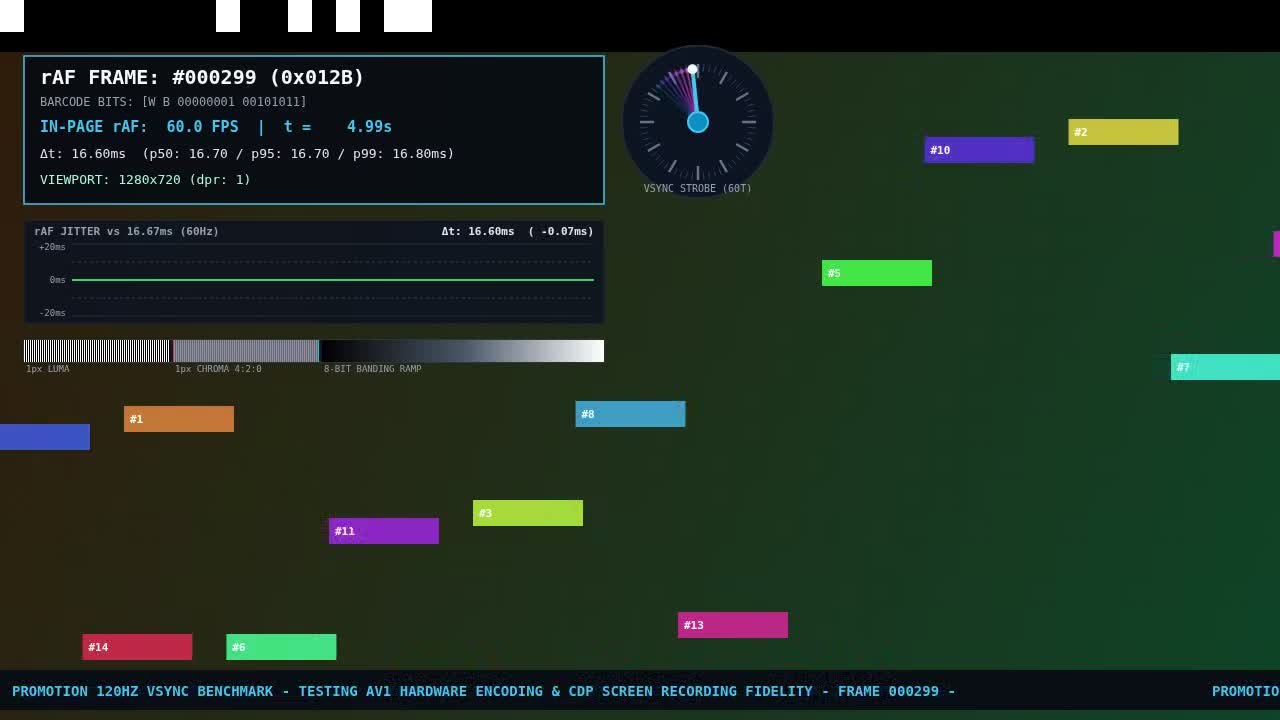
The first clip was the official demo page, 5 seconds, 1280×720, 60 fps, with audio off. The command line reported a file of 2,201,232 bytes. ffprobe showed a duration of 5.001 seconds, video AV1 (av01), 1280×720, at about 3,518 kb/s; a frame count of 300, which matches 5 seconds × 60 frames. We extracted frames at about 1.19, 2.99, and 4.99 seconds: the in-page counters were #000071, #000179, and #000299, the in-page refresh rose from 58.3 FPS to 60.0 FPS, and the color blocks had moved. These were not the same still frame written over and over.
For the second clip we made a local test page: a green square moved back and forth, and a short 440 Hz beep sounded every 0.5 seconds. We recorded 4 seconds with --audio. The command line reported 242,422 bytes (the picture is much simpler than the official demo, and the file is much smaller). ffprobe saw two tracks: video still AV1, 1280×720, about 3.99 seconds and 241 frames; audio Opus, 48,000 Hz, stereo, about 4.02 seconds, at about 128 kb/s. Looking at the energy of the isolated audio track, a burst appeared about every 0.5 seconds, and the 440 Hz component was much stronger than 1,000 Hz, which matches what the page was set to do. In extracted frames, the green square was in different positions at 0.3 seconds and 1.3 seconds.
This test does not stand in for 120 fps, 4K (2160p), a long recording, or the cursor style in headed mode. The notes say 120 fps needs a 120 Hz display and a switch to headful Chrome. We did not set up those conditions on this machine, so we are not writing that “120 fps already works.”
If the recording is a talk or an interview and the next step is a transcript rather than another pass at compressing the file, see Media to Words: it turns a local video into an SRT in the browser, without uploading the file. If you want to judge, shot by shot, whether a video is live action, AI, or made with code, we also wrote about rea-video.
Common failures and limits
- This is a command-line tool for developers and testers, not a replacement for the system screen recorder. It will not crop, caption, add a soundtrack, or export a typical H.264 file.
- Node has to be new enough. On 20.x we immediately got
WebSocket is not defined. Checknode -vfirst, and switch to 24.11 or later if needed. Do not assumenpxwill supply the runtime for you. - Chrome 153 or newer is required. Older versions do not have
Page.startScreenRecording, and this command has no fallback to the old interface. - The output is AV1. The ffprobe and recent Chrome on this machine could open it. Some older players, older editors, or platforms that only accept H.264 may not play it, and you would need to transcode. We did not verify this on third-party platforms one by one.
- We did not test 120 fps, 2160p, headed mode, Windows, or macOS. The benchmark numbers in the repository notes come from the author’s comparison on an M4 Max. That is project documentation, not our measurement.
- We did not run the Playwright / Puppeteer wrapper APIs separately, so a successful command line is not the same as “it is already wired into the test framework.”
- It records a specified page (or, with the right flags, a browser window), not the whole desktop, and it cannot enter another application’s window.
Before you record, confirm that the page content may be saved and forwarded. The command itself is short; the responsibility still sits with the person who runs it.
Bottom line
chrome-capture is useful when you already work in a terminal and want Chrome itself to write a 60 fps AV1 demo of a web page, without waiting for ffmpeg after you stop. On Chrome 156 with Node 24.11.0, our two clips matched the requested frame count, and the second clip’s Opus track lined up with the beeps we had put on the page. It will not replace a desktop recorder, and it did not even start on Node 20. Check the Chrome and Node versions first, then confirm the file with ffprobe rather than the file size alone.


