


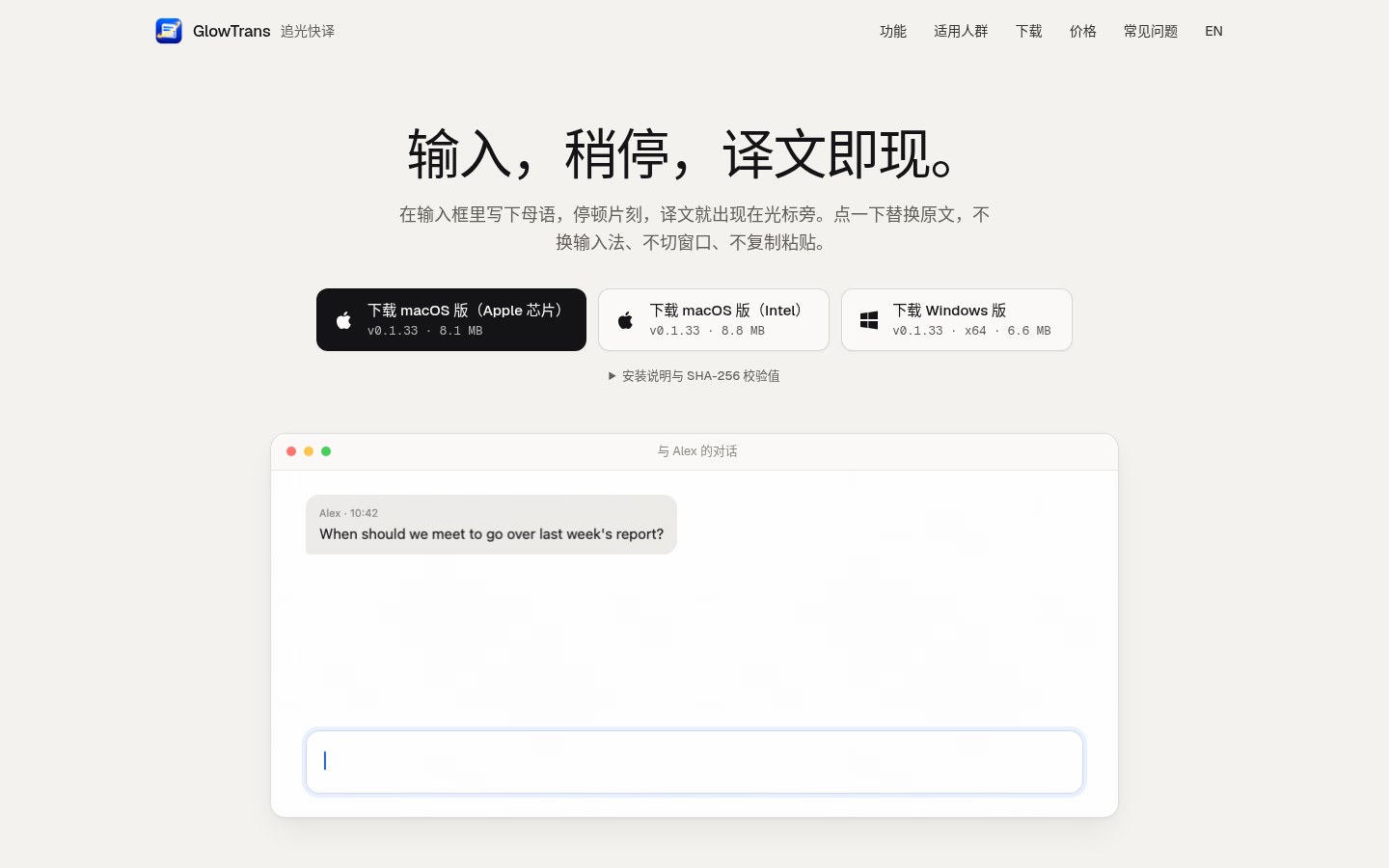
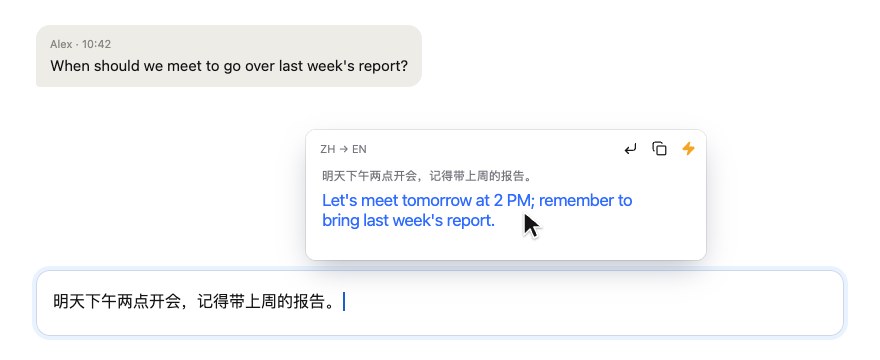
You think a sentence in your native language, then have to type it in WhatsApp, email or a web form in another language — and the worst part is the copy → switch window → paste loop. GlowTrans (Chinese name 追光快译 / “chase-light quick translate”; site glowtrans.beautare.com) is a free macOS / Windows desktop “type-to-translate” helper: keep using your usual IME in a supported text field; about 0.8 seconds after the text commits, a translation popup appears next to the caret (without stealing focus). Click once to replace the original, or copy it. It is not an IME and it does not plug into the system input pipeline. Researched November 9, 2026 against the site, llms.txt and the download page (current build v0.1.33, build 261108, marked released 2026-11-08). The project is still early 0.1.x: only some app text fields work, and results vary by control. Treat it as a usable early tool, not a finished product.
At a glance
| Item | Details |
|---|---|
| Product | GlowTrans (Chinese name 追光快译) / glowtrans.beautare.com |
| Version | v0.1.33 (261108). Research-day downloads: GlowTrans-macOS-arm64-v0.1.33-261108.dmg (~8.1 MB), GlowTrans-macOS-x64-v0.1.33-261108.dmg (~8.8 MB), GlowTrans-Windows-x64-v0.1.33-261108.zip (~6.6 MB); the site publishes SHA-256 checksums |
| Platform | macOS 12+ (separate Apple silicon and Intel packages; first launch needs Accessibility under System Settings › Privacy & Security; if Input Monitoring is also required, enable it and restart. On-device “macOS System” translation needs macOS 15+); Windows 10/11 x64 (unzip and run GlowTrans.exe, no elevation) |
| Signing | llms.txt says both macOS DMGs are Apple-notarized; the Windows package is not code-signed yet, so SmartScreen may warn (More info › Run anyway) |
| Price | Free to download. Default MyMemory, macOS system translation and your own API key stay free. Official translation without a pass: about 50 short messages/day; a time pass (monthly ¥19 / 30 days, yearly ¥168 / 365 days — one-time purchase, no auto-renew) raises that to about 800/day and unlocks custom style plus priority routing. Full refund within 7 days of purchase (once per person) |
| Languages | 19 translation languages (Simplified/Traditional Chinese, English, Japanese, Korean, French, German, Spanish, Portuguese, Italian, Russian, Arabic, Vietnamese, Thai, Dutch, Polish, Turkish, Hindi, Indonesian); the UI covers the first 14. Default Chinese→English with one-click swap. Actual pairs depend on the chosen service; macOS system translation also needs the matching system language packs |
What it actually does
- Pause to translate — keep your IME: after the IME commits text, it waits about 0.8 seconds before translating (and stays quiet while composition is in progress, when the field exposes that state). The pause is adjustable from 0.3 to 5 seconds. You can also press ⌘/Ctrl+Shift+Y to translate the current field manually, or ⌘/Ctrl+Alt+Shift+P to toggle auto-translate. With auto-translate off, pausing while typing no longer reads the field or pops a translation — use the manual shortcut when you need it.
- One click replaces the original: the popup sits next to the caret without stealing focus; click to write back into the field. Most fields keep Undo.
- Which fields work: the site lists browsers, WhatsApp, WeChat, Telegram, system text fields, mail and other standard controls. macOS reads via Accessibility; Windows via UI Automation. Compatibility depends on the app and control; some custom-drawn fields that never expose text to the OS cannot be read or translated automatically. Password fields are never read.
- Where translations come from: the default is the keyless public MyMemory service (anonymous use is about 5,000 characters/day; the provider sets the real quota). Alternatives: your own OpenAI-compatible endpoint (including local/LAN Ollama, LM Studio, vLLM — text need not leave your network); on macOS 15+, on-device “macOS System” translation (after downloading languages, the source never leaves the Mac; this path skips context, glossary and output style); or official GlowTrans translation — that path goes through GlowTrans servers and sends the source plus any enabled reference context / matched glossary terms to the upstream model.
- History and keys: translation history is not written to disk by default; only the last 128 results stay in memory and clear on quit. API keys are stored in plaintext in the per-user settings file (current user readable only), or you can prefill with the
GLOWTRANS_API_KEYenvironment variable (prefilled keys are not written to the file). To detect when you pause, it watches keyboard and mouse activity types and timestamps — not which keys you pressed. - How to install: on macOS open the DMG, drag GlowTrans into Applications, and grant Accessibility (and Input Monitoring if prompted, then restart). On Windows, unzip and run.
How it sits next to tools on this site
| You care more about… | Better fit |
|---|---|
| Rewrite, translate or tidy dictation in any Mac text field (shortcut pops a writing panel; local models OK) | Inklet |
| Whole-page bilingual translation and selection explain in the browser | Aside |
| Reading foreign pages in Chrome with bilingual view and selection translate | mewCat |
| Typing in place while a translation appears beside the caret for one-click replace (desktop type-to-translate — not a page extension, not a new IME) | GlowTrans |
In short: Inklet is closer to “select or summon a panel, let a model rewrite / translate / dictate, then put it back.” Aside and mewCat deal with pages that are already written. GlowTrans does a narrower job: while you are still typing in a field, the translation shows up beside you.
Boundaries (read before you download)
- Good fit: you think in one language but often write another in desktop chat, mail or web forms, and you do not want to switch IMEs or keep copying and pasting.
- Caveats: on research day it was still early v0.1.33; results differ by app and field — do not expect perfect replace everywhere. Official translation sends the source and any enabled context upstream; MyMemory follows that provider’s policy. We did not install the app ourselves; this write-up follows the site and official screenshots.
- Not a great fit: you mainly want to translate open foreign webpages (use Aside / mewCat); or you want rewrite, dictation and cleanup in any field (use Inklet).
Bottom line
GlowTrans packages “type in your native language → pause → see a translation beside the caret → click to replace” into a desktop tool that does not replace your IME. macOS and Windows both have packages; free public translation works out of the box, or you can switch to on-device system translation or your own endpoint. It is still on 0.1.x, so field compatibility is something you have to try. If you already use Inklet for rewrite and dictation, or Aside to read pages, this adds a lighter “translate while typing” path.


