


Contracts, bank statements, or a résumé you are about to send a client often need phone numbers, ID numbers, and account numbers hidden first. A common shortcut is to draw a black box on the PDF and export it. The text layer underneath is often still there: the other party can select it with a mouse, or extract it with a tool such as pdftotext, and the original wording may come right back out. Worse, the same information can leak again through document properties if an author name or keywords were saved there.
AnyRedact is a browser-based redaction tool. It supports PDFs, and it also lists images, Word, Excel, PowerPoint, plain text, and audio. The point is not “a blacker box.” On export, it turns each page into a new image, writes the already covered areas into the pixels, and strips the original text layer, links, forms, and metadata. On November 13, 2026 we walked a homemade fictional contract through two paths: a local, manual-box export with no upload, and an Upload path that sends the extracted text to a cloud AI to search. What follows is only what we actually checked. Word, spreadsheets, scans, and audio were not tested this time.
Who it is for, and what to check first
It is a good fit if you occasionally need to send out a PDF, you want the redacted text to be no longer copyable, and you do not want to install a desktop “secure PDF editor” first — for example, hiding personal contact details in a contract before you send it externally, or clearing keys from a log before you share it. It is not a substitute for Adobe Acrobat, and it is a poor fit for a working copy you still need to fill in, sign, or search: according to the official description, the exported PDF becomes image-based and can no longer be searched as text.
There are two paths, and they do not have the same privacy implications. Choose first:
- Manual redaction only: after you open the file, do not click Upload. Draw the boxes on the page yourself, then download. The official privacy policy states that if you do not click Upload, the content does not leave the browser, and the finished file is also generated on your device.
- Let AI help you find items: after you click Upload, the extracted text is sent over HTTPS to a Cloudflare Worker and recognized with Cloudflare Workers AI. License-plate or street-sign detection, and audio processing, send the corresponding data as well. For a contract, client file, or internal document, confirm first whether you are allowed to hand that text to a third party.
We did not sign in for this test, and we did not pay for extra credits.
| Item | Details (reviewed and partly tested on November 13, 2026) |
|---|---|
| Address | https://anyredact.app/redact-pdf (main site anyredact.app) |
| Input | The PDF page states a limit of 60 pages per file. Images, Word, Excel, PowerPoint, text, and audio are also listed; those other types were not tested |
| Export (official description, checked on a PDF) | Each page is regenerated as an image. The text layer, links, forms, attachments, and metadata are removed. The exported file cannot be searched as the original text |
| Free allowance | No account required. 10 credits a day. The official pricing page: ordinary documents use about 1 credit per 3,000 characters (about one page); audio uses about 3 credits per minute. Face and screen detection run on the device and do not use credits |
| Paid plans (pricing page; we did not place an order) | Plus is US$9 a month (600 credits); Pro is US$24 a month (3,000 credits). You can also buy credits once: 100 / 500 / 2,000 credits for US$5 / US$15 / US$39, stated not to expire |
| AI detection | You have to click Upload first. OCR on scans and face detection are described in the policy as running locally in the browser (Tesseract / MediaPipe). We only used a digital PDF with selectable text |
| Sign-in for this test | We did not sign in. An account is needed only to buy extra credits or a subscription (email login or Google) |
Why a black box is often not enough
For a comparison, we first made a file that looked redacted but still had the text underneath. The test page was a homemade “Service Cooperation Confirmation (test sample)” dated November 13, 2026. The page itself said that every identity and account value was fictional, including the name 陈例 (Chen Li, marked as a test name), the phone number 138-0000-0001, the email [email protected], the ID number 110101199001011234, the bank account 6222 0000 0000 0001, and a fake key, sk-test-baffox-not-real-000. We deliberately left the company name 示例科技(测试)有限公司 in place, to see whether redaction would also cover text that should have stayed. We also set an Author in the PDF properties, and put the phone number, email, and key into Keywords.
We then stacked a black rectangle over the phone-number line, without deleting the text underneath. When the file was opened, the number was covered by the box; but pdftotext still extracted 138-0000-0001 in full, and the author and keywords were still there. That is the typical case of “it looks redacted, but it can still be copied.”
How to process a PDF in AnyRedact
- Open https://anyredact.app/redact-pdf. You do not need to register first. Drag in a PDF, or click Choose a file. The page also says you can paste with Ctrl+V, and that a single PDF can be at most 60 pages.
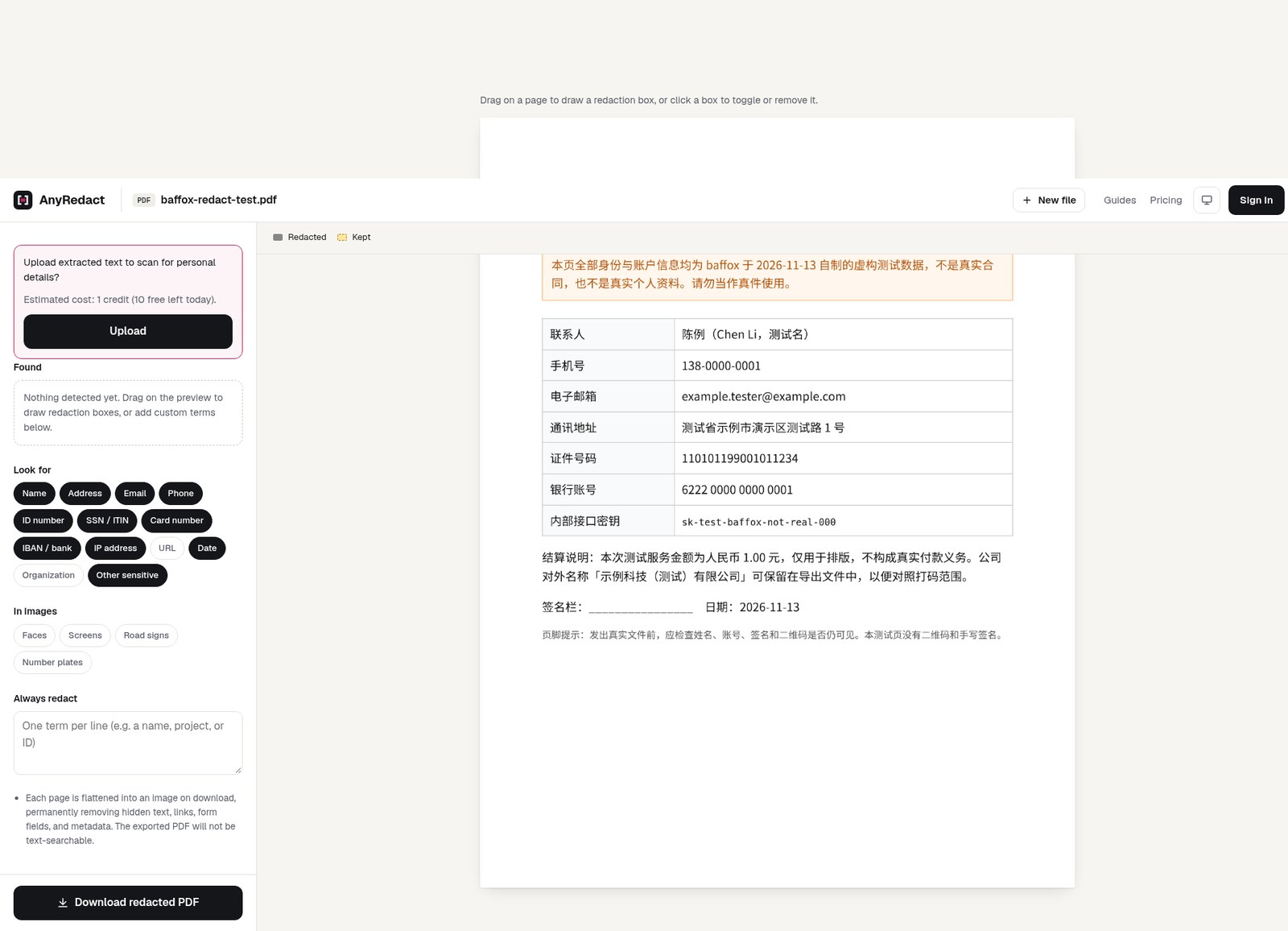
- After the file opens, the left side asks “Upload extracted text to scan for personal details?” In this session the estimated cost was 1 credit, and it showed 10 free uses still remaining that day. If you do not want the text to leave this computer, do not click Upload. Draw boxes on the page at the right instead.
- Following the official prompt, drag a solid box over each item you want removed. Clicking an existing box cancels it. The left side also has Always redact, for a name or an internal ID that keeps recurring; we did not use that option this time.
- If you want the AI to search, click Upload, then review every item in the Found list. Uncheck anything that should not be removed (for example your own company name, or a date that has to stay).
- Click Download redacted PDF. If you have not run an AI scan, the site will say the final check was skipped and you should review the exported file yourself. If you have run an AI scan, you can also tick a free missed-details check before downloading; that step still sends the already redacted text to the cloud. We did not tick it on the manual path.
- Always reopen the downloaded file. Do not rely on the preview in the editor. Try copying the previously covered text, or extract it with pdftotext, and look closely at names, account numbers, signatures, QR codes, and whether a sliver is still visible at the edge of a box.
When you are handling a real client file and you used Upload, you are accepting that the extracted text goes to Cloudflare Workers AI. Go by the privacy policy on the day you use it.
What we actually redacted: a fictional test page
The tests were on November 13, 2026, and we did not sign in at any point. The test file is the homemade PDF described above. No real personal data was used.
Manual boxes only, no Upload
The file opened in the browser with a normal preview; the Chinese text and the table were both readable. The Found list was empty at that point, with a note that there were no detection results yet and that we could draw boxes ourselves. We did not click Upload. We drew seven boxes by hand, covering the name, phone number, email, address, ID number, bank account, and key, and left the company name in the billing notes. The download screen still showed 10 free uses remaining that day, which indicates that this manual export did not use a credit. The site said:
Done! Redacted 7 items in baffox-redact-test-redacted.pdf. Final check skipped because the file wasn’t scanned with AI—please review it carefully.
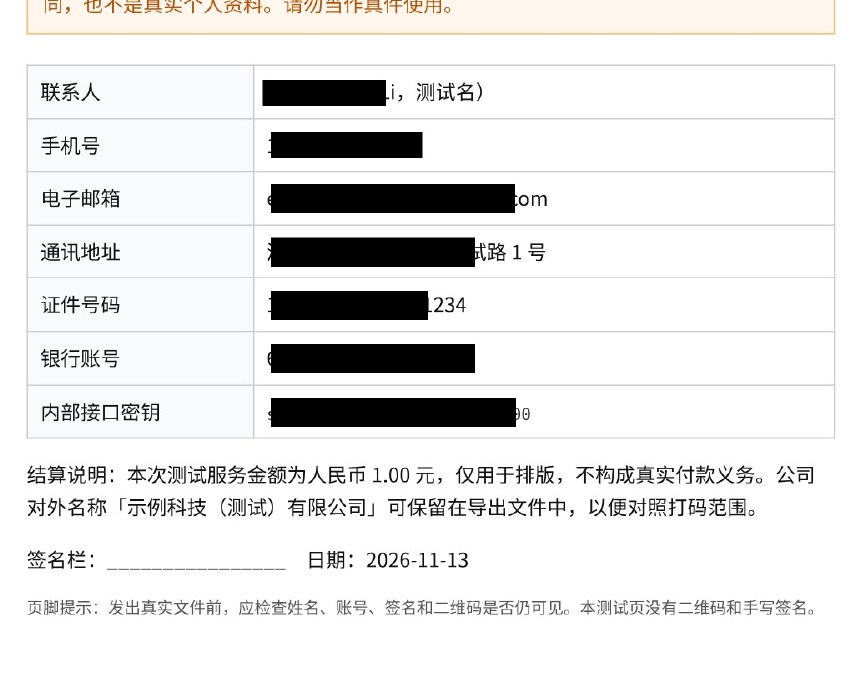
The exported file was 153,291 bytes, one page, still Letter. In pdfinfo, the original Author, Title, Subject, and Keywords were all gone; Creator / Producer had become anyredact.app, and the timestamp was 2026-11-13 16:11 (Asia/Shanghai). Both pdftotext and pypdf’s extract_text() were empty; the page was only a JPEG. A search of the raw file bytes also did not find 138-0000-0001, the email, the ID number, or the fake key. In other words: on the narrow question of whether the text layer and the document properties would leak the original wording again, this export held up. By contrast, the same extraction commands still read the phone number out of the “black box only” file from the previous section.
When we reopened the exported page, though, the edges of the boxes were not tight:
- The name left “i,测试名)” visible
- The email left “.com” visible
- The address left “试路 1 号” visible
- The ID number left the final “234” visible
- The key left the final “00” visible
The phone number looked fully covered. The company name was still there, as planned. Those leftovers are already baked into the image: someone else cannot copy the full strings as text, but they can still see them. That is not an export failure. It is what happens when a box is drawn short — and it is exactly why the official guidance is to open the downloaded file yourself before you send it, rather than trusting the editor preview alone.
Then the same file through AI detection
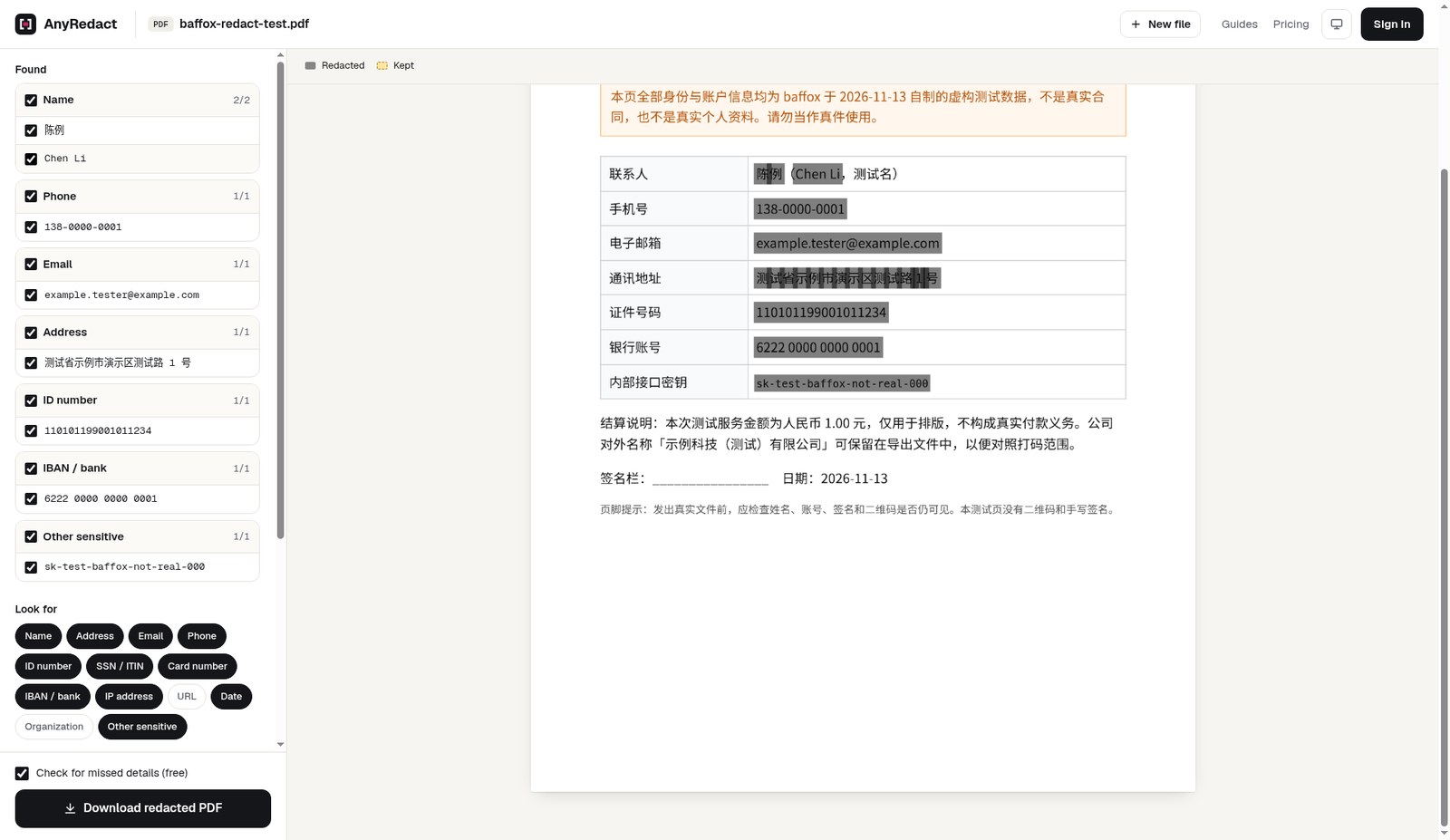
We then reopened the same original PDF (not the file we had just exported) and clicked Upload. The Found list produced, and selected by default, these items:
- Name 2/2: 陈例, Chen Li
- Phone 1/1: 138-0000-0001
- Email 1/1: [email protected]
- Address 1/1: 测试省示例市演示区测试路 1 号
- ID number 1/1: 110101199001011234
- IBAN / bank 1/1: 6222 0000 0000 0001
- Other sensitive 1/1: sk-test-baffox-not-real-000
The highlights on the preview also covered each full value, more completely than the boxes we had drawn by hand. Organization was not turned on as a search category on the left at the time, and 示例科技(测试)有限公司 did not appear in Found, which matched our intention to keep the company name. On a real contract, if the company name or a project name also has to be removed, do not assume the AI will tick it for you — add it to Always redact, or turn on the relevant category and check the list yourself.
This detection run used fictional data, and only a short digital PDF. It does not generalize to “every scan, handwritten signature, or stamp will be found.” Next to the download button, “Check for missed details (free)” appeared and was selected by default. According to the official description, that sends the already redacted text to the cloud for another check. We did not run that check, and we did not export a second PDF, so we are not treating the completeness of the AI highlights as something we have already verified in an exported file.
Common failures and limits
- If a box does not cover the text tightly, a corner can still be visible in the exported image. Our manual export is an example. Open the download yourself; do not trust the translucent boxes in the editor alone.
- A missed signature, QR code, photo, margin, or handwritten note will be left in the image on export as well. AI is not the final check.
- After export you can no longer search or copy the original text. Hyperlinks, forms, and electronic signatures are also removed, according to the official description. Keep the original if you still need to edit it.
- Once you click Upload, the extracted text goes to the cloud. “You can also redact manually” does not mean “AI detection is fully local too.”
- The free allowance is metered by device and IP range: 10 credits a day. Allowances, prices, and rules may change; go by the pricing page on the day you use it.
- A single PDF can be at most 60 pages; a longer file has to be split first. For scans, blurry stamps, and handwriting, the official materials also warn that OCR may be inaccurate. We did not test those cases.
- We did not test images, Office files, or audio this time, and we did not test the paid plans or a signed-in credit account.
How it sits next to other options
If you only want to highlight or annotate a PDF, and you do not need the wording removed from the file, PDF Tool on this site is an offline annotator — that is not the same job as “redact it so it cannot be extracted.” For merge, split, or compress, see pdf.iceai.cloud. That is not a redaction tool either, and some of its conversion features may upload the file.
If what you need to remove is GPS and camera information in a photo, rather than the body of a PDF, that is a tool such as keeplocal, which strips EXIF in the browser. If two files look almost the same and you need to see which page actually changed, that is a comparison job — see OmniDiff.
For a contract that cannot leave an internal network, a local, verifiable professional redaction workflow that you can check for a removed text layer is still the safer option, rather than sending text to an online AI. AnyRedact’s manual path gives you a no-upload choice, but the result still depends on whether you drew the boxes completely, and whether you inspected the exported file.
Bottom line
On this fictional test PDF, AnyRedact’s manual export removed the text layer and the original document properties; the same extraction methods no longer read out the phone number or the key. The “black box only” file we made on purpose could still be extracted. At the same time, the first set of boxes we drew by hand was a little short, and corners of the name, email, address, ID number, and key were still visible on the exported image. AI detection found all seven categories of planted information, and it did not automatically list the company name. Before you send a real file, open the exported page and look at it yourself.


