


A new monitor is easiest to send back in the first few days, which is when you most want to look for dead pixels, stuck pixels, and backlight bleed. Built-in OS tools rarely walk you through a full-screen set of patterns, and a photo someone else took of their panel is a poor stand-in for looking at yours.
monitortest.cc is a web page of monitor test patterns. On November 17, 2026, in desktop Chrome, we ran “start the test → sweep the full-screen color fields → near-black steps → black-and-white checkerboard → motion clarity” on this computer’s own screen — not a newly unboxed display — and left with Esc. We did not create an account, and we did not compare the results with a colorimeter.
One limit has to be stated first: this run cannot certify that the panel has no dead pixels or no backlight bleed. The site itself warns that panel defects are unlikely to show up reliably in a screenshot. Our full-screen captures were 1280×800, which looks like a roughly two-thirds scale of a 1920×1200 desktop; after compression they are even less useful as evidence. To judge dead pixels and bleed, you still have to look at the actual panel, preferably up close in a dimmer room.
Who it is for, and what to check first
It is a good fit if you have just received a new panel, or have just plugged a display into a computer, and you want to walk through common test patterns in a browser at full screen. It does not replace a colorimeter, and it cannot support a verdict based only on a screenshot someone else sent you. External displays have another kind of trouble: after you unplug and plug them back in, window layouts can drift. That is the job of LayoutKeeper. Automatic HDR switching on Windows is covered by Smart HDR Manager (Chinese article on this site). If you are setting up a new PC, it is worth inspecting the screen before you start installing software; we have a Windows essential software list (2026) (English version not published yet).
| Item | Details (reviewed and tested on November 17, 2026) |
|---|---|
| URL | https://monitortest.cc/ |
| Account | No sign-in required. We did not see a paywall this time. |
| On-page shortcuts | ← → and Space switch patterns, F enters full screen, Esc exits. We actually used the arrow keys, Esc, and Exit on the toolbar; we did not re-test Space and F on their own. |
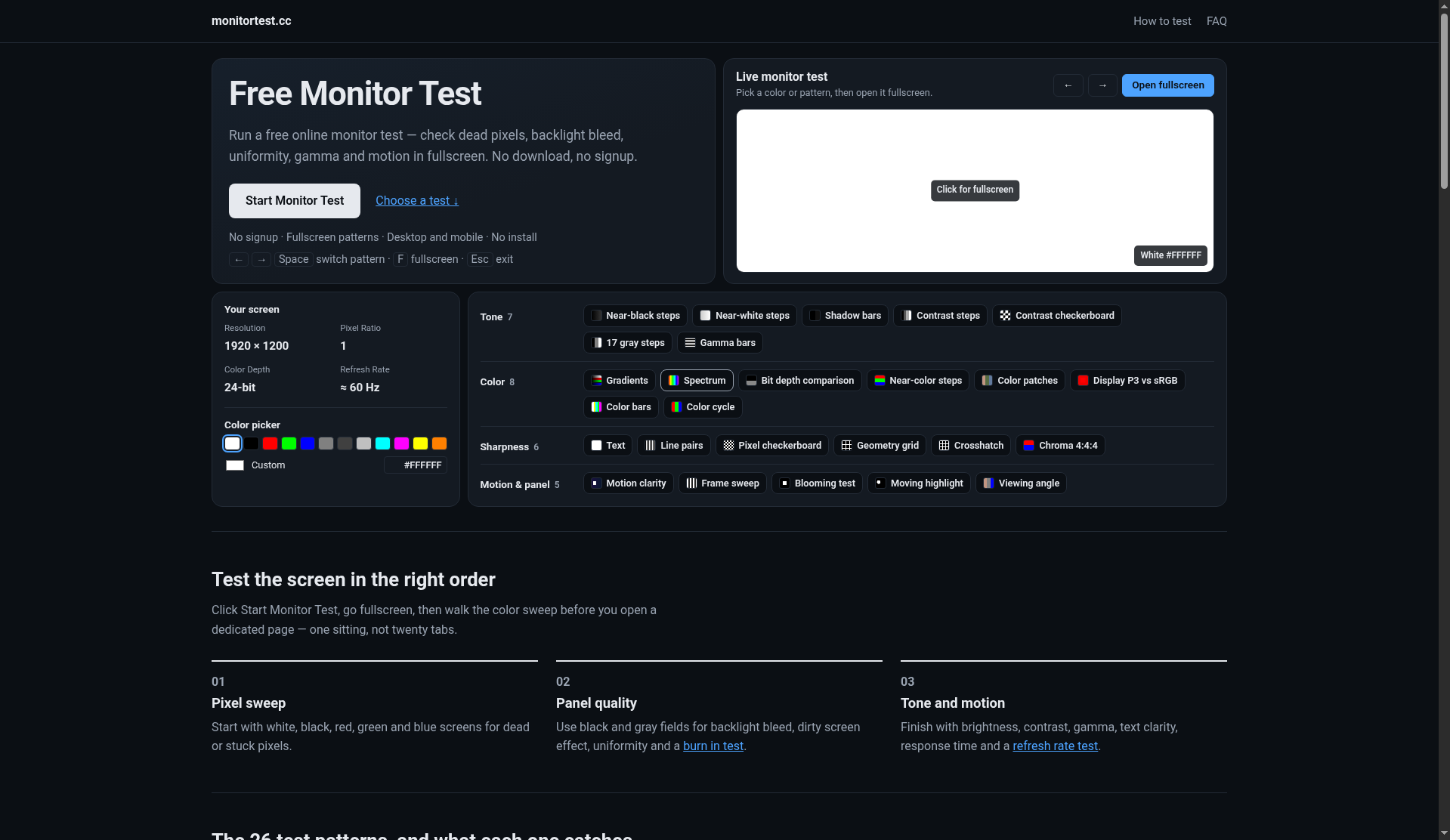
| Homepage readouts | Resolution 1920 × 1200; Pixel Ratio 1; Color Depth 24-bit; Refresh Rate started as “—,” then became “≈ 60 Hz.” Before full screen, the content area showed 1919 × 1112. |
| Pattern count | The page lists Tone 7, Color 8, Sharpness 6, and Motion & panel 5 (26 patterns, plus solid color fields). |
| Suggested order | 01 Pixel sweep (white, black, red, green, blue); 02 Panel quality (black and gray fields); 03 Tone and motion |
| What we completed | A five-color full-screen sweep, Near-black steps, Contrast checkerboard, and Motion clarity. Most of the other patterns were not tested. |
We did not see a cookie banner. The footer carries a “Listed on NewName.ai” mark. The page loaded https://www.pvuv.ai/f.js and https://static.cloudflareinsights.com/beacon.min.js (the console also showed one CORS / ERR_FAILED request to cloudflareinsights.com/cdn-cgi/rum). We did not see an advertising iframe. These are only third-party scripts we observed, not a full audit.
What we saw during the full-screen pass
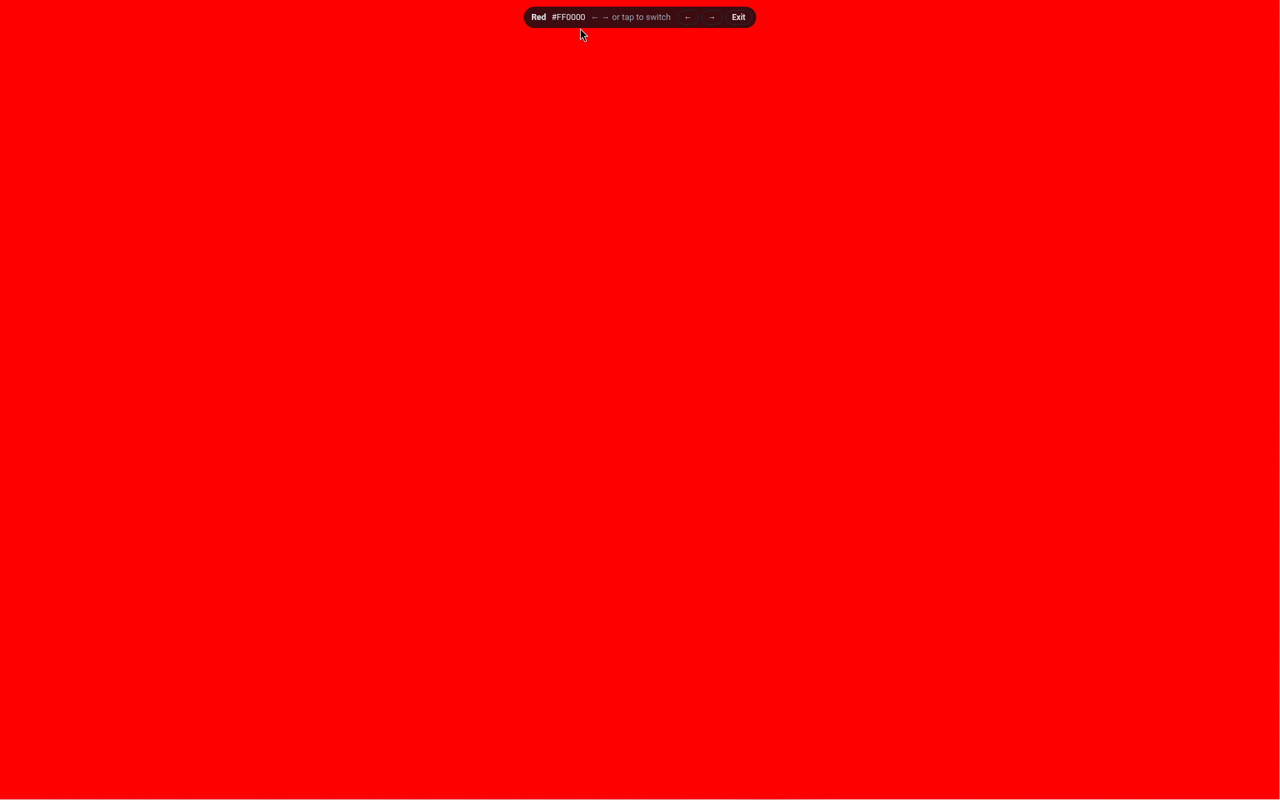
Clicking “Start Monitor Test” entered full screen, and the browser prompted “monitortest.cc – To exit full screen, press Esc.” After we moved the mouse, a toolbar appeared at the top, for example “White #FFFFFF — or tap to switch,” plus ← → and Exit. Stepping through the solid colors with the right arrow went White #FFFFFF, Black #000000, Red #FF0000, Green #00FF00, Blue #0000FF. In these remote-desktop screenshots, the five color fields looked like even, full-screen solids, with no obvious blotches or contrasting dots at a glance. That is not a “no dead pixels” verdict: the screenshots were scaled and compressed, and they cannot stand in for looking at the panel up close.
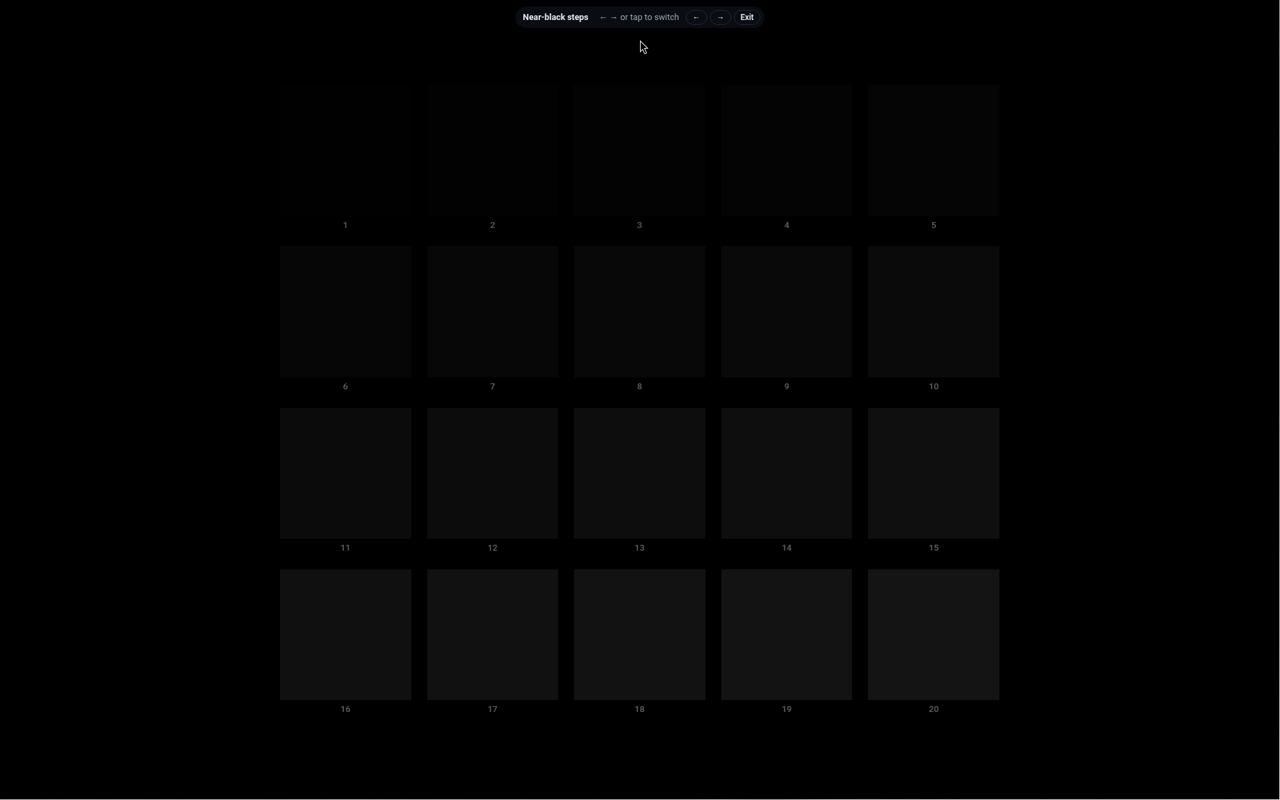
Near-black steps is twenty numbered squares (1–20) on a black background. Square 1 almost melts into the background, leaving only a faint trace; 2 and 3 are barely visible; from about 4 and 5 they separate more clearly, then brighten up to 20. The background looked black, not obviously gray. This is what we saw on a fairly bright remote screenshot, not what you would see in a dark room with your eye against the glass.
Contrast checkerboard is a 4×4 grid of large black and white squares. In the screenshot the edges looked reasonably clean, with no white light obviously leaking into the black squares. Fine bleed or glow would likely not survive this kind of compressed capture.
Motion clarity first shows a note: “This pattern moves. Start it when you’re ready.” After we clicked Start, three starfields labeled 60 fps, 30 fps, and 15 fps appeared. The top readout was Frame rate 60 fps, Refresh rate 60 Hz, Pixels per frame 16, Pixels per second 960, Status Smooth. The controls are − Slower, Speed (↓ ↑), and Faster +. The footer says to follow one of the ships with your eyes, compare the three lanes, and expect the higher frame-rate lane to look sharper and smoother; trails or halos may be persistence or overshoot. In a sequence of screenshots the ships were clearly moving; a single still frame did not show an obvious trail. Motion quality cannot be judged seriously from a remote screenshot. We did not change the speed, and we did not run Frame sweep.
Esc exits full screen, and so does Exit on the toolbar. The arrow keys cycle (Viewing angle sits just before White). The homepage also mentions Space and F; we did not re-test those two keys on their own. Before entering full screen, the motion-pattern preview read “Moving pattern. Open it fullscreen to start.”
When you test your own panel, start with Start Monitor Test on the homepage, enter full screen, linger a few seconds on white, black, red, green, and blue, and look up close in a slightly darker room. Then check the black field, the gray field, and the checkerboard for bleed or dirt. Judge motion by watching the screen; do not take a phone photo or a remote screenshot and treat that as a conclusion.
Common failures and limits
- Do not certify a panel for dead pixels from a screenshot, a recording, or a remote-desktop session. Our full-screen captures were 1280×800 and already scaled, so they are even less useful as evidence.
- We tested this computer’s own screen, not a newly unboxed display, and we did not compare it with a colorimeter. We will not issue a pass or fail for this panel.
- We only briefly landed on Viewing angle and saw patches of black, 25% gray, white, skin tone, 75% gray, sky blue, red, green, and blue. We did not move off-axis to look from the side, so this should not be written up as a viewing-angle test.
- We also did not test Display P3 vs sRGB; Near-white steps, Shadow bars, Contrast steps, 17 gray steps, or Gamma bars; the remaining Color and Sharpness patterns; Frame sweep, Blooming test, or Moving highlight; the standalone burn-in-test and refresh-rate-test pages; a phone, tablet, or TV; or custom colors.
- The page loaded third-party analytics scripts. We did not see a cookie banner or an advertising iframe. This is not a privacy audit.
Bottom line
monitortest.cc is a convenient way to put common full-screen patterns on a new display without installing anything. We walked through the five-color sweep, near-black steps, the checkerboard, and motion clarity in a desktop browser, and both Esc and the toolbar Exit left full screen cleanly. Our 1280×800 screenshots cannot support a dead-pixel or bleed verdict, and we were looking at this computer’s own screen, not a newly unboxed monitor. Look at the panel itself, in a dimmer room, if you need a real answer.


