


You plug your MacBook into a Dell monitor at the office and an LG at home. Every time you unplug, macOS herds all your windows back onto the laptop screen, and the next morning you’re dragging the terminal, the browser and the chat app back where they belong, one desktop at a time. If you use a Mac with an external display, you’ve probably been through this.
LayoutKeeper is a small open-source menu bar app built to fix exactly that. It remembers the position and size of every window on your external monitor, including which desktop (Space in Mission Control) each window was on, and puts everything back with one click, or automatically, when you plug the screen in again. Its interface follows your system language. Details checked on October 19, 2026.
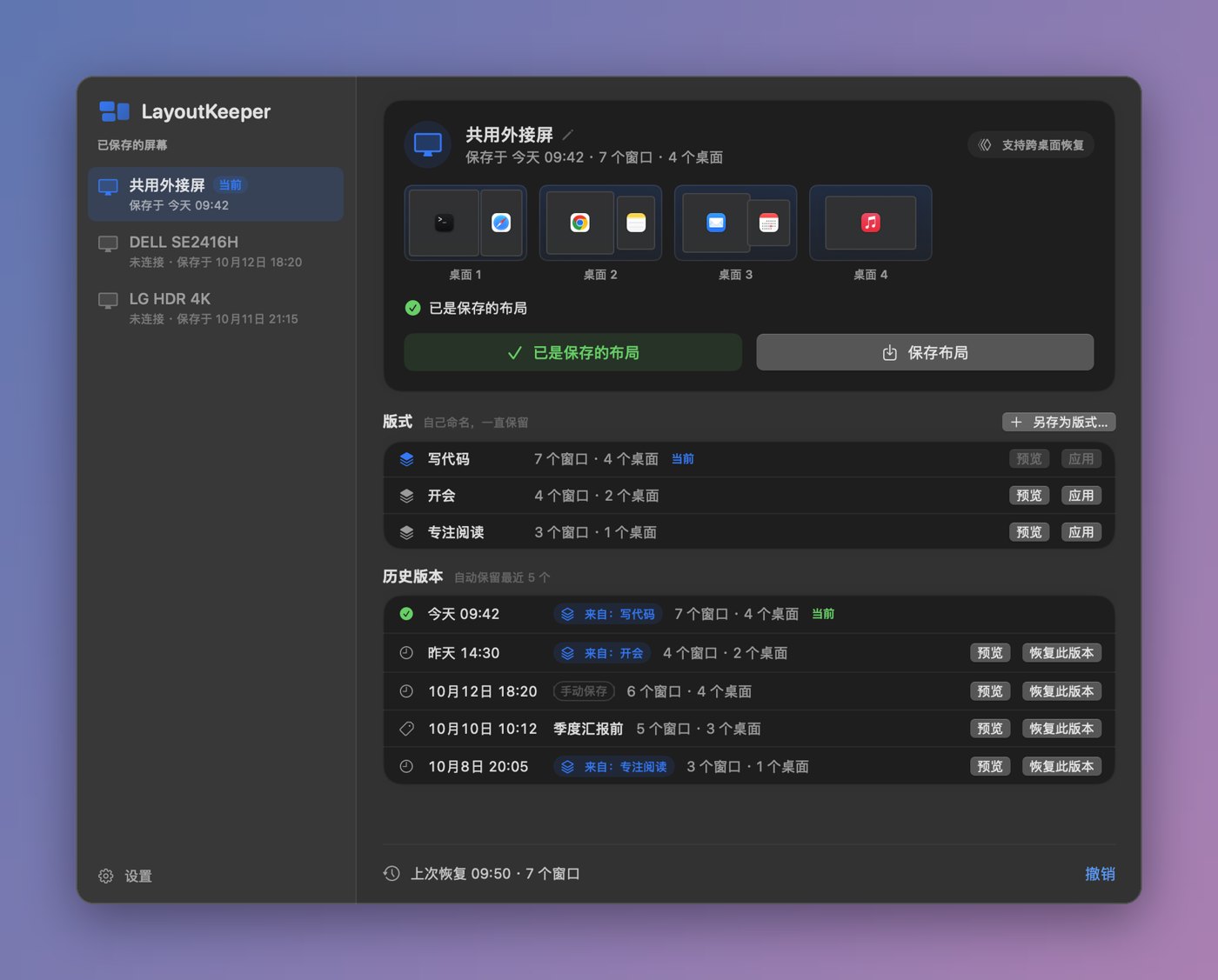
What your Mac can do with it
| Your setup | What works |
|---|---|
| macOS 14 / 15 | Restores window position and size, but only onto the current desktop |
| macOS 26 and later | Also moves windows back to their original desktops, creating missing desktops if needed |
| Apple silicon (M-series) | Keyboard brightness and volume keys control the external monitor’s hardware brightness and speakers (via DDC) |
| Intel Mac | All layout features work; hardware brightness/volume control isn’t supported |
Two hard requirements: only one external monitor at a time is supported, and “Displays have separate Spaces” under System Settings → Desktop & Dock must be turned on (it is by default).
Install it in three minutes
- Download the dmg from GitHub Releases: pick
AppleSiliconfor M-series Macs orIntelfor Intel Macs. When I wrote this the latest was v0.6.8 (released October 17, 2026), about 4.4 MB. - Drag it into Applications.
- The first time you open it, right-click → Open, or click “Open Anyway” under System Settings → Privacy & Security. That’s because it’s self-signed and not notarized by Apple.
- Follow the three-step onboarding: grant Accessibility access, choose whether to launch at login, and save your first layout.
Accessibility is the only permission it asks for. No screen recording, no input monitoring.
Everyday use
- Arrange your windows across the desktops on your external monitor.
- Click the menu bar icon → “Save Current Layout”, or press ⌃⌥⌘S.
- Next time you plug in that monitor, macOS shows a notification. Click “Restore Layout” (or press ⌃⌥⌘R).
- Not happy with the result? Press ⌃⌥⌘Z to undo.
What happens on plug-in is set under Settings → General: Ask first (the default), Restore automatically (it waits for the display and windows to settle, then moves them), or Off (manual only). I’d stay on “Ask first” for a few days to make sure restores are accurate, then switch to automatic.
Two ways to save: one layout per monitor, or one for all
- One per monitor: it tells displays apart by their hardware info (manufacturer, model and serial number from the EDID), so the office and home screens each get their own layout without you choosing anything. Good if the two screens differ a lot in size or placement.
- One shared layout for every external monitor: positions are stored as proportions of the screen, so they still line up across different resolutions. Good if you want your office and home desktops to look identical. In this mode it fills in missing desktops when you plug in, but never deletes any.
You can also keep several named layouts per monitor, say “Coding” and “Meetings”, and switch between them from the menu bar. Each monitor keeps the last 5 versions automatically, so you can roll back if you mess things up.
A handy extra: external monitor brightness
Many external monitors ignore the brightness keys on a Mac keyboard. LayoutKeeper makes the brightness keys control whichever screen your mouse is on, with a translucent brightness overlay at the top of the screen, and the volume keys can drive the monitor’s built-in speakers. If a display doesn’t respond to hardware control, it falls back to software dimming. And if you already use BetterDisplay, MonitorControl or Lunar, it steps aside and leaves the keys to them, so they don’t fight.
What it can’t do
- Moving windows between desktops relies on private macOS APIs, which a major system update could break. It runs a self-check at launch and turns that feature off if it fails; restoring within the same desktop keeps working.
- Finder windows can’t be moved between desktops; only their position and size are restored.
- It won’t open or quit apps for you, and it doesn’t restore browser tabs or window stacking order. Full-screen, Split View and minimized windows are skipped.
- When an app has several windows with the same title, it doesn’t guess: it marks them “Needs confirmation” so you can pick in the preview. Since v0.6.7, Chrome windows are matched per profile, which may need Full Disk Access; if it can’t read that, it quietly skips the step.
- Some monitors, adapters, docks and HDMI ports don’t support DDC, so hardware brightness control won’t work through them.
- It’s a very new project: the repo was only created on October 11, has few stars so far and updates often. If you hit a problem, you may need to open an issue on GitHub yourself.
Privacy and uninstalling
The developer says it collects no data. The only network access is the update check, which talks only to GitHub and can be turned off in Settings. Layouts are stored locally in ~/Library/Application Support/LayoutKeeper/.
To uninstall: quit the app, delete LayoutKeeper.app and the folder above, run defaults delete local.layoutkeeper.app in Terminal, and finally remove it from Login Items and Accessibility in System Settings.
Who it’s for
- Good fit: people who carry a laptop between an office monitor and a home monitor and work across several desktops; M-series Mac users who want the keyboard to control external monitor brightness.
- Not a fit: anyone running two or more external monitors at once (not supported yet), people who live in full-screen or Split View, and anyone who won’t run un-notarized software.
On Windows, the closest thing is FancyZones in Microsoft PowerToys, but it snaps windows into screen zones rather than restoring layouts, so it solves a different problem. If you like little menu bar utilities like this, also take a look at House Control, a live 3D smart-home panel in the menu bar.
Project info
- Latest version: v0.6.8 (October 17, 2026)
- System: macOS 14 or later (cross-desktop restore needs macOS 26+), separate builds for Apple silicon and Intel
- License: GPL-3.0, free and open source
- Signing: self-signed, not notarized by Apple, with built-in Sparkle auto-updates
- Repo and downloads: tumingke0/LayoutKeeper | Releases page


