


If you want to turn a photo into a fuse-bead (Perler) pattern, the usual need is concrete: a grid with color codes, plus a bill of materials, so you can buy the beads and place them cell by cell. Reducing the colors in an image editor and then counting squares by hand is slow, and it is easy to miscount.
HapiPixel is a web tool. The homepage reads “Free · No signup · Works in your browser,” and “Everything runs in your browser — no install, no upload to a third-party service.” The FAQ also says the original image is not uploaded when a pattern is generated; an upload happens only if you save a draft to an account, or if you publish a design to the gallery. Those are the site’s own statements, not an audit by us. On November 17, 2026, in desktop Chrome, without creating an account, we used a homemade 800×800 orange round face (with a large BAFFOX wordmark at the bottom) and walked through “choose image → crop → generate → highlight one color → export” at the default settings. The theme dropdown was already set to “Romantic Sakura”; we left it alone.
Two results mattered most. First, on the default 29×29 grid, the face, eyes, and mouth were still recognizable, but those large letters at the bottom were almost gone and could not be read. Second, exporting the pattern as a PNG did not require a sign-in, but clicking Export PDF opened a sign-in dialog; we cancelled it and did not get a PDF. The homepage’s “Free · No signup” line and the account requirement for PDF export need to be read as two separate facts.
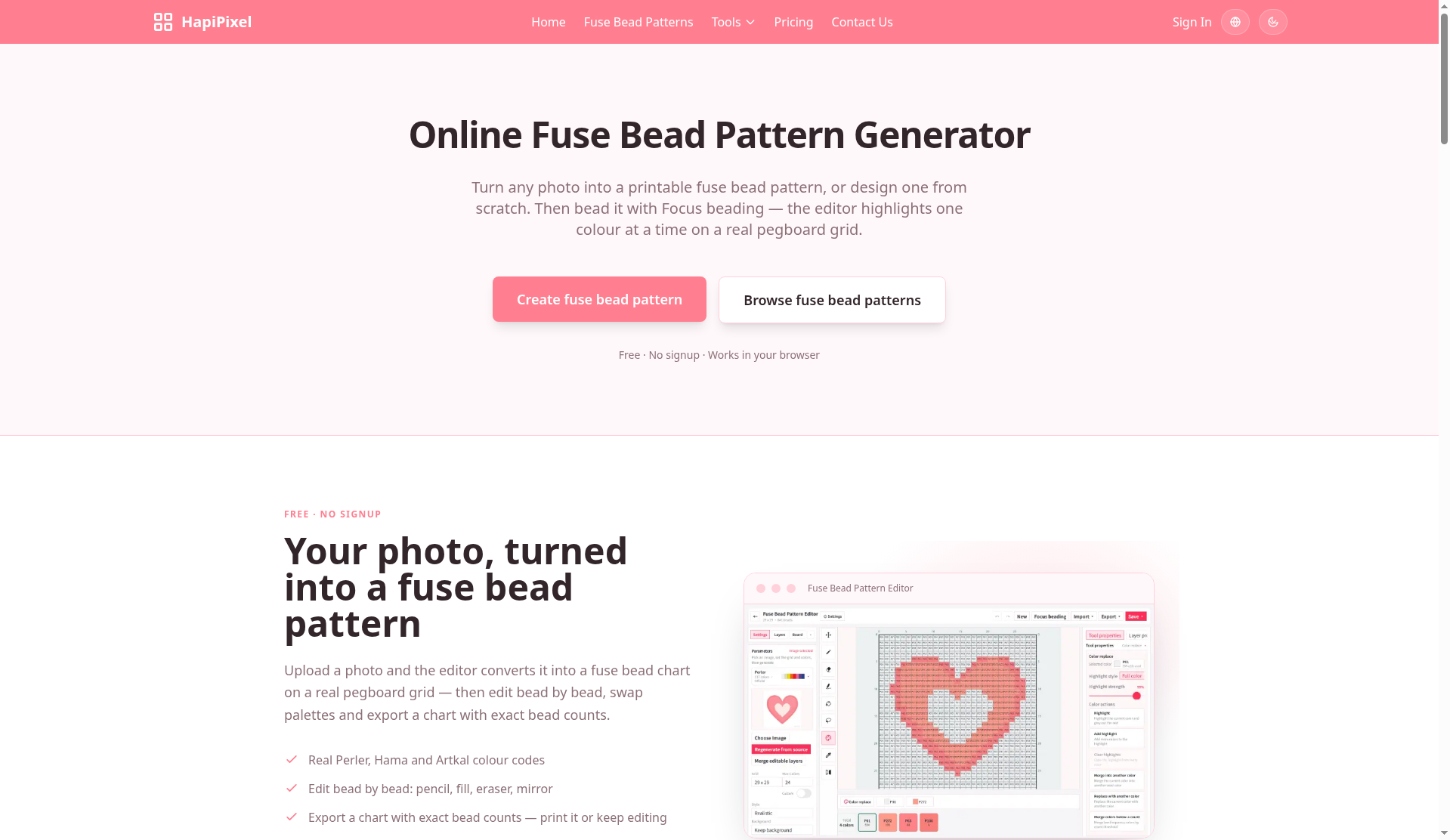
Who it is for, and what to check first
It is a good fit if you already have a high-contrast photo or a simple drawing, and you want to preview it as a fuse-bead pattern in the browser and get color codes and bead counts. It is not a tool for turning a photo into a game sprite sheet; that is a different path, and we have a write-up of SpriteCanvas. If you care more about processing a photo in the browser, we have also written about keeplocal; the job is different, so do not treat the two as the same kind of “online image editor.”
The homepage lists color brands as “Real Perler, Hama and Artkal colour codes.” It does not mention Mard or Coco. In the editor’s palette list, though, we saw MARD 291, Artkal, Artkal Mini, COCO 291, Hama, and MARD 221 (the interface showed 117 colors · Official), plus Palette manager. For this test we used the default Perler palette (117 colors · Official). We did not switch brands, and we did not use Palette manager.
| Item | Details (reviewed and tested on November 17, 2026) |
|---|---|
| URL | https://hapipixel.com/; the editor is at https://hapipixel.com/tools/create |
| Account | Opening the site, generating a pattern, and exporting a PNG did not require a sign-in. Export PDF showed “Sign in to continue exporting.” We cancelled and did not get a PDF. |
| Defaults (unchanged) | Perler palette, 117 colors; 29×29 grid, 841 cells; Advanced: 24 colors, Realistic, Keep background |
| Other grid sizes (seen, not re-run) | 15×15, 49×49, 52×52, 78×78, 104×104, 156×156, 256×256; custom sizes are available, a square can be locked, and one side can go up to 256 |
| What we exported | Export Bead Pattern succeeded and produced a 1600×1610 PNG. We did not click Export Reference Image or Custom Export. |
The crop step defaulted to a 1:1 ratio, about 800×800 px. The green frame covered the whole image, and BAFFOX stayed fully inside the frame. We did not crop further; after confirming, the status was “Cropped · 800 × 800 px · 1:1.”
On the network: while we chose and cropped the image, monitoring only showed GET requests to blob:https://hapipixel.com/<uuid> (HTTP 200). In that window we did not see the photo being POSTed to a third party. From clicking Generate until the editor appeared, the monitoring window showed no new requests. When we exported the PNG, though, there was a same-origin POST https://hapipixel.com/pixel/export/check (200) and a POST https://hapipixel.com/pixel/export/log (we saw the request and did not wait for the response). We did not open the request bodies, so we cannot say whether they contained metadata, and we cannot write this up as proof that the tool never talks to a network. The /tools/create page also loaded a Google Ads iframe and a hidden reCAPTCHA box; no captcha wall appeared during the test. These are only observations. If you want a comparison with a tool that processes a PNG in the browser and is more explicit about what is or is not uploaded, see our write-up of pngdeer. It is not the same kind of job, and its network behavior during export should not be mixed with HapiPixel’s.
On the default 29×29 grid, the letters were almost gone
The test was on November 17, 2026, in desktop Chrome, without signing in. The source image was a homemade 800×800 PNG: an orange round face, two black eyes, a triangular nose, a beige mouth, and a large BAFFOX at the bottom.
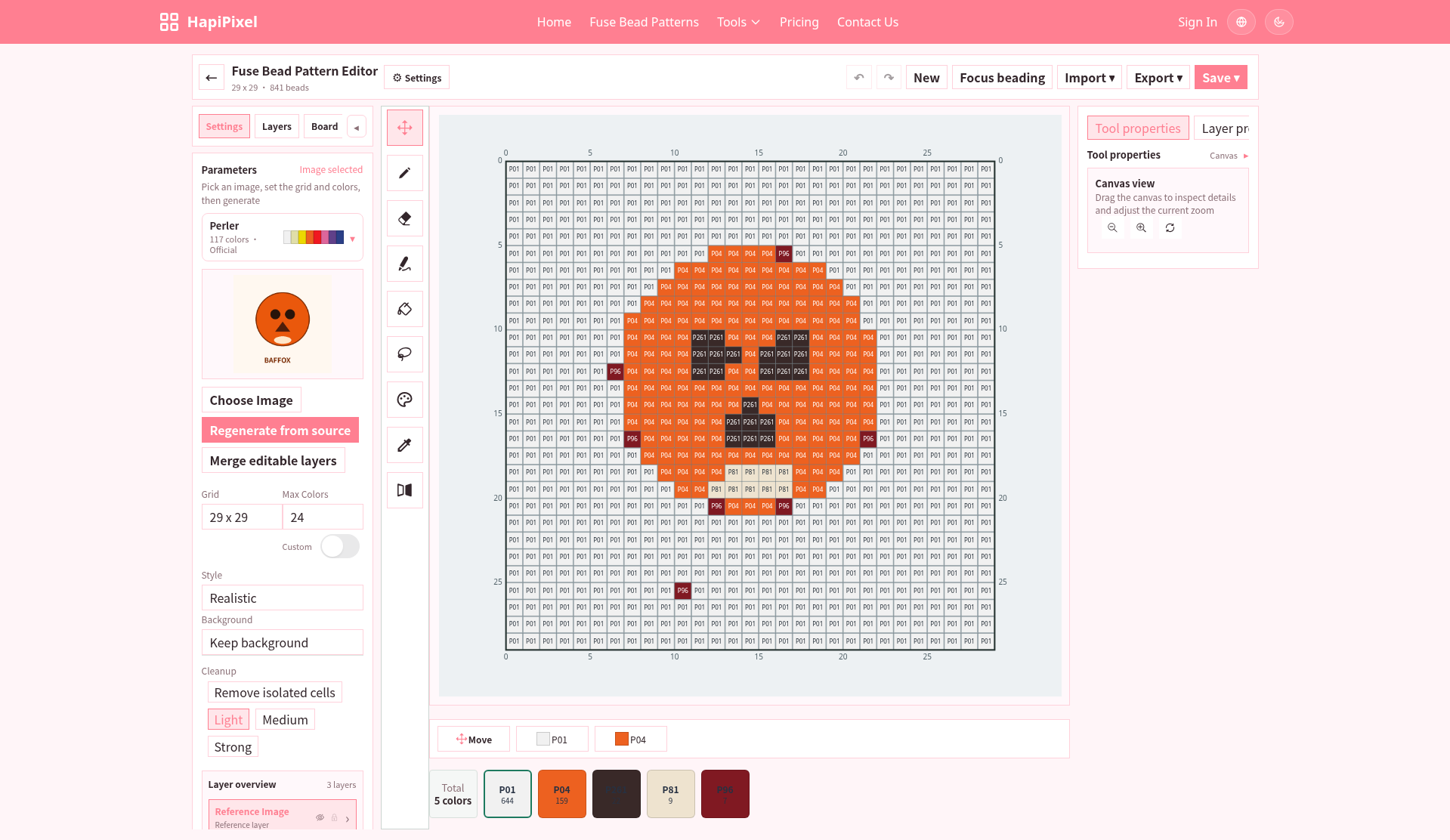
Clicking “Create fuse bead pattern” opens /tools/create. The editor runs in an iframe named beadsEditorFrame, and the steps are Palette → Grid → Crop → Generate → Edit. With the default settings above, we clicked Generate Pattern, saw “Generating…,” and then entered the Fuse Bead Pattern Editor, titled 29 x 29 · 841 beads.
The bill of materials was 5 colors / 841 beads:
- P01
#F1F1F1— 644 - P04
#ED6120— 159 - P261
#392928— 22 - P81
#EEE3CF— 9 - P96
#801922— 7
The five counts add up to exactly 841. The interface showed only the color code, the hex value, and the count — not English names such as White or Orange.
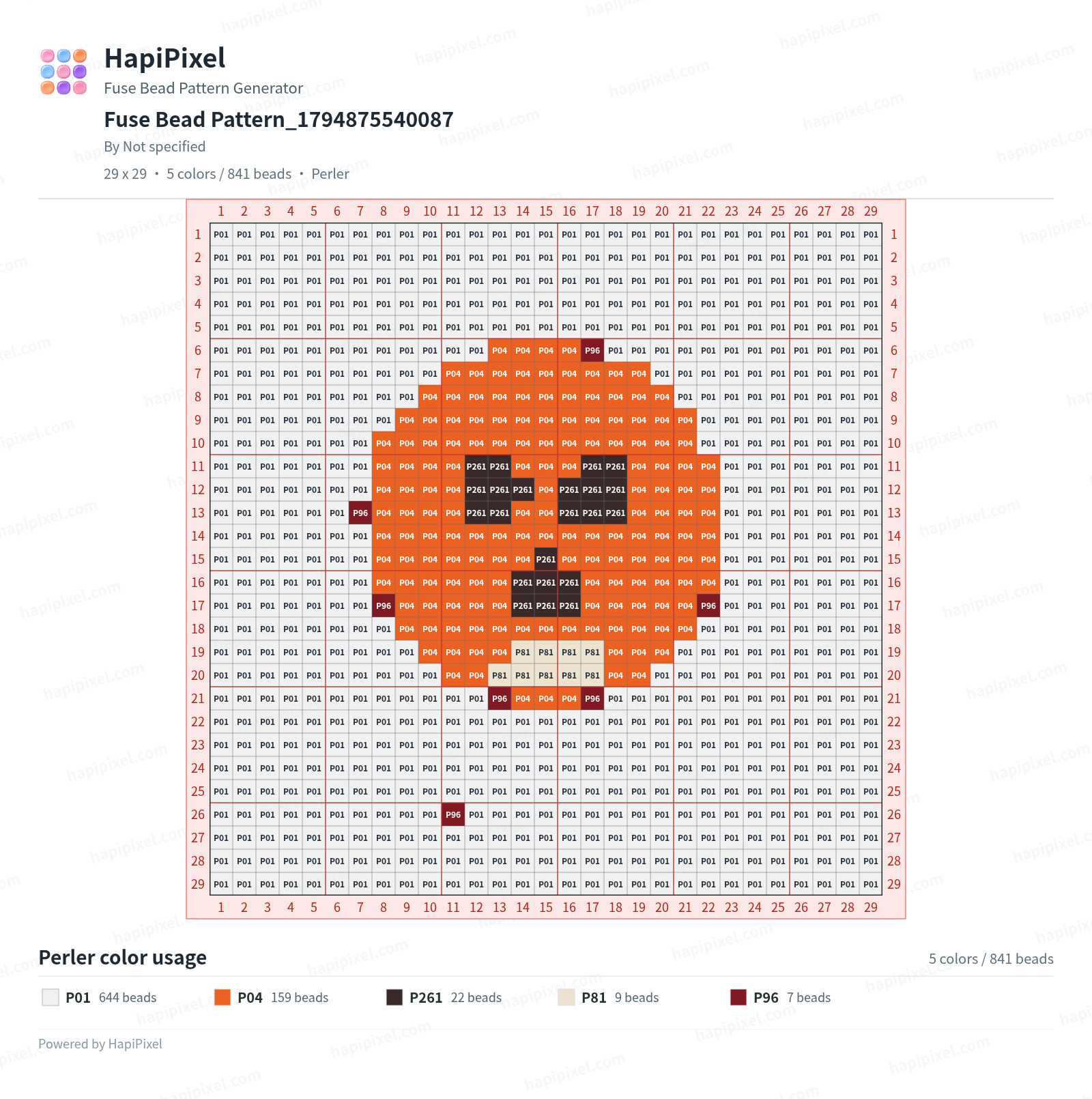
What remained recognizable: the orange face was P04, the eyes and triangular nose were P261, and the beige mouth was P81. What did not: those large letters at the bottom were almost gone on the default 29×29 grid. Looking at the export later, rows 22–29 were almost entirely P01, with a single isolated P96 at row 26, column 11, and the letters could not be read. Some cells that should have been face edge or background also became the dark red P96: the top of the head, the cheeks, below the mouth, plus that isolated bead. That is not a minor blemish; it is the result you most need to know about at these default settings. Whether a larger grid would have kept BAFFOX, we did not re-run, so we will not guess.
Clicking P261 opened a menu with Highlight color, Add highlight, Merge…, Replace…, and Auto replace…. After we chose Highlight color, the interface read “Highlighting P261 · 22 cells,” with an Exit highlight control; the other colors were hollowed out, leaving 22 beads of P261 (the eyes, the nose, and a few scattered cells). “Focus beading” was visible at the top; we did not open it.
PNG export worked without an account; PDF export asked us to sign in
The Export menu lists Export Bead Pattern, Export PDF, Export Reference Image, and Custom Export.
Export Bead Pattern succeeded while we were signed out, with the message “Exported.” The file was Fuse-Bead-Pattern_1794875540087.png, 447,795 bytes, a 1600×1610 RGBA PNG. The header reads HapiPixel / Fuse Bead Pattern Generator, the title matches the filename, the byline is “By Not specified,” and it also says “29 x 29 · 5 colors / 841 beads · Perler.” The footer lists Perler color usage and the five counts above. The page has a hapipixel.com watermark and is a single page. Rows 22–29 are almost entirely empty white P01, and BAFFOX is just as unreadable on this printable sheet.
Export PDF opened a modal: “Sign in” / “Sign in to continue exporting,” with Cancel and Sign in. We clicked Cancel and did not get a PDF. The homepage’s “Free · No signup” line and this account gate are two different facts. It would be wrong to write that the whole site requires registration, and it would also be wrong to skip the limit on this one export.
The Save menu includes “Save as draft” and “Save and submit to plaza.” We did not click either; they will likely require a sign-in or an upload, and you will have to check the result yourself.
A reasonable check against the source image is threefold: is the main subject still recognizable, are thin letters or lines still there, and do the color counts add up to the total number of cells. On our image, the face passed, the letters failed, and the counts were correct.
Common failures and limits
- The default 29×29 grid drops fine detail. The large BAFFOX at the bottom was almost gone, and a few dark-red P96 beads appeared in the wrong places. If the image has text or thin lines, do not assume the default grid is enough. We did not re-run a larger grid.
- Exporting the pattern as a PNG does not require a sign-in; exporting a PDF does. Do not stop at the homepage’s “Free · No signup.”
- Exporting the PNG triggered same-origin POSTs to hapipixel.com. We did not inspect the request bodies, so we cannot write this up as proof that the tool never talks to a network. The page also loaded a Google Ads iframe and a hidden reCAPTCHA.
- We did not test the community gallery, a blank canvas, pixel-art import, publishing, the full Focus beading flow, Custom Export, Export Reference Image, saving a draft, or larger grids such as 49×49 or 256×256.
- We did not actually place beads from this pattern outside the editor, so this should not be written up as a pattern you can follow to a finished board.
Bottom line
HapiPixel is useful for a first look at a fuse-bead pattern and a color list, without installing anything. At the default 29×29 settings, our orange face was still readable and the five color counts added up to 841, but the BAFFOX letters disappeared and a few P96 beads landed in the wrong cells. A PNG of the pattern exported without an account; a PDF did not. We did not re-run a finer grid, and we did not physically bead the design.


