


Highlights you draw in a reader often stay locked inside that app. Switching tools, or moving the excerpts into a notes library such as Obsidian, usually means reorganizing them by hand. If you already have a Kindle My Clippings.txt export, you can first clean it up by book in the browser with Kindle Clippings Organizer (Chinese article on this site), then export Markdown. The question here is different: if a reader never gives you that file, will it write a portable .md next to the book on its own?
LibrioX is a desktop ebook reader. The welcome screen says that books and notes live as ordinary files in a folder you choose. The current version is 0.1.17 (the site lists a November 14, 2026 release), still early 0.1.x. On November 16, 2026, on Linux, we used a short, homemade, DRM-free EPUB, without signing in, turning on sync, or using AI, and walked through “create a library → import → highlight → write a note,” then checked the Markdown file beside the book. What follows is only what we actually saw, and where the tool is not yet a good fit.
Who it is for, and what to check first
It is a good fit if you want to read DRM-free ebooks on a computer and keep highlights and notes as ordinary Markdown files next to the book. It is not a tool for turning an existing Kindle clippings file into Markdown, and it is not a dedicated PDF reader or annotator — we have separate write-ups of Kindle Clippings Organizer (Chinese article on this site) and the open-source Folio reader. If the papers still live in Zotero and you want a PDF turned into Markdown that links back, that is a different job: Mktero.
The GUI test in this article was done on Linux. The site also offers Windows and macOS installers, plus an Android APK (the site specifies Android 7 or later, arm64); the iOS page says it is coming soon. We did not open the interface on any of those systems, so this should not be written up as already used on all three desktop platforms. We did check the published SHA-256 values for the Windows setup.exe and MSI, and on a Windows PC we extracted LibrioX.exe from the MSI with administrator rights, but we did not do a full install, and we did not read a book or take notes in the Windows UI. The official changelog says the macOS build has been notarized since 0.1.16; we did not test it this time. Android was not tested.
The official Linux AppImage needs to be mentioned first. On this Debian 13 machine (glibc 2.41), starting it with the bundled AppRun failed: the bundled libraries required GLIBC_2.42 / 2.43. After we extracted the AppImage and ran usr/bin/LibrioX directly, the program started, and the import, highlighting, and notes below were all done that way. That is a real limit of the official AppImage on current stable Debian, and it should not be summed up as “it works on Linux.” We did not test whether a newer distribution would launch it as-is.
| Item | Details (reviewed and tested on November 16, 2026) |
|---|---|
| Website | https://libriox.com/; downloads are on the download page; release notes are on the changelog |
| Version | 0.1.17, published November 14, 2026; still early 0.1.x |
| About dialog | Version 0.1.17, Build Desktop (Tauri), reading engine foliate-js (Vendored) |
| Formats listed by the site | EPUB, PDF, MOBI, AZW3, FB2. This time we opened only a very short DRM-free EPUB. We did not open the other formats or any DRM-protected file. A DRM-protected book is not a suitable test case for this tool. |
| Account | Reading, notes, and export do not require an account. The site also describes bring-your-own-key AI, and sync to your own WebDAV, S3, or folder; we tested none of those free extras. |
| Official pricing (not purchased) | See below, taken from the official pricing pages. The sync and AI plans were marked as coming online; we did not subscribe, and we did not start a paid trial. |
| Source | The official acknowledgements name ReadAware (MIT, by AHpx) and foliate-js. LibrioX itself is a commercial product with paid add-ons. We did not find a public source repository we could inspect, so we are not calling the whole application open source. |
How to create a library, highlight one sentence, then how to check the result
- Get the package for your system from the official download page, and check it against the published checksum. If you are on Linux and the official AppImage will not start, look first at whether the error is an insufficient glibc version. Do not assume that a successful download means the app will open.
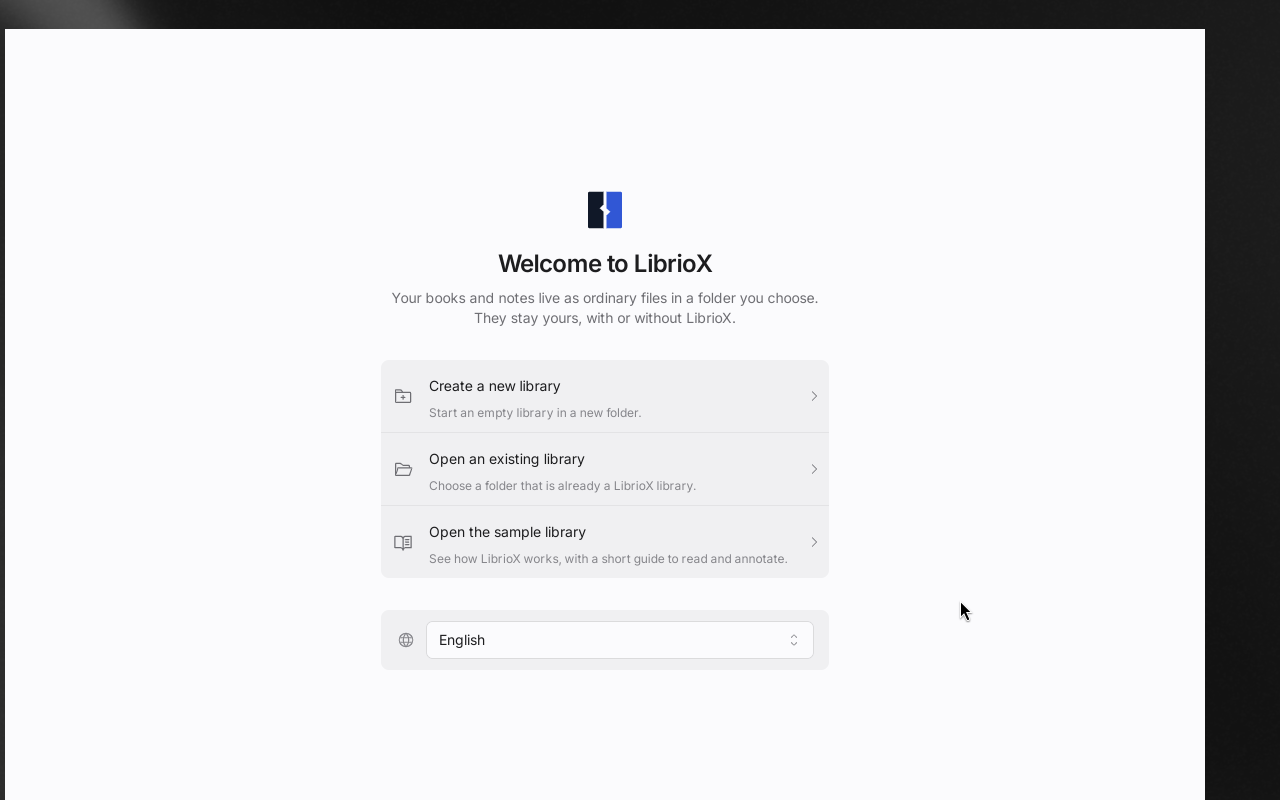
- The first launch opens a welcome screen; you do not need to sign in. The options are: create a new library, open an existing library, or open the sample library. The wording on the welcome screen is: “Your books and notes live as ordinary files in a folder you choose.” It also says that those files remain yours even without LibrioX.
- We chose “Create a new library” and put it in an empty folder. We then imported a homemade EPUB titled 一本用来检查笔记导出的短样书 (“A Short Sample Book for Checking Note Export”). The program copied the book into the library as an ordinary file, and a
.librioxfolder appeared beside it. - Open the book and highlight in yellow the sentence that begins with
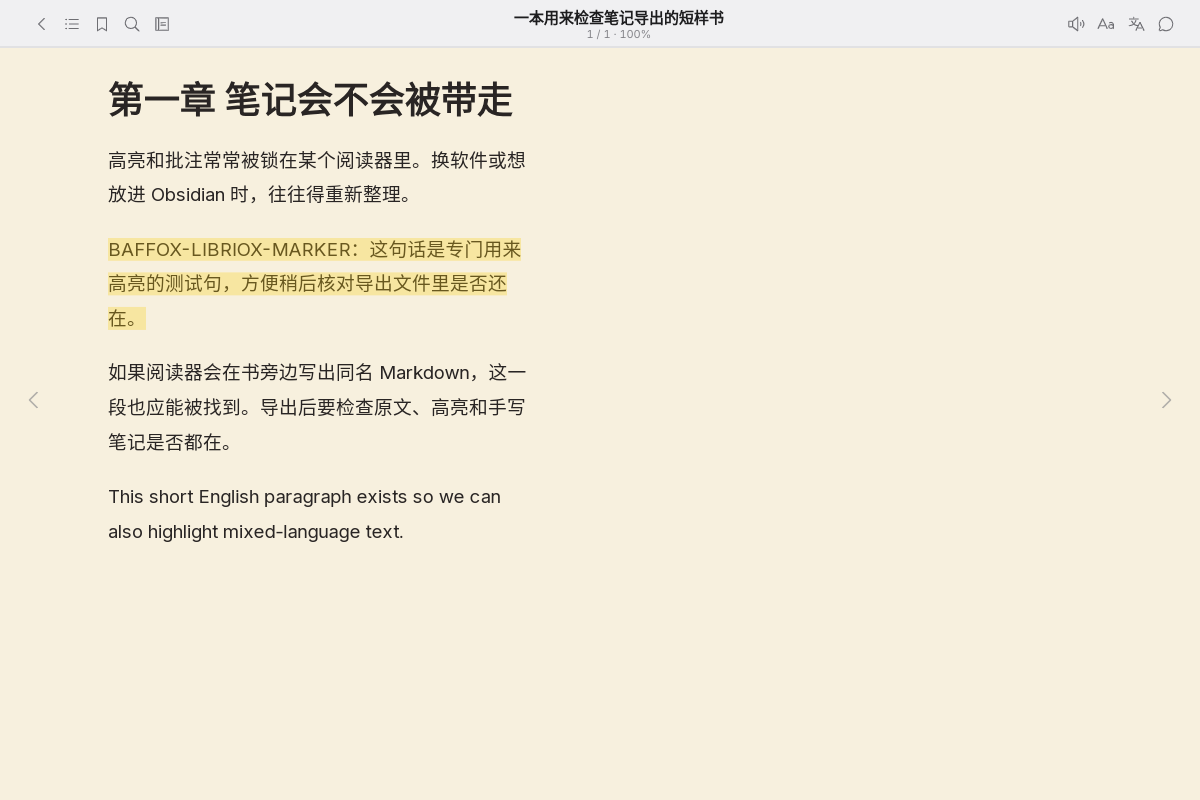
BAFFOX-LIBRIOX-MARKER. Then look in the library folder: a Markdown file with the same name as the book should appear. Write a note on that highlight, wait a few seconds, and check the.mdfile’s modification time and body to see whether the note was written into it. - When you open the Markdown, read the note at the top of the file first, then check that both the highlighted text and the note are present. It looks like an ordinary notes file, but the header is explicit: edits you make in an editor are not read back, and the file is overwritten the next time the notes change. If you open it in an editor such as MarkText (Chinese article on this site), treat it as a one-way export, not as an Obsidian vault file that can sync both ways.
Please try this only with DRM-free books you have the right to process. Do not use it to strip or convert someone else’s DRM-protected ebook.
What we actually saw in the files
The test was on November 16, 2026, on this Linux machine, version 0.1.17, with no sign-in and with sync and AI left off.
About two seconds after we highlighted the sentence, a file named 一本用来检查笔记导出的短样书.md appeared beside the book. We then wrote a note, verbatim:
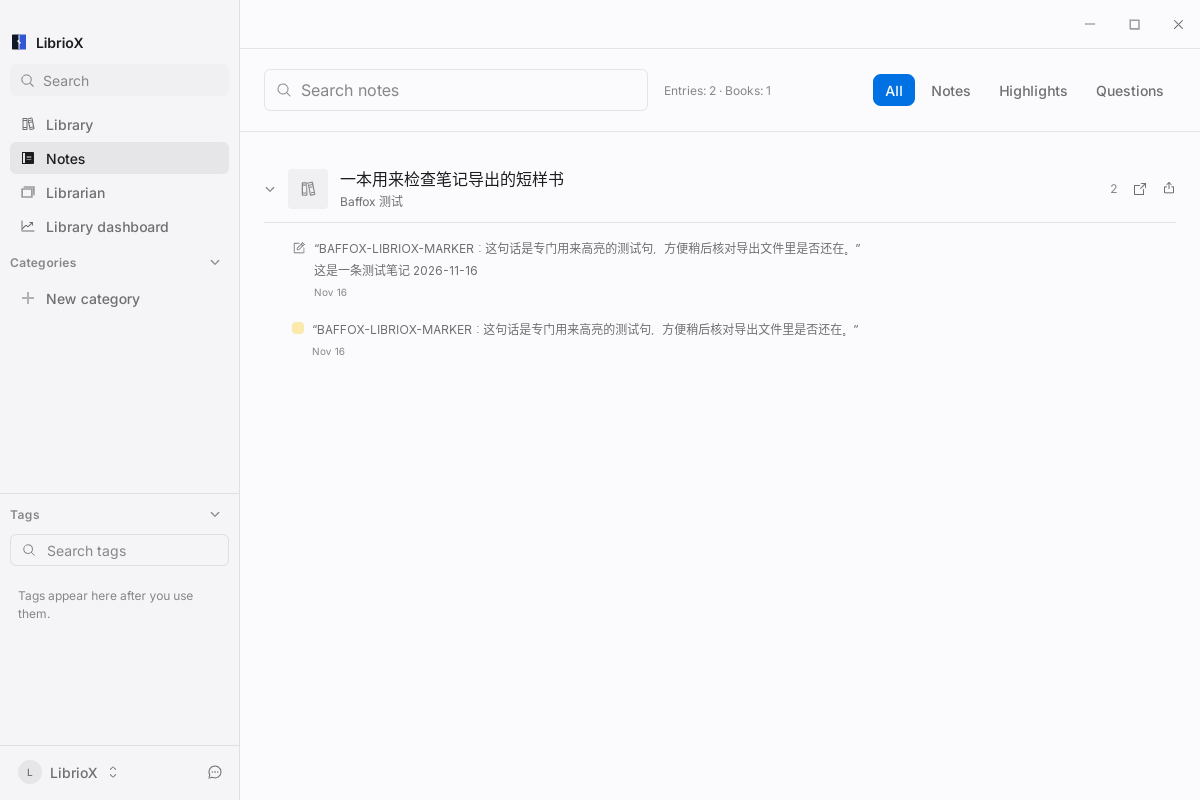
这是一条测试笔记 2026-11-16That is Chinese for “This is a test note 2026-11-16.” The sidecar file’s modification time became 2026-11-16 08:40:54 (Asia/Shanghai). When we opened it, the header read:
Generated by LibrioX from your notes in the app. Changes made here are not read back, and are overwritten the next time the notes change.The metadata above that included the book title, the author we entered on import (“Baffox 测试,” meaning “Baffox test”), a created time, and a libriox:// source link; each excerpt also had a Source link with a CFI location. The highlighted test sentence was in the file, and the note text appeared under the quotation block.
One thing should not be skipped: after we added the note, the Notes panel showed Entries: 2. One entry held the note body; the other was a highlight-only copy of the same sentence. The Markdown file likewise contained two blocks: the first had the note underneath, and the second had only the same quotation and a Source link. We did not try to merge or delete either entry, so we cannot say whether this stays as a duplicate or is only a temporary display.
Official pricing (not purchased, not activated)
The figures and wording below come from the official pricing pages in Chinese and English. They are not from a paid test of our own. The pages said the sync and AI plans were coming online; please go by the page at the time you look.
- Without an account: reading, notes, and export, plus the bring-your-own-key AI and sync to your own WebDAV / S3 / folder described by the site. We did not test the last two.
- Free account (we did not register, and we did not test it): the site lists 100 MB of hosted sync, plus a one-time 150 AI credits valid for 30 days.
- LibrioX Sync: Standard at $4.90 a month or $48 a year (1 GB); Plus at $9.90 a month or $96 a year (10 GB). The site describes end-to-end encryption.
- LibrioX AI: Pro at $4.90 a month or $48 a year (1,000 credits; the page names DeepSeek, at about $0.0016 per credit); Plus at $9.90 a month or $96 a year (2,000 credits).
- The site states a 14-day refund, with payments through Paddle; App Store purchases follow separate rules. We did not go through a refund.
Common failures and limits
- The official Linux AppImage would not start with the bundled AppRun on Debian 13 (glibc 2.41), because the bundled libraries required GLIBC_2.42 / 2.43. This test only finished after we extracted it and ran the inner binary. Do not write this up as an out-of-the-box Linux installer.
- This is still 0.1.x. Features, the interface, and the export format may still change.
- The sidecar Markdown is one-way. Edits in an editor are not read back, and the file is overwritten the next time the notes change.
- After a note is added, the same highlight may appear twice in the Notes panel and in the Markdown. Check the export yourself; do not assume one highlight maps to one block.
- We tested only a very short DRM-free EPUB. The PDF, MOBI, AZW3, and FB2 formats listed by the site, as well as long books and large numbers of highlights, were not tested. Do not use a DRM-protected book for this.
- Sync, AI (including bring-your-own-key), the free account, and the paid plans were not turned on, so the official descriptions should not be written up as if we had already used cloud sync or AI summaries.
- The Windows interface, macOS, Android, and the forthcoming iOS build were not tested this time.
Bottom line
LibrioX is aimed at people who want highlights and notes to sit beside the book as ordinary Markdown, without first signing in. In our Linux test of 0.1.17, a homemade EPUB produced a sidecar file within about two seconds, and the note we wrote appeared in it — but the export is one-way, the same highlight showed up twice after we added a note, and the official AppImage did not start on Debian 13. Treat the .md as a takeaway copy, not as a vault file you can edit and sync back.


