


When a product shot or a portrait on a web page looks a little too perfect, you may want to judge whether it was generated by AI before you quote or share it. Uploading the file to an online detector means handing the image to someone else; looking only at a watermark or a filename often tells you nothing.
Hikaku is an open-source browser extension that checks images and video on the page on your device, and flags what it thinks may be AI-generated. Opening a flag shows the basis: a declaration in the file’s metadata, or a judgment from a local model. The site itself says a flag is not proof — real photos can be flagged, and generated images can be missed. On November 15, 2026, we loaded 0.1.0 in Chrome via developer mode, as the site instructs, waited for the model to finish downloading, and compared one clearly real photograph with one clearly AI-generated image. The result was not “install it and you can tell real from fake.”
Who it is for, and what to check first
It is a good fit if you are willing to run a vision model on your own machine and treat the result only as a lead. It is still early 0.1.0, and you cannot install it in one click from the extension store: you have to turn on Chrome’s developer mode and use Load unpacked. We did not test Firefox.
| Item | Details (reviewed and tested on November 15, 2026) |
|---|---|
| Website | https://hikaku.io |
| Repository | https://github.com/hikaku-io/hikaku-extension, Apache-2.0, 391 stars that day. The repository was created on November 14, 2026, with a push the same day. |
| Install | Not a one-click install from a store. Per the site: in Chrome, open chrome://extensions, turn on developer mode, and Load unpacked on the extension folder. The version is 0.1.0. |
| Model | The first use downloads a SwinV2 model from Hugging Face. The site gives a size of about 199–393 MB (uint8 / fp16). In the popup we saw “Downloading model… 62%,” then “Ready · running on CPU.” |
| Account | No sign-in required. Detection runs on the device. |
| The site’s own warning | A flag is not proof; a real photo may be flagged, and a generated image may be missed. |
Hikaku reads declarations in the file’s metadata (for example C2PA or XMP), and it also calls the local model when needed. If you strip location data and other EXIF before you send a photo, see our write-up of keeplocal: that tool removes metadata, which is the opposite of “flag based on a declaration or a model.” After the metadata is gone, Hikaku has to lean more on the model — and the model can both mislabel and skip the file entirely.
How to install it, then how to read one result
- Get 0.1.0 from the GitHub repository. In Chrome, open chrome://extensions, turn on developer mode, click Load unpacked, and select the extension folder.
- The first time you open the extension popup, wait for the model download to finish. The site gives a size of about 199–393 MB, which can take several minutes or more than ten, depending on the network. Wait until you see Ready before you open the page you want to check.
- Browse a page that has images. If the extension decides a flag is warranted, a purple outline appears around the image, with an AI tag in the top-left corner. Hovering over the tag shows a short verdict; clicking it opens the details. You can also right-click an image and choose “Inspect for AI generation,” including images that have no purple outline.
- When you check a result, do not stop at whether a purple outline is present. Open the details and read the verdict wording, the score, whether Signals says Model or metadata, and whether there is a note such as “Skipped” or “Detection is probabilistic.”
Do not take “flagged” to mean “confirmed AI,” and do not take “no flag” to mean “confirmed photograph.”
What we saw with one real photo and one generated image
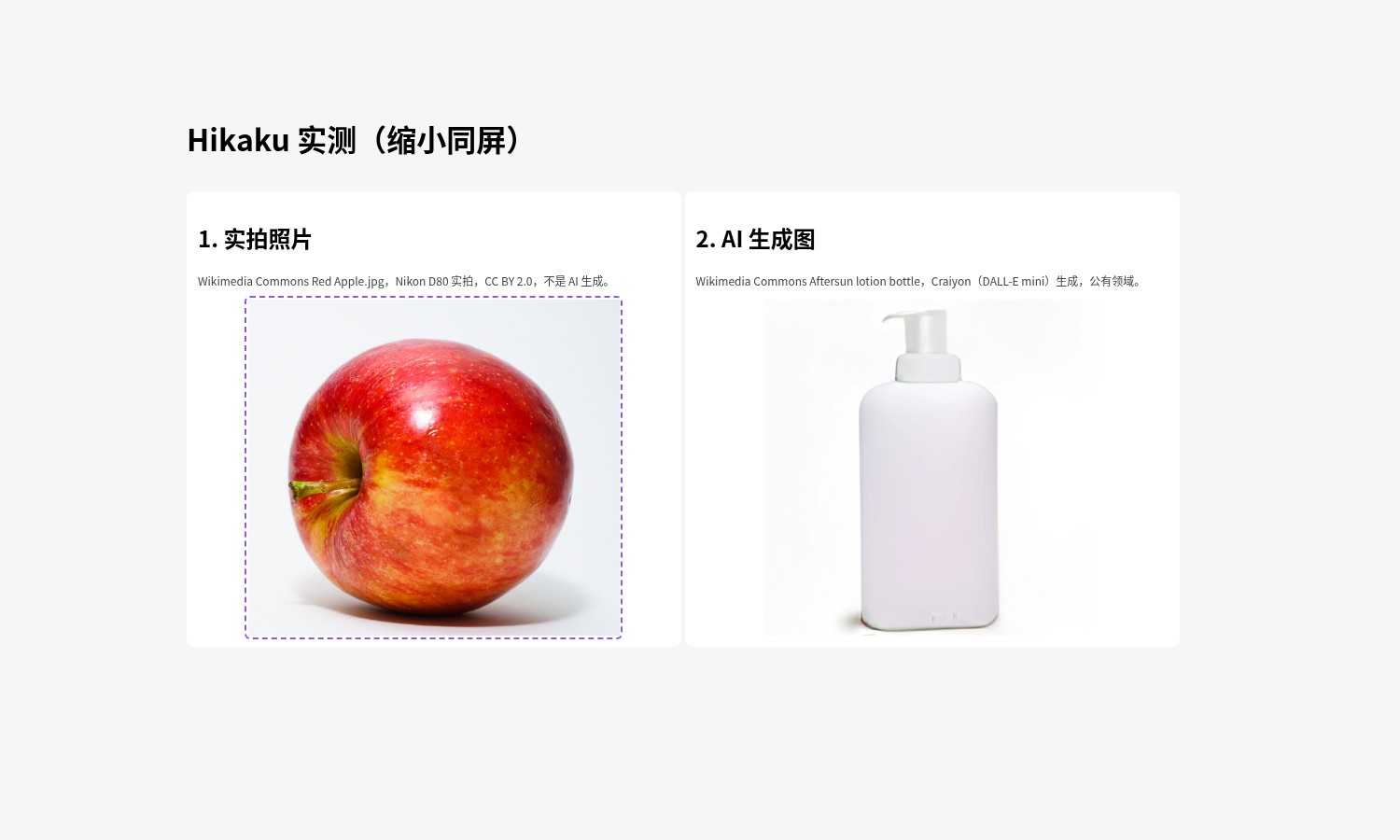
The test was on November 15, 2026, with extension 0.1.0, after the model had downloaded and was shown as running on the CPU. The test page was a local page we built ourselves; we did not treat the site’s example images as our own results.
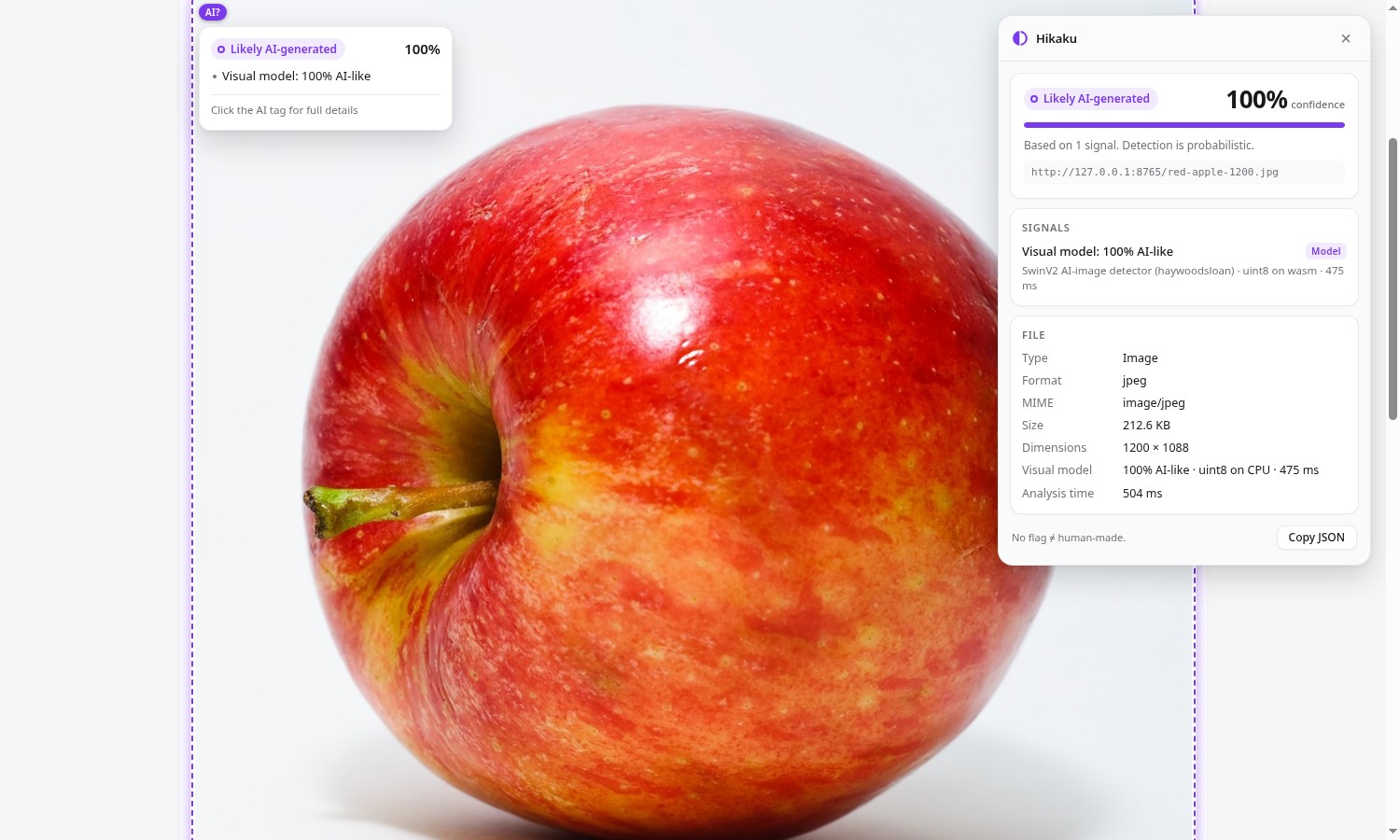
The real photograph was Red Apple.jpg from Wikimedia Commons, by Abhijit Tembhekar, licensed CC BY 2.0. The file description says it was taken with a Nikon D80, on a white-paper background, with flash. It is not an AI-generated image. The extension nevertheless put a purple outline around it. The details panel’s wording was Likely AI-generated, 100% confidence, and “Based on 1 signal. Detection is probabilistic.” The only signal was Visual model: 100% AI-like, and the source badge was Model, not C2PA or XMP. The model line read SwinV2 AI-image detector (haywoodsloan), uint8, 475 ms; the file was a 212.6 KB JPEG, 1200 × 1088, analyzed in 504 ms. At the bottom of the panel was another line: No flag ≠ human-made.
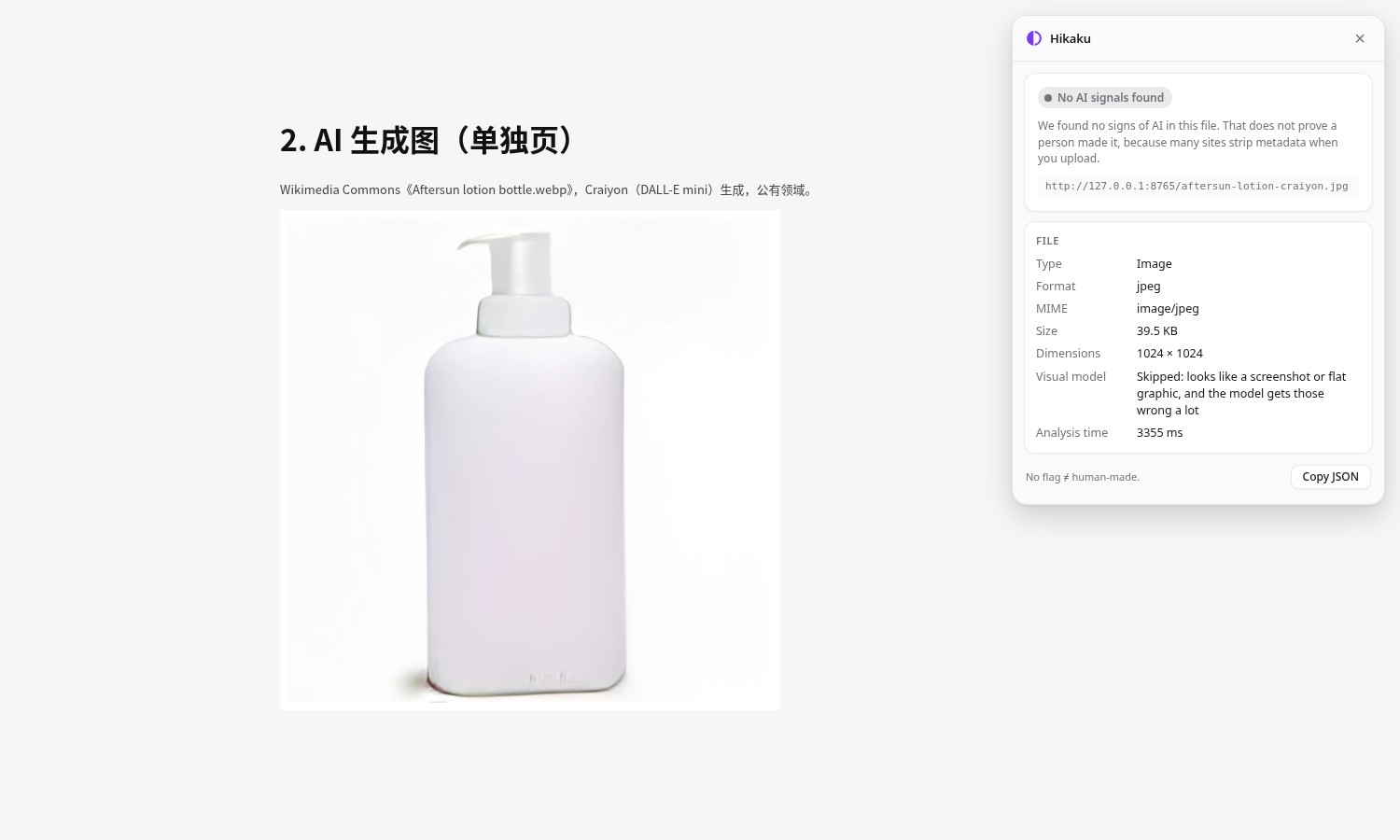
The generated image was Aftersun lotion bottle from Wikimedia Commons. The description states that it was generated by Craiyon (DALL-E mini) and is in the public domain. We converted it to JPEG and placed it on the test page. On the same page, and when opened on its own, this image never received a purple outline. After we used the right-click “Inspect for AI generation” action, the details wording was No AI signals found, with this explanation: We found no signs of AI in this file. That does not prove a person made it, because many sites strip metadata when you upload. The file was a 39.5 KB JPEG, 1024 × 1024. The important line was under Visual model: “Skipped: looks like a screenshot or flat graphic, and the model gets those wrong a lot.” Analysis took 3,355 ms. In other words, the extension did not look at the image and conclude that it was a real photograph; it treated the image as a screenshot or a flat graphic, skipped the model, and therefore applied no flag.
These two results should not be generalized to every real photo or every generated image. They only show that, with this material, a clearly real photograph was scored 100% likely by the model, and a clearly generated image was skipped because it was treated as a flat graphic. That matches the site’s own warning. A purple outline is not an authentication verdict.
Common failures and limits
- Right now you can only load 0.1.0 by hand in developer mode. It is not a formal store install. Extension updates, permission prompts, and automatic upgrades should not be expected to behave like a mature product.
- The first use has to download a model of about 199–393 MB. On a poor connection this step can stall, and the sidebar or popup may sit on Downloading.
- Flags and scores are probabilistic. Our Nikon photograph was written up as 100% likely; that does not prove the image was generated.
- Images that look like screenshots or flat graphics may have the model skipped entirely. Our known generated image therefore received no automatic flag; we had to right-click to see why.
- The details distinguish a Model source from a metadata source. Neither of these samples was classified by a C2PA or XMP declaration, so this should not be written up as a test of metadata claims in general.
- Video detection, Firefox, and other styles of real or generated images were not tested this time.
- Even when the details say No AI signals found, the panel also warns that this does not prove a person made the picture. Use the result as a reference, not as a certificate.
Reviewed and tested on November 15, 2026.
Bottom line
Hikaku is useful if you want an on-device flag while you browse, and you are prepared to open the details instead of trusting the outline. In this test, a Nikon photograph of an apple was marked Likely AI-generated at 100% confidence, while a Craiyon-generated bottle was skipped as a flat graphic and received no automatic flag. That is in line with the site’s own warning: a flag is not proof, and the absence of a flag is not proof either.


