


The backing track you get in a karaoke room is often a separately recorded version, and it does not always sound like the original you know. If you already have a file you have the right to use — your own recording, a copy you bought, or material the author has allowed you to adapt — and you want to pull out an instrumental and a vocal track you can practice against, the usual next step is to install something like UVR, or to try outdated mid/side subtraction in Audacity.
Voice Remover turns this into a web page: you upload a song or a video, wait for the separation to finish, and the page gives you Instrumental and Vocals tracks you can preview and then download as MP3. The author described the free quota and common failure cases on V2EX (a Chinese developer forum). The site’s terms say you may upload only audio you own or have a license for, and that splitting out the vocals does not give you the copyright in the original recording. What follows is a review from November 12, 2026, plus a walk-through with a test clip we made ourselves: how to use it, what the files looked like, what we checked on the waveforms, and what we did not finish by ear.
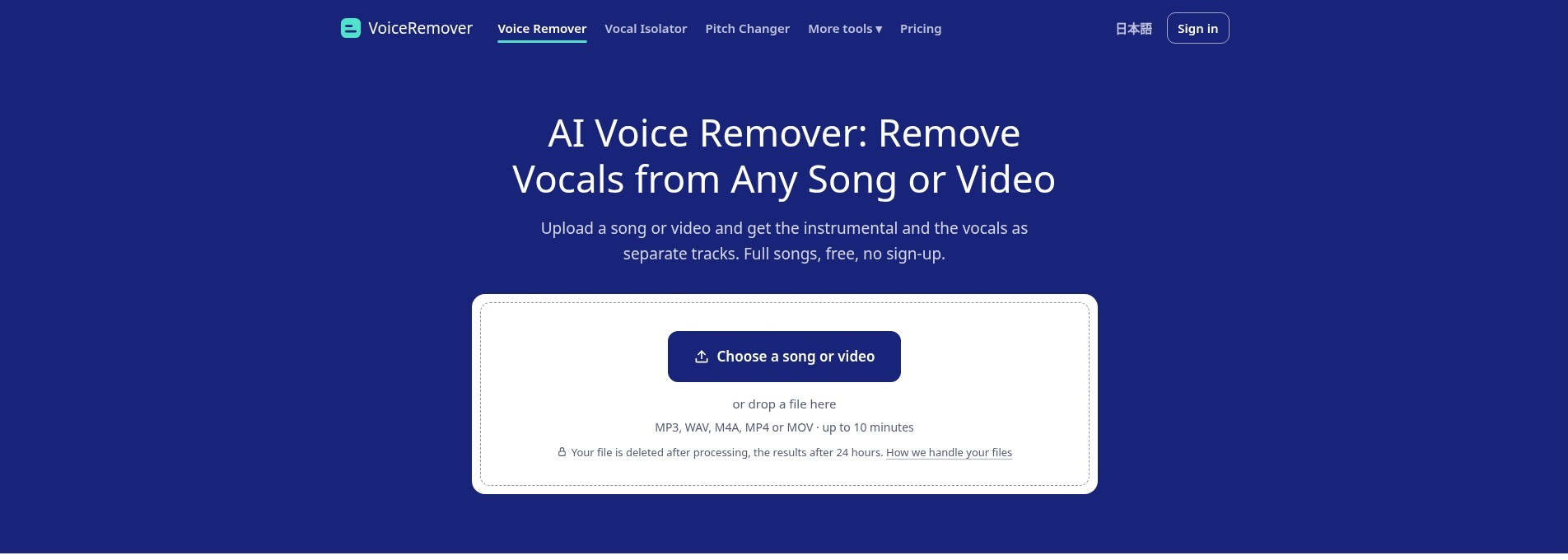
Who it is for, and what to check first
It is a good fit if you already have a file you have the right to process, you just want to split instrumental and vocals in the browser, and you do not want to install a local stem-separation suite first: for example, making a practice instrumental from your own recording, or pulling the vocal out of a rehearsal video so you can follow the lyrics. It does not master the track. It does not change key (the on-page “Change the key” link jumps to the site’s key-change tool, which we did not test). And it will not split backing vocals from the lead.
The interface is currently English and Japanese only. Before you upload, check the source of the file and what you plan to do with the result. A public performance, a published cover, or commercial use still requires permission from the rights holders. An instrumental you split out does not become yours just because “the vocal is gone.”
| Item | Details (reviewed and partly tested on November 12, 2026) |
|---|---|
| Address | https://www.voiceremover.app/ |
| Input | The page says you can upload MP3, WAV, or M4A, or an MP4 / MOV video. The free tier is limited to 10 minutes and 100 MB. The site says that if you upload a video, the browser extracts the audio first and only the audio is uploaded. We did not test the video path |
| Output | The result page has players for Instrumental and Vocals. The free tier can download MP3; WAV is marked Pro. There is no original-vs-result player on the result page (A/B preview lives in the home-page demo, and it uses the site’s own sample, not the file you just uploaded) |
| Free quota | Without signing in: 1 complete song per day. After signing in: 2 per day. The page says full length, MP3, no watermark. We were not signed in, used that day’s 1 song, and the result page showed “You’ve used today’s free song · Sign in for 1 more free song” |
| Paid plans | The pricing page lists Pro at $4.99/month (HQ separation, up to 120 songs a month, files up to 20 minutes / 200 MB, WAV download if the file is no longer than 9 minutes), and a one-time $3.99 pack of 15 HQ songs that the page says does not expire. Prices are in US dollars; tax may be added at checkout. We did not place an order or sign in |
| HQ | Free results include “Hear it in HQ · 30 seconds,” a 30-second HQ preview cut from the middle of the song, with no matching free download button. Full-song HQ is paid. We did not click “Get the whole song in HQ (paid)” |
| Where files go | The page and the privacy policy: uploaded files are deleted after processing succeeds or fails; the two returned tracks and the free 30-second HQ sample are kept for 24 hours; the original file name is kept for 30 days. Separation runs on an external service. The current terms (updated November 12, 2026) say it runs on Modal |
| Models (from the terms, not unpacked in this test) | The free two-track result uses Demucs htdemucs. Pro / one-time pack two-track results, and the free 30-second sample bundled with a free song, use Mel-Band RoFormer HQ separation. The terms say your files are not used to train models |
The free quota and sign-in state follow the browser and the network, not “a different file gets you another free run.” Once the day’s free plays are used up, another upload will be blocked or will ask you to sign in or pay. We did not test that boundary.
How to split a track, then how to check it
- Open voiceremover.app. You do not need an account first. Confirm that the file is an MP3, WAV, or M4A you have the right to use, or a video format the site supports. On the free tier, keep the length under 10 minutes.
- Click “Choose a song or video,” or drop the file onto the dashed box. This time we handed the file to the page’s file picker after the page had finished loading. The first attempt, made before the page was fully ready, did not start processing. After the how-to and FAQ sections had appeared, choosing the file again started the upload.
- After the file was chosen, a Cloudflare Turnstile “Verifying…” state appeared on the card, then passed on its own, with no checkbox and no puzzle. Progress then went “Uploading · 0%” / “Uploading · 99%,” then “Separating the vocals from the music · about 14 seconds left” (later 12 seconds, then 9 seconds), and finally “Almost done….” We did not see a queue position this time. From the file being accepted to the result appearing took about 2 minutes, including verification and a stretch where the upload sat at 99%. The page intro says most songs take about half a minute; go by the progress you actually see.
- When the result appears, listen to the Instrumental and Vocals players first. Check for obvious leftover vocals, a hollowed-out accompaniment, or backing vocals that were pulled out with the lead. If it does not sound acceptable, starting from a cleaner source is usually more effective than repeatedly processing the same low-quality file. The site itself warns that heavy reverb, live audience sing-alongs, and old mono recordings leave vocals in the instrumental more easily, and that backing vocals and harmonies travel with the lead and will not split off.
- Once you can accept the result, click “Download instrumental (MP3)” and “Download vocals (MP3).” The downloaded names include the original file name plus (instrumental) or (vocals). Open them in a local player, check that the duration matches the original, and listen again. Do not rely only on the waveform on the web page.
- If the page also offers the 30-second HQ preview, you can use it to hear what the paid tier might improve. Full-song HQ or WAV requires a paid plan. We did not unlock any paid option.
During processing, the audio is sent to the site’s processing service. That is not the same as “split entirely in the browser.” If the vocal is unpublished, belongs to a client, or is otherwise sensitive, read the privacy policy first and then decide whether to use it.
What we actually uploaded: a homemade test clip
The test was on November 12, 2026. To avoid uploading someone else’s music, we made a stereo MP3 of about 40.05 seconds (44.1 kHz, about 192 kbps, 961,767 bytes): the first roughly 16.9 seconds were an English reading synthesized with espeak-ng, layered on a very simple synthesized backing, and the rest was accompaniment only. This is not a commercial studio recording. The vocal and the backing are fairly easy to tell apart in timbre, so it is only useful for checking the flow and the files, not as a listening conclusion about a typical pop song, a live recording, or a dense harmony arrangement.
After the file was accepted, the task URL became a result page with a job= parameter. The progress copy was as described above. The result page showed Instrumental (green) and Vocals (orange), each with “Download … (MP3)” and a greyed-out “Download WAV (Pro),” plus “Change the key.” Below that were “How does it sound?” with Clean / Voice left in the instrumental, and “Hear it in HQ · 30 seconds.” The footer stated that the day’s free quota was used up. The player timecode stayed at 0:00 / 0:00 — the reason is below; it does not mean the result had not been generated.
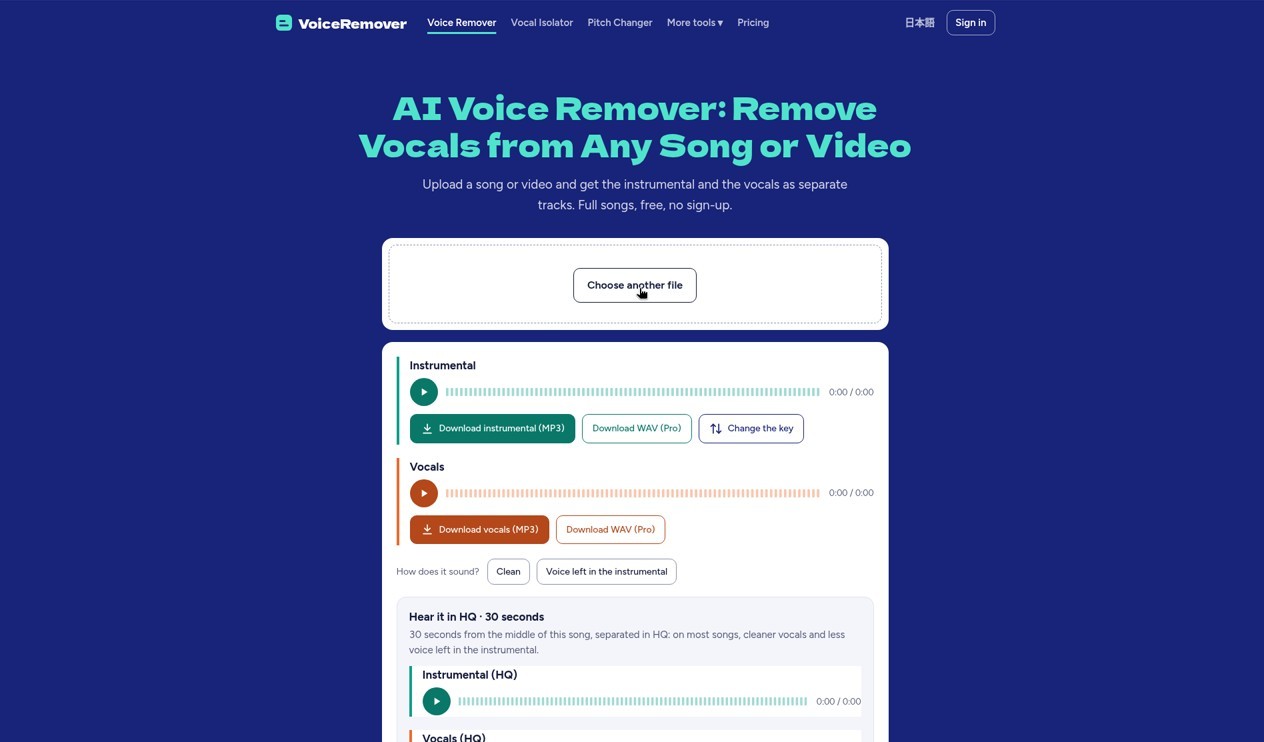
In the same tab we clicked “Download instrumental (MP3).” The button spun for more than 45 seconds, and nothing appeared in the browser download bar. The console showed net::ERR_HTTP2_PING_FAILED, and the in-page players also could not play because the same /api/file request failed. This looks more like an HTTP/2 problem in Chrome in this test environment (earlier the same day, a script load on another site hit a similar error) than proof that the site cannot serve downloads. When you use it yourself, try the on-page preview and download buttons first.
We then requested the same /api/file URLs the result-page players pointed to, from the same machine but outside that tab. Each returned HTTP 200 in about 0.3–0.5 seconds, and we got:
- baffox-test-vocal-mix (instrumental).mp3: 961,768 bytes, 40.045714 seconds, 44.1 kHz stereo MP3, about 192 kbps
- baffox-test-vocal-mix (vocals).mp3: the same duration and format, and almost the same size
The two files have different content hashes; they are not copies of each other. The metadata contained only the encoder Lavf59.27.100; we did not see a site-name text tag. That only means there was no watermark in the tags. It is not a substitute for listening for a stinger or a spoken watermark in the audio. In-page preview failed in this session, and we did not do a separate listening check.
Because we could not listen in the page, we decoded the original mix, the instrumental, and the vocals, compared energy and correlation (16 kHz mono), and also compared them with the dry vocal and the backing we had kept from the make:
- In the roughly 0.8–16.9 second window where the vocal is present, correlation between the vocals track and our dry vocal was about 0.987, and between the instrumental and the dry vocal only about 0.014.
- After the vocal ended, the vocals track’s RMS was about 0.0003, close to silence. The instrumental’s energy was close to the original mix (about 0.081 vs 0.084), and its correlation with the original synthesized backing was about 0.947.
- Over the whole clip, correlation between the instrumental and vocals tracks was about −0.001 — they barely overlap.
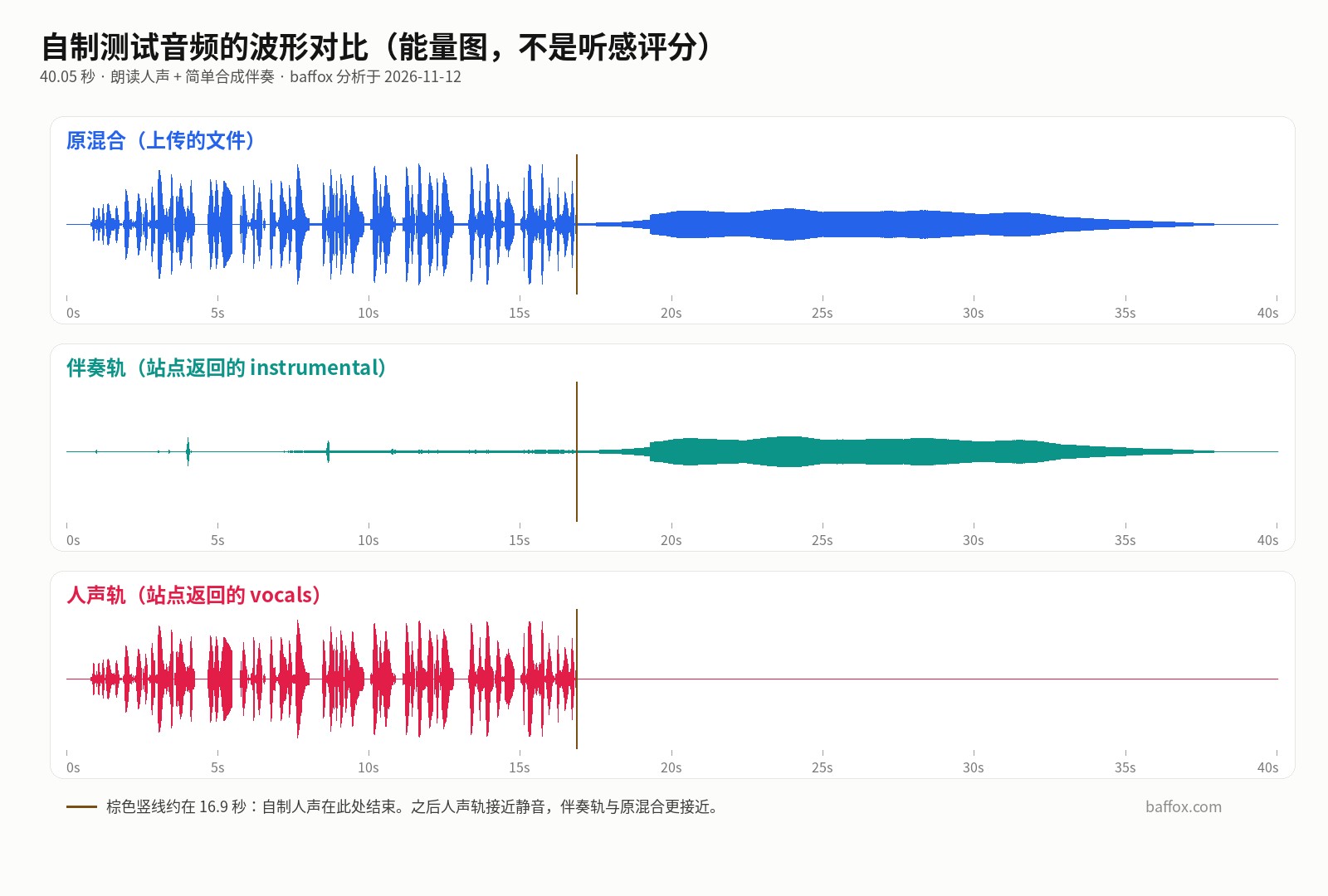
These numbers show that, on this “spoken vocal plus simple backing” material, the returned vocals track did match the speech we put in, and the instrumental followed the original backing after the vocal ended, with the loud vocal section largely removed from it as well. This is still waveform and correlation, not a listening test. The material is also much simpler than a real song, so we did not verify whether reverb, harmonies, or a live recording would leave vocals behind.
Common failures and limits
- Do not upload audio you have no right to use. Splitting two tracks does not give you the right to publish, perform, or sell the result. The terms are explicit about this, and the site cannot obtain a license for you.
- The free allowance is 1 song a day (2 after you sign in). Splitting a different version of the same song usually counts again. Results are kept for about 24 hours; download them at the time if you want to keep them.
- Heavy vocal reverb, live sing-alongs, old mono recordings, and harmonies or backing vocals are hard cases the site and the author have both flagged. Do not assume every pop song will yield a clean karaoke instrumental.
- This test material was not a commercial song, so the conclusion does not transfer directly to your track. When you check a result yourself, listen to the whole instrumental in a local player.
- If in-page preview or download stalls, refresh and try again, or check whether the browser can fetch files from the same site normally. We hit an HTTP/2 failure in this session, but the same URLs returned the files immediately outside the browser tab.
- Video upload (claimed to upload only the extracted audio), key change, stem splitting, background-music removal, and HQ / WAV were not tested this time.
- This is an independent web tool. Models and quotas may change. Go by the page and the terms on the day you use it.
How it sits next to other options
If you have a batch of songs on your own computer and you do not want to upload them, a local separator such as UVR is still a better fit; you just have to handle the install and the settings yourself. If you only want to weaken a centered vocal in a stereo mix, old mid/side subtraction can sometimes help in a pinch, but it is usually poor on mono and on modern mixes — the site’s own intro contrasts that method with current separation models.
If you already have a usable instrumental or a demo, and the real problem is that it is too quiet or the low end is thin, that is mastering, not another vocal split; see AI Music Master on this site. If the goal is not “split a vocal out of an existing mix” but cloning a voice and dubbing a video on your own machine, that is a local tool such as VoiceStudio (EN pending). To find music or sound effects you can legally use before you upload anything, start with the guide to legitimately free resources (EN pending).
Bottom line
If your problem is “I have a file I have the right to use, and I want to split instrumental and vocals in the browser, preview them, and download them,” open Voice Remover, use the one free song, and check the result in a local player. In this test, a homemade 40-second clip made it through upload, separation, and retrieval of both MP3s, with durations matching the original. Waveforms and correlation also lined up with “the vocal went to the vocals track, and the backing remained after the vocal ended.” In-page preview and the Chrome download button did not succeed in this environment, and we did not test full-song HQ, WAV, or how a real commercial song sounds. Whether it works on your track, and whether you have the right to use it this way, depends on your file and your license.


