


For the past couple of years, local AI image generation has kept stalling for me at the same point: the good models either eat too much VRAM or only run online at a per-image price. On October 15, Black Forest Labs (the German company behind the FLUX models) released FLUX 3 Image Klein, and the official numbers hit that pain point squarely: a 5.6B-parameter image model, native 4K output, and with the INT8 version it runs on an NVIDIA card with 8GB of VRAM.
I spent a weekend reading the official blog, the Hugging Face model card, the ComfyUI docs and the full license, and turned it into these getting-started notes. To be upfront: the machine I had on hand has no NVIDIA GPU, so I couldn’t run my own benchmarks. All VRAM and speed figures below are official, each with its source. The install steps and settings follow the official ComfyUI docs, so you can follow along step by step.
Sources checked on October 19, 2026 (Beijing time). The latest ComfyUI release is v0.42.1.
The short version
- Worth installing: if you have an NVIDIA card with 8GB or more and want to generate and edit images on your own machine, this is one of the best models with the lowest hardware bar right now.
- Always turn on prompt upsampling: the official docs keep stressing that the model wants a full scene description. Feed it a short prompt and you get bland results.
- Commercial use depends on revenue: individuals and companies under US$5 million in annual revenue can use generated images commercially, but the license also attaches conditions on content moderation and AI labeling. It’s not “anything goes”.
- It can do Chinese-style painting, but don’t expect it in one step: add inscriptions and seals yourself afterwards, and work out the print resolution in advance.
What’s actually new
FLUX 3 Image Klein is the second open-weight model in the FLUX 3 family (the first was FLUX 3 Action). One model handles three jobs:
- Text to image: describe it, get an image.
- Image editing: give it an image and describe in words what it should become.
- Multi-reference: feed it up to 10 reference images and combine their people, objects and styles in one new image.
It also has two less common abilities:
- Bounding-box layout control: mark a region in the prompt with 0–1000 coordinates and tell the model what goes there, or edit only that region. The model card notes the box only guides position and size; it isn’t a hard mask, so elements can still spill outside.
- Native 4K: BFL’s docs list the maximum resolution as “Up to 4K”, and Comfy’s official page says it generates 4K directly rather than upscaling a small image.
It comes in two versions:
| Version | Sampling steps | Guidance (CFG) | Best for |
|---|---|---|---|
| Klein (distilled) | 16 | None (fixed at 1 in ComfyUI) | Everyday generation and editing; it’s what powers the BFL API |
| Klein Base | 50 | 3.5 | LoRA training, fine-tuning, research |
The text encoder is Qwen3-VL-4B-Instruct (Apache-2.0). Note that the 5.6B figure only counts the image generator; the text encoder is extra, so the real footprint is bigger than “5.6B” sounds.
What’s good and what’s not
What I like:
- Small: it has the fewest parameters of the open models BFL compares it with; Qwen-Image 2.1 is 7B and Krea 2 is 12.9B. In BFL’s own internal evals it has 38% fewer parameters than the previous FLUX.2 [klein] 9B yet scores 91 Elo points higher on text-to-image (vendor-run testing, so treat it as directional).
- Fast: in NVIDIA’s tests with the distilled model plus INT8 in ComfyUI, a 1-megapixel image takes under 9 seconds on an RTX 4070 and about 4 seconds on an RTX 5090.
- One model for everything: text-to-image, editing and multi-reference all use the same weights, so there’s no separate editing model to download.
- ComfyUI support on day one: ComfyUI v0.41.0 supported it natively on release day, with ready-made workflow templates.
What’s not so good:
- It leans on prompt upsampling: the upsampler is a separate 9B model, which means another download and more VRAM. Skip it and you’ll need to write the full English description yourself, or with another LLM.
- The weights are gated: on Hugging Face you have to sign in and accept the license before downloading.
- The official statements don’t fully agree: the blog says the INT8 version runs on 8GB of VRAM, while the overview in BFL’s docs says “down to an RTX 3090” (24GB). My reading is that they describe different setups: 8GB refers to the INT8 quantized version in ComfyUI or Diffusers, and the 3090 line is more likely unquantized. If your VRAM is limited, just use INT8.
- Text rendering is unreliable: the model card says generated text may be inaccurate or distorted. The card also lists English as the only language; I couldn’t confirm how well other-language prompts work.
- NVIDIA data only: the official quantized builds and benchmarks are all on NVIDIA GPUs. I found no official word on whether Macs or AMD cards can run it, or how well.
Will it run on my GPU?
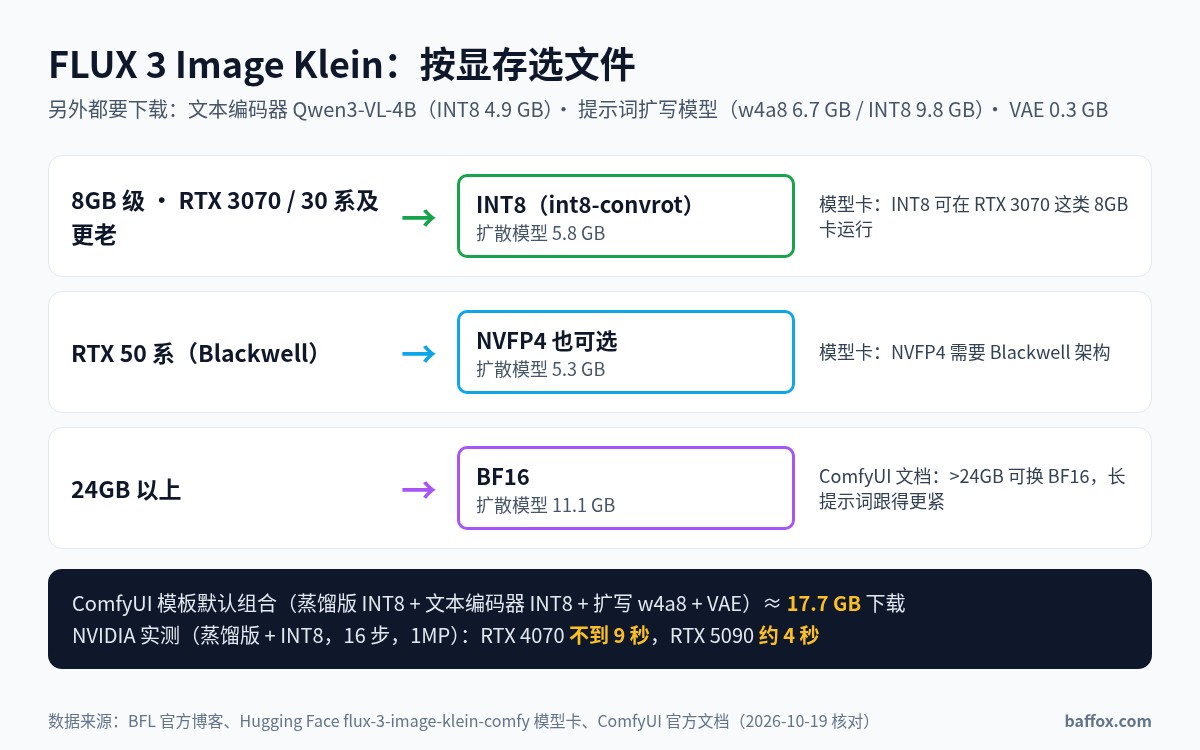
The ComfyUI model files live in the black-forest-labs/flux-3-image-klein-comfy repo. Roughly, pick files by VRAM like this:
| Your GPU | Suggested file | Official basis |
|---|---|---|
| 8GB class, e.g. RTX 3070, plus RTX 30-series and older | INT8 (int8-convrot) |
Model card: INT8 runs on 8GB cards like the RTX 3070 and suits 30-series and older cards without FP8 support |
| RTX 50-series (Blackwell) | You can also try NVFP4 | Model card: NVFP4 requires Blackwell |
| 24GB or more | BF16 | ComfyUI docs: with more than 24GB you can switch to BF16 for closer adherence to long prompts |
File sizes (from the model card):
| File | What it is | Size |
|---|---|---|
flux3-image-klein-int8-convrot.safetensors |
Distilled model, INT8 | 5.8 GB |
flux3-image-klein-bf16.safetensors |
Distilled model, BF16 | 11.1 GB |
qwen3vl_4b_int8_convrot.safetensors |
Text encoder, INT8 | 4.9 GB |
qwen3.5_9b_flux3_prompt_upsampler_w4a8.safetensors |
Prompt upsampler, w4a8 | 6.7 GB |
flux2-vae.safetensors |
VAE | 0.3 GB |
With the ComfyUI template’s default combination (distilled INT8, text encoder INT8, upsampler w4a8 and the VAE), I make it about 17.7 GB to download. Add the Base INT8 model and it’s around 23.5 GB, so leaving 30GB of disk free is a safe bet.
One thing to keep in mind: generation on an 8GB card is fine, but the upsampler is itself 6.7GB, and I found no official test showing both running smoothly together on 8GB. If you see stutters or out-of-memory errors, turn off the upsampler and write the description with an online LLM such as ChatGPT, Claude or DeepSeek instead, then paste it in.
The model card also gives a reference point: with BFL’s own inference code on a B200 data-center GPU, generating 1024×1024 without the upsampler peaks at 31GB of VRAM in BF16 and 26GB in FP8. Those are numbers for the reference code, not ComfyUI, which manages VRAM on its own. On consumer cards, use the INT8 version with ComfyUI and don’t size your GPU purchase from those figures.
If you’re still deciding whether to buy a GPU for local AI, see my llmspeed GPU speed tables. That post is about LLM chat, but the way to think about VRAM is the same.
Installing it: five steps
Step 1: Install or update ComfyUI
If you don’t have it yet, get the desktop app from the ComfyUI download page; it’s the easiest route on Windows. If you already have it, update to the latest version with the official update guide.
The docs list 0.41.0 as the minimum, but the official workflow templates have been revised several times since release and ComfyUI has shipped several point releases. I’d go straight to the current latest version.
Step 2: Accept the license on Hugging Face
Sign in to Hugging Face, open the flux-3-image-klein-comfy repo page and accept the FLUX Kommunity License when prompted; only then can you download the files. Before you click accept, I’d read the commercial-use section below.
Step 3: Download the model files
You can click through and download each file in the browser, or grab them all with the command from the model card. Here it is as given; it downloads the INT8 upsampler (9.8 GB). To save space, swap the last file for text_encoders/qwen3.5_9b_flux3_prompt_upsampler_w4a8.safetensors:
hf download black-forest-labs/flux-3-image-klein-comfy \
  diffusion_models/flux3-image-klein-int8-convrot.safetensors \
  text_encoders/qwen3vl_4b_int8_convrot.safetensors \
  vae/flux2-vae.safetensors \
  text_encoders/qwen3.5_9b_flux3_prompt_upsampler_int8_convrot.safetensors \
  --local-dir ComfyUI/models
hf is the Hugging Face command-line tool. Install it with pip install -U huggingface_hub, then run hf auth login to sign in. If downloads from Hugging Face are slow where you are, download the files in the browser in batches and drop them into the matching folders.
Step 4: Put the files in the right place
ComfyUI/models/
├── diffusion_models/   ← flux3-image-klein-int8-convrot.safetensors
├── text_encoders/      ← qwen3vl_4b_int8_convrot.safetensors
│                         qwen3.5_9b_flux3_prompt_upsampler_*.safetensors
└── vae/                ← flux2-vae.safetensors
If you build your own workflow: load the model with the Load Diffusion Model node, the text encoder with the Load CLIP node (set type to flux3), and the VAE with the Load VAE node.
Step 5: Open the official template
In ComfyUI’s Template Library, search for “FLUX 3 Image Klein Distilled: Text to Image” and open it fresh from the library. Don’t reuse a workflow you saved on release day: within two days BFL replaced the whole set of old templates in the Hugging Face repo, and every new template has prompt upsampling built in.
Your first image: which settings to touch
Once the distilled text-to-image template is open, you only really need to change a few things:
- Prompt: the template has upsampling on by default, so a simple sentence is enough. It gets expanded into a full description before generation.
- Steps: anywhere from 4 to 16, default 16. Drop to about 8 to try compositions quickly, then go back to 16 for the final.
- CFG: fixed at 1 for the distilled model; raising it does nothing.
- Size: pick the aspect ratio in ResolutionSelector; the default is a 1:1 square. Try compositions at around 1024 for speed, then go bigger for the final.
- Click Queue. Images are saved to
ComfyUI/output/.
To edit an image, switch to the “Image Edit” template: connect the source image to the Set Reference Multi Latent node and refer to the first reference image as <ref_image_0> in the prompt. One official tip is really useful: describe the result you want, not the change. Instead of “make the dress red”, describe the whole finished picture.
The Base model means 50 steps at CFG 3.5 and is a lot slower. Unless you’re training a LoRA, the distilled model is all you need for everyday work.
Using it for traditional Chinese painting: my approach
A friend recently asked whether I could batch-produce traditional Chinese paintings, things like blue-green landscapes (qinglü shanshui, mountains painted in mineral blues and greens) and gongbi bird-and-flower paintings (a meticulous, finely outlined style). Klein suits this for two reasons: it outputs high resolution directly, and it can lock in a style with reference images. Here’s how I go about it:
1. Describe the style through technique and materials, not painter names. The model card’s prompting advice specifically says to describe color, brushwork and texture rather than naming a particular work. That gives you more control and keeps you clear of copyright trouble from imitating a specific artist. The kinds of descriptions I use:
- Blue-green landscape:
traditional Chinese blue-green landscape painting on aged silk, mineral azurite and malachite pigments, fine ink outlines, layered mountains, mist between peaks, red maple trees, a small waterfall, vertical hanging scroll composition - Freehand ink wash:
Chinese ink wash painting on rice paper, wet ink bleeding into the paper fibers, varied ink tones from pale grey to deep black, generous empty space, loose expressive brushwork - Gongbi bird-and-flower:
gongbi style Chinese painting, peony and a small bird, extremely fine even outlines, layered transparent color washes, light cream silk background, square composition
2. Don’t let it write. Chinese paintings traditionally carry a calligraphic inscription, the artist’s signature and red seal stamps. Put no text, no calligraphy, no seal in the prompt and add those later yourself, or ask a friend with good calligraphy. AI-generated Chinese characters often miss strokes or come out wrong, and on a traditional painting that really stands out.
3. Use reference images when you need a consistent style. Pick one image you’re happy with as the reference, feed it into the edit template, and change only the subject description. When a client wants a whole set in a similar style, this is far more consistent than rewriting the prompt every time.
4. Work out the resolution before printing. At the common print standard of 300 dpi, print size (cm) = pixels ÷ 300 × 2.54:
| Long-edge pixels | Long edge at 300 dpi | Long edge at 150 dpi |
|---|---|---|
| 2048 | about 17 cm (6.8 in) | about 35 cm (13.7 in) |
| 4096 (estimating 4K-class) | about 35 cm (13.7 in) | about 69 cm (27.3 in) |
| 8192 (4K upscaled 2×) | about 69 cm (27.3 in) | about 139 cm (54.6 in) |
For square and small formats, native 4K is usually enough. To print a hanging scroll over a meter tall, add an upscaling step in ComfyUI: use the Load Upscale Model and Upscale Image (using Model) nodes, and put the upscale model file in ComfyUI/models/upscale_models/. Check the upscaler’s own license allows commercial use. After upscaling, always inspect the image at 100% section by section: AI images tend to smear details like leaves, water ripples and distant mountains into mush.
5. Will the big version look like the small one you liked? Keeping the same seed and prompt and only raising the resolution often changes the composition, because resolution itself affects the result. The safest approach is to pick your small image and upscale that exact image, rather than regenerating a large one from the same prompt.
Can you use it commercially? Key points from the license
I read the FLUX Kommunity License v1.0 in full. These are the points that matter most to ordinary users (my reading, not legal advice):
- Non-commercial use is free: personal learning, research and fun are all fine.
- Qualifying users can use generated images commercially: the license defines a “Qualifying User” as you plus your affiliates having annualized total revenue under US$5,000,000. If you qualify, you can use the generated images commercially, and run the model in production to generate them.
- Commercial use comes with conditions (section 2.e): either run content filtering to prevent illegal or infringing output, or have a human review generated images before publishing. And where local law requires AI-generated content to be labeled, you must label it.
- Only the generated images are covered: commercial fine-tuning or distributing the model isn’t part of the free grant. The model card says plainly that this commercial exception doesn’t extend to commercial fine-tuning or distribution. If you need that, apply via BFL’s commercial licensing page.
- Explicitly prohibited: military use, surveillance, biometric identification, violating others’ rights such as likeness rights, generating illegal content, and using its outputs to train competing models.
Charging a client for generated images counts as commercial use. If you’re an individual or a small studio well under the threshold, the license allows it; just remember to review the images yourself and add AI labels where required.
FAQ
Can I use it without a GPU?
Yes, just not locally. The model is called flux-3-image-klein on the official BFL API and is priced by output resolution: $0.009 per 1K image and $0.036 per 4K image. There’s also an official online demo on Hugging Face if you want to see the results first.
Does it run on a Mac?
The official quantized builds and benchmarks are all on NVIDIA GPUs, and I found no official statement on Mac or AMD support, so I won’t guess.
Should I switch from older Stable Diffusion models?
If you already have a tuned SD workflow and LoRAs, there’s no rush to replace everything. Klein’s strengths are that one model handles generation, editing and multi-reference, and that it outputs native 4K. Try it first on new projects.
Can I train my own LoRA?
Yes, on the Base model. Diffusers and Ostris’s AI Toolkit supported LoRA training from day one. Note that under the license, fine-tuning for commercial purposes requires a separate license.
Can I write prompts in languages other than English?
The model card lists only English. I couldn’t confirm whether the upsampler expands other-language descriptions well. To be safe, write in English, or have an LLM turn your idea into a full English scene description first.
Running AI locally isn’t just about images. If you want to run large language models on a home GPU, see Strata.


