


Boot up a new PC or a fresh install of Windows 11 and the Start menu is often stuffed with things you’ll never use: Clipchamp, News, Weather, Solitaire, shortcuts to TikTok and Spotify. The search box shows Bing web results, the lock screen and Settings serve up “tips” and Microsoft 365 promos, and the taskbar gains Widgets and Copilot. Turning it all off by hand means digging through a dozen Settings pages, and some options are hidden in Group Policy or the registry.
Win11Debloat bundles all of that into one PowerShell script. Tick boxes in its interface, or just pick “Default Mode”, and within minutes it removes preinstalled apps, turns off telemetry and ads, and tidies up the taskbar, File Explorer and right-click menu. The repo dates back to October 2020, is MIT-licensed, had about 60,000 GitHub stars at the time of writing, and works on both Windows 10 and Windows 11. Researched on October 21, 2026.
The bottom line first: use it on your own PC, ideally a fresh install. Don’t use it on a work computer managed by your IT department. Create a system restore point before you start (the script does this by default) and look through the list of apps it removes by default. Below: how to run it, what Default Mode changes, how to undo it, and what we think you should watch out for.
Win11Debloat at a glance
| Question | Answer |
|---|---|
| What is it? | A PowerShell script with both a GUI and a command-line mode. Nothing to install; it cleans up its temporary files when it finishes |
| What does it do? | Removes preinstalled apps; turns off telemetry, targeted ads and assorted “suggestions”; disables or removes Copilot and Recall; tweaks 100+ settings for the Start menu, taskbar, File Explorer, Windows Update and more |
| Which systems? | Windows 10 and Windows 11; some options only apply to Windows 11 |
| Does it cost anything? | Free and open source under MIT; the author accepts tips on Ko-fi |
| Admin rights needed? | Yes. The script shows a UAC prompt and runs only after you approve it |
| Can I undo it? | Mostly: registry changes are backed up automatically and can be restored, and apps can be reinstalled from the Microsoft Store. A few apps are hard to get back; details below |
| Latest version | 2026.08.24, released in late August 2026; the main branch was still being updated in October |
How to run it: three ways
1. One command (officially recommended)
Right-click the Start button and choose “Terminal (Admin)”, or search for “Windows PowerShell” and choose “Run as administrator”. Paste this line and press Enter:
& ([scriptblock]::Create((irm "https://debloat.raphi.re/")))
What it does is simple: it fetches a bootstrap script from debloat.raphi.re, which downloads the latest release archive from GitHub, extracts it to %temp%\Win11Debloat and launches the main script as administrator. When it’s done, the temporary files are deleted automatically, while config, logs and backups are kept.
A few notes:
- Use the built-in Windows PowerShell 5.1 (powershell.exe), not a separately installed PowerShell 7 (pwsh). The Appx module needed to remove apps doesn’t load in PowerShell 7, and newer versions of the script exit immediately if they detect it.
- A pattern like
irm ... | iexessentially means “download some code and run it right away”. The domain belongs to the project’s author and is the one listed in the README. If that makes you uneasy, use method 2: download first, read it, then run it. - If GitHub is slow or blocked on your network, this command will stall at the download step; downloading manually with method 2 is more reliable.
2. Download the archive and double-click Run.bat
- Download the latest source archive from the Releases page and extract it, for example to
C:\Win11Debloat. - Double-click
Run.batinside and click “Yes” at the UAC prompt. - If the window flashes and disappears, use method 3.
3. Run it manually in an admin PowerShell
Set-ExecutionPolicy Bypass -Scope Process -Force
cd C:\Win11Debloat
.\Win11Debloat.ps1
The first line lifts the script execution restriction only for this PowerShell window. Close the window and it goes back to normal; the system-wide policy isn’t touched.
Default Mode or Custom Setup: which first?
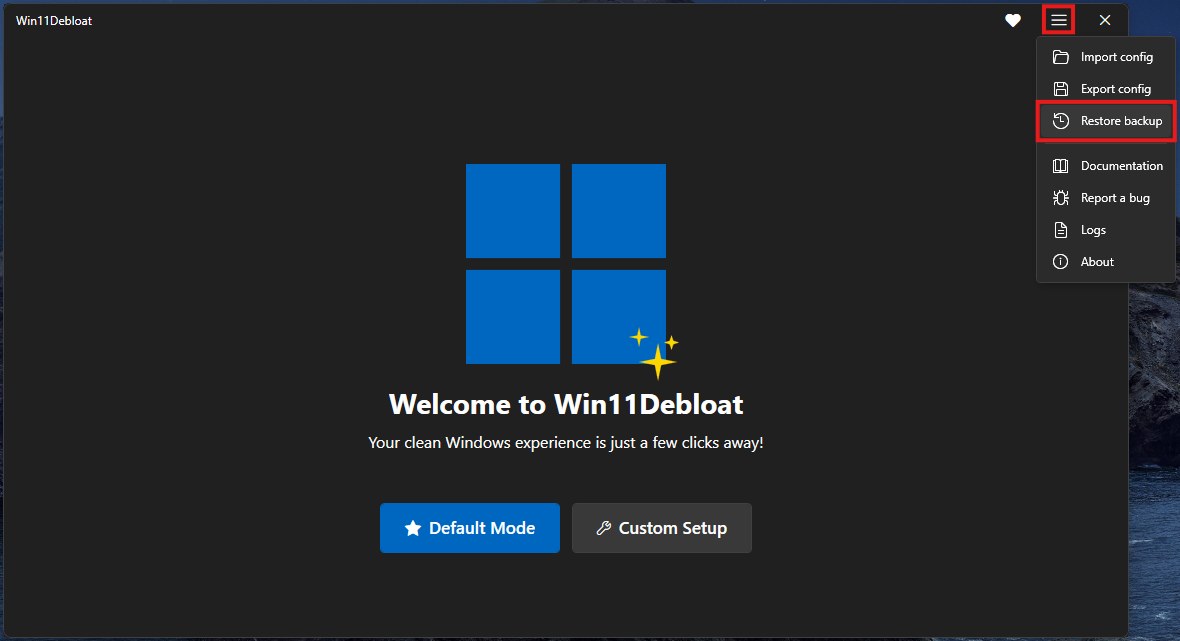
It opens to a welcome screen with two big buttons: Default Mode and Custom Setup.
What Default Mode changes
Default Mode is the set of changes the author considers right for most people. According to the official wiki, it:
- Turns off telemetry, diagnostic data, activity history, app-launch tracking and targeted ads
- Turns off tips, tricks, suggestions and ads throughout Windows, including on the lock screen
- Turns off ads, suggestions and the MSN news feed in Edge
- Turns off Bing web search, Bing AI and Cortana in Windows Search, plus Microsoft Store app suggestions (the latter Windows 11 only)
- Disables and removes Microsoft Copilot, disables Recall and Click to Do, and stops the AI service WSAIFabricSvc from starting at boot (Windows 11 only)
- Turns off Widgets on the taskbar and lock screen
- Shows file extensions for known file types
- Turns off the drag-and-drop file tray (Windows 11 only)
- Disconnects from the network during Modern Standby to save battery (Windows 11 only, and only on supported hardware)
- On Windows 10, additionally hides the taskbar “Meet Now” icon and the 3D Objects folder in This PC
- Creates a system restore point before applying any changes
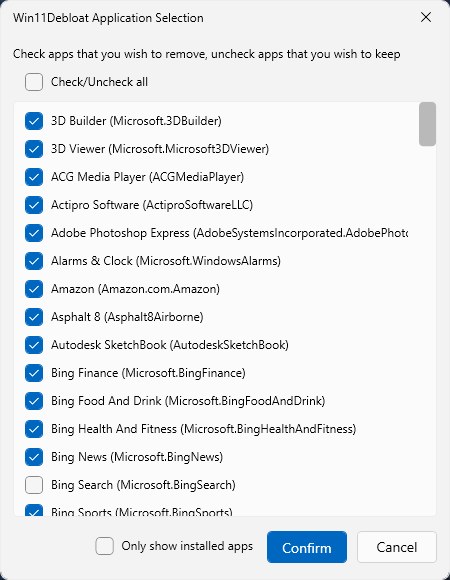
Default Mode also asks whether to remove the “default app list”. The script currently recognizes 139 apps and pre-selects 82 of them, including:
| Category | Removed by default (examples) |
|---|---|
| Small Microsoft apps | Alarms & Clock, Sound Recorder, Sticky Notes, Microsoft To Do, OneNote (UWP), Maps, Movies & TV, Solitaire Collection, Feedback Hub, Quick Assist, Family Safety, Microsoft Journal, PC Manager |
| Microsoft AI and Office entry points | Microsoft Copilot, Copilot+ AI Hub, Office Hub, Power Automate, Power BI |
| Discontinued legacy apps | Cortana, Bing Finance / Sports / Travel and similar, Skype (UWP), Dev Home, Teams (classic) |
| New Teams | Microsoft Teams (new), including for work or school accounts |
| Third-party preinstalls | Clipchamp, TikTok, Spotify, LinkedIn, Netflix, Disney+, Candy Crush and other games |
Not removed by default: Calculator, Photos, Camera, Notepad, Paint, Snipping Tool, Media Player, Phone Link, the new Outlook, OneDrive and the Xbox app. Edge, the Microsoft Store and Windows Terminal are flagged as “unsafe” to remove and are only uninstalled if you tick them yourself.
So before you confirm, untick anything you actually use. The usual casualties are Sticky Notes, To Do, OneNote, Alarms and Sound Recorder, plus the new Teams for anyone who uses it for meetings.
Custom Setup: pick for yourself
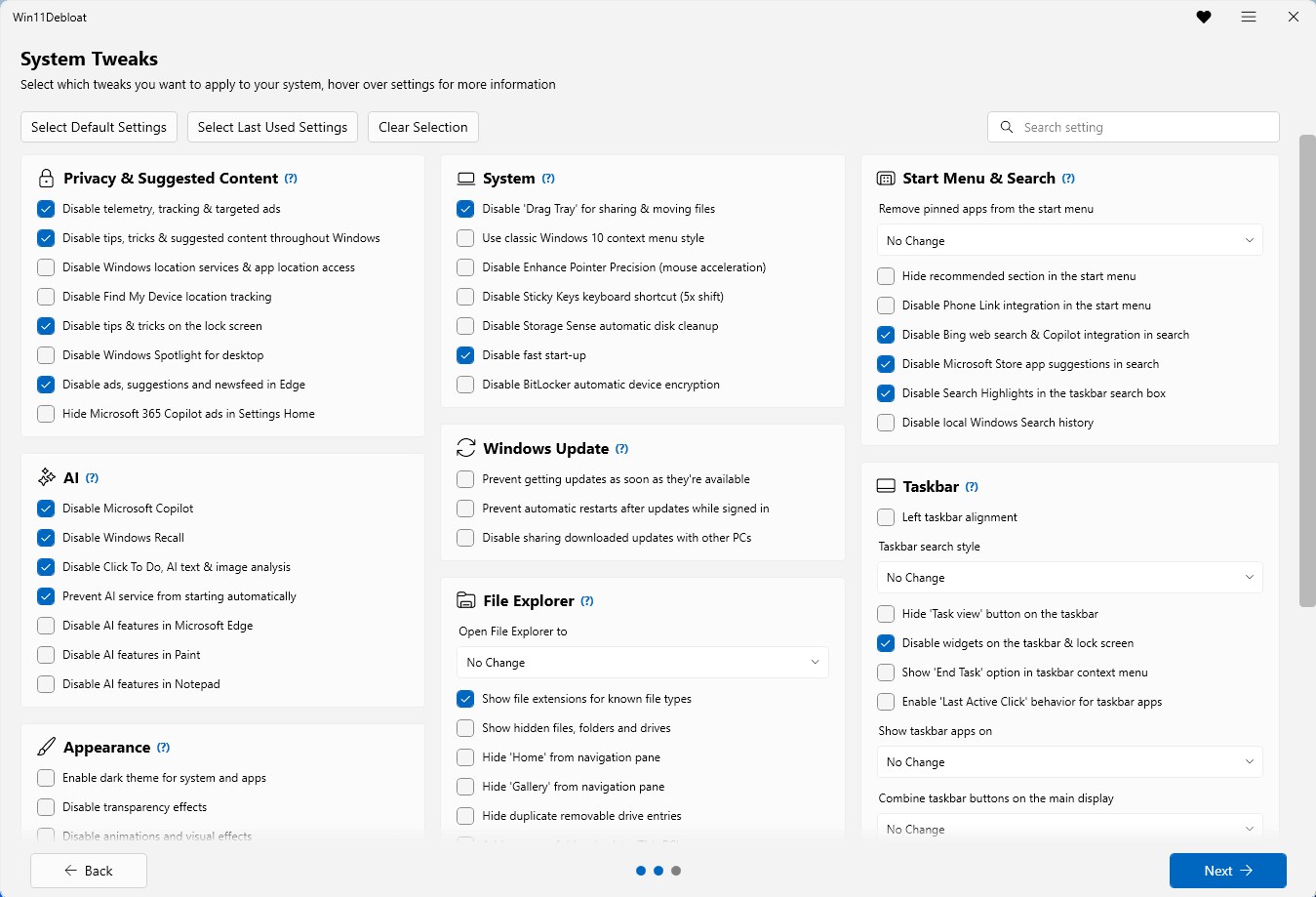
If you’d rather not trust the defaults, choose Custom Setup. It’s three steps: pick the apps to remove, tick settings one by one on the System Tweaks page, then choose which user to apply them to. A “Select Default Settings” button at the top applies the default selection so you can add or remove from there. Hover over any item for an explanation, and use the search box in the top-right to find settings.
Beyond Default Mode, the most useful optional tweaks include:
- Context menu: restore the full Windows 10-style right-click menu, so you no longer have to click “Show more options”
- Taskbar: left-align icons; hide the search box or Task View button; add “End task” to the taskbar right-click menu to kill frozen apps directly
- File Explorer: open to This PC or Downloads by default; show hidden files; hide Home, Gallery or the OneDrive entry; put Desktop, Downloads and other common folders back under This PC
- System: turn off mouse acceleration (Enhance pointer precision), the Sticky Keys shortcut (the pop-up after pressing Shift five times) and Fast Startup
- Windows Update: turn off “Get the latest updates as soon as they’re available”; no automatic restarts while you’re signed in; turn off Delivery Optimization (sharing update files with other PCs); stop automatic installs of manufacturer companion apps when you plug in monitors and other devices
- AI: turn off AI features in Edge, Chrome, Paint and Notepad
- Appearance: dark mode, and turn off transparency and animation effects
- Optional features: enable Windows Sandbox or WSL in one click
The final confirmation page lists every pending change. Two options are ticked there by default: Create a system restore point (recommended) and Back up the registry. Leave them on.
Command-line usage
If you prefer the command line or need to deploy at scale, add parameters after the launch command. The most common ones:
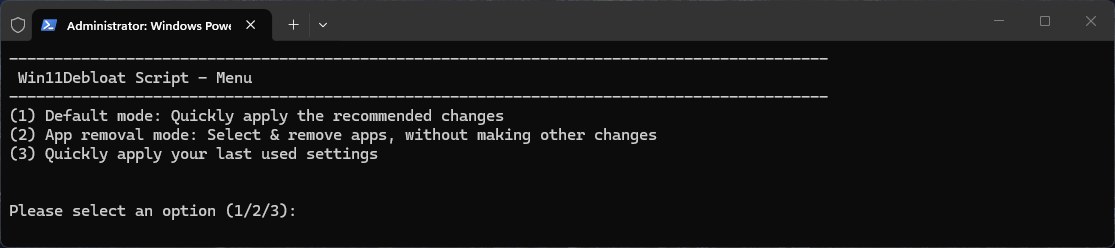
# Open a simple text menu: Default Mode / remove apps only / apply last-used settings
& ([scriptblock]::Create((irm "https://debloat.raphi.re/"))) -CLI
# Apply default settings and remove default apps, no UI
& ([scriptblock]::Create((irm "https://debloat.raphi.re/"))) -RunDefaults
# Apply default settings only, remove no apps
& ([scriptblock]::Create((irm "https://debloat.raphi.re/"))) -RunDefaultsLite
# Pick your own: restore point, no telemetry, no Bing search, classic context menu, left-aligned taskbar
& ([scriptblock]::Create((irm "https://debloat.raphi.re/"))) -CreateRestorePoint -DisableTelemetry -DisableBing -RevertContextMenu -TaskbarAlignLeft
For the full parameter list, see the wiki’s Command-line Interface page. The GUI can also export a config file, which you can import on another PC with -Config path, or reapply your previous choices with -RunSavedSettings. That’s handy when you want several office or family PCs set up the same way.
Changed your mind? How to undo it
From least to most drastic:
- Run it again and untick. On the System Tweaks page, tick “Detect applied tweaks” and the script reads your current state; untick whatever you want to revert and apply.
- Restore the registry backup. Since version 2026.05.10, the script backs up the relevant registry keys before every change. Open the top-right menu (three lines) → “Restore backup” → “Restore Registry Backup”, pick the backup file and restart. This restores settings only; it doesn’t reinstall removed apps. You can also restore your Start menu pin layout separately here.
- Use the Undo registry files. The
Regfiles\Undofolder inside the script folder has a revert file for each setting, for exampleEnable_Bing_Cortana_In_Search.regto bring back Bing search. Double-click to import, then sign out or restart. - Reinstall apps. Nearly all apps can be reinstalled from the Microsoft Store or with
winget install. Widgets require reinstalling the Windows Web Experience Pack and two related components; for Xbox services, use Microsoft’s official Gaming Services repair tool. - System Restore. If something is really off, roll back to the restore point the script created at the start. It won’t touch your documents or photos, but it will remove software, drivers and updates installed after that point.
Safety notes: the risks, plainly
Win11Debloat mostly relies on Windows’ own Appx and WinGet to remove apps, and on the registry and Group Policy to change settings. It doesn’t install drivers or replace system files, which makes it one of the more restrained tools of its kind. The author’s README says great care has been taken not to break system functionality, but you use it at your own risk. Our advice:
- It must run as administrator, it changes the whole PC, and app removal applies to all users by default.
- Create a restore point first. The script does so by default, but it won’t create a new one if one was already made in the last 24 hours. If System Protection is off, the script tries to turn it on; if that fails, no restore point is created and you’ll see a red error in the window. To be safe, check under “Create a restore point” that protection is on for drive C: and make one manually before you start.
- Don’t use it on company-issued PCs that are domain-joined or managed with Intune or similar. It writes Group Policy, changes update settings and removes Teams, which can conflict with company policy and may break your employer’s IT rules.
- Some things are hard to get back once removed. According to the docs, the Microsoft Store itself and XboxSpeechToTextOverlay basically can’t be easily reinstalled, and the author marks “force-remove Edge” (
-ForceRemoveEdge) as not recommended. None of these are ticked by default; leave them alone. - Some options use Group Policy and lock the setting. For example, disabling location services, disabling Find My Device or hiding “All apps” in the Start menu will afterwards show “managed by your organization” in Settings. To change them back, use the backup restore or the Undo files; you can’t flip them in Settings.
- Turning off “get updates as soon as available” only delays non-security feature updates; security patches still arrive as usual. Don’t switch off Windows Update itself just to “declutter”; this tool doesn’t offer that option anyway.
- After major Windows updates, some settings may revert and preinstalled apps may reappear. Just run it again.
- Only download from official sources: the Raphire/Win11Debloat repo on GitHub, or
debloat.raphi.reas listed in the README. Avoid modified “optimization packs” floating around online.
How it fits with other tools
- A sensible order after a fresh install: remove preinstalls and ads with Win11Debloat, reinstall your usual software in bulk with a package manager GUI such as UniGetUI, then add Microsoft PowerToys if you want extra utilities.
- Cleaning cache files and uninstall leftovers off drive C: is a different kind of tool. Win11Debloat doesn’t clean files.
- Haven’t installed Windows yet and need a USB installer that skips the TPM check? Rufus can build one.
FAQ
What languages is the interface in?
The current release, 2026.08.24, is English-only. The main branch has already merged translations for Simplified Chinese, Japanese, Italian, Portuguese and Dutch, which are expected to ship with the next release.
Will it delete my files?
No. It only removes apps and changes settings; it doesn’t touch your Documents, Pictures or Downloads. That said, options like “disable Storage Sense” and “show hidden files” change how Windows handles files, so read the description before ticking them.
Do I need to restart afterwards?
Most settings take effect immediately after the script restarts File Explorer. A few, such as turning off mouse acceleration, need a restart or sign-out.
Can I apply it to just one user?
Yes. The last step of the GUI lets you choose the user; on the command line use -User username (that user must not be signed in while it runs). When setting up a machine you can also use -Sysprep mode to change the default user profile, so every account created later gets the same settings.
Project info
- Author: Raphire
- License: MIT
- Version: 2026.08.24 (released late August 2026); the main branch was still being updated in October
- Requirements: Windows 10 / Windows 11, Windows PowerShell 5.1, administrator rights
- Popularity: about 60,000 GitHub stars and 2,600+ forks (October 21, 2026)
- Repo: github.com/Raphire/Win11Debloat
- Docs: Wiki | Default settings: Default Settings | Undo: Reverting Changes


