


A coworker can’t open the HEIC photo you sent from your iPhone, your manager wants this week’s Word report as a PDF, and the MOV screen recording needs to be an MP4 before you drop it into the team chat. For little jobs like these, most people search for an online converter, upload, wait and download. That’s fine for a vacation photo, but uploading contracts, spreadsheets and internal slide decks to some random website never feels great.
Filee takes a different approach: select a file on your computer, hold Ctrl and drag it, and a ring of formats pops up next to your cursor. Drop it on JPG, PDF or MP4 and the new file appears right next to the original. Everything happens on your own machine, with no upload and no account, and it’s free and open source.
I wrote this after actually installing and using it: first what problem it solves, then my hands-on notes, and finally a cheat sheet for common files and the things to watch out for. Research and testing were done on October 18, 2026 (Beijing time) with version 1.11.0.
Filee at a glance
- What it is: a desktop file format converter by Korean developer Myeonggu Kim (GitHub username KnifeLemon), written in C# and released under the MIT license.
- What it converts: the website lists 17 categories and 244 formats, covering images, PDF, Word/Excel/PowerPoint, ebooks, video, audio, subtitles, archives, CAD drawings, fonts and 3D models. 136 of them work right after install; the rest need an extra free conversion engine.
- Where it runs: Windows 10/11 (64-bit) is the stable release; macOS 14+ and Linux are previews.
- Price: free. The website explicitly says no ads, no watermarks, no account and no trial period, and no limits on file count or size.
- Project status: it was only open-sourced on September 29 and had already reached 1.11.0 by October 18, with about 2,200 GitHub stars. Updates are coming thick and fast, which also tells you it’s still very young.
The GitHub repo description still says “180+ formats”, and plenty of write-ups repeat that number. Version 1.11.0 on October 17 added three categories (subtitles, data files and 3D models), and the website and README now say 244. Go with the website.
What it really fixes: figuring out where to convert things
Converting formats isn’t hard. The hard part is remembering what to use every single time: one website for images, another for PDFs, and yet another app for video. Filee puts all of that behind one entry point, and that entry point lives exactly where you’re already dragging files:
- Drag ring: hold Ctrl (Option on macOS) while dragging a file and a ring appears at your cursor, showing only the formats that file type can become.
- Context menu: File Explorer’s right-click menu gets a “Filee convert” entry, and on Windows 11 it can sit in the top-level menu so you don’t have to click “Show more options”.
- Other ways in: “Send to”, keyboard shortcuts and the drop zone in the main window.
- Batch and automation: drag in 100 files at once if you like; they convert in parallel and one failure doesn’t stop the rest. You can set up an “auto-convert folder” so any HEIC you drop in becomes a JPG, and there’s a
fileecommand-line tool too.
Converted files are saved next to the originals by default, so you don’t have to dig through your Downloads folder.
My hands-on notes
The stable release of Filee is the Windows version. The machine I had handy for testing runs Linux, so I installed the Linux preview (1.11.0, x64). The UI, the ring and the conversion engines are the same across all three platforms, but I didn’t personally verify the Windows File Explorer integration. Below is only what I actually did.
Download and launch. The Linux package is 112 MB; unzip it and run it directly, no root needed. SHA256 checksum files are provided, and I checked mine against the download: they matched. The UI follows your system language, which is why it came up in Simplified Chinese in my screenshots.
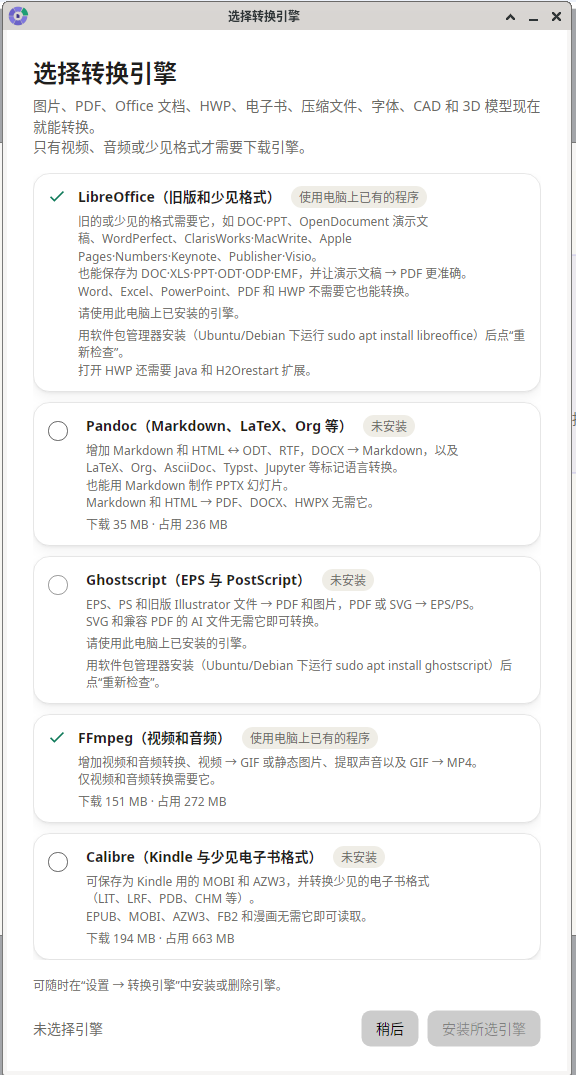
Pick engines on first launch. The first time it opens, a “Choose conversion engines” window lists five optional engines (LibreOffice, Pandoc, Ghostscript, FFmpeg and Calibre), each with what it handles, the download size and the disk space it takes. LibreOffice and FFmpeg were already installed on my computer, and Filee detected them and marked them as “use the program already on this computer”, so nothing was downloaded twice. If you only convert images, PDFs and common Office files, you can just click “Later” here.
Converting an image. I opened a PNG using Filee’s own --convert option (the same entry point the context menu calls), and the ring popped up beside the cursor right away: PNG, JPG, WEBP, PDF, TIFF, BMP, ICO, plus presets like “Shrink 50%” and “Trace to SVG”. One click on WEBP and, in under a second, a .webp file with the same name showed up next to the original.

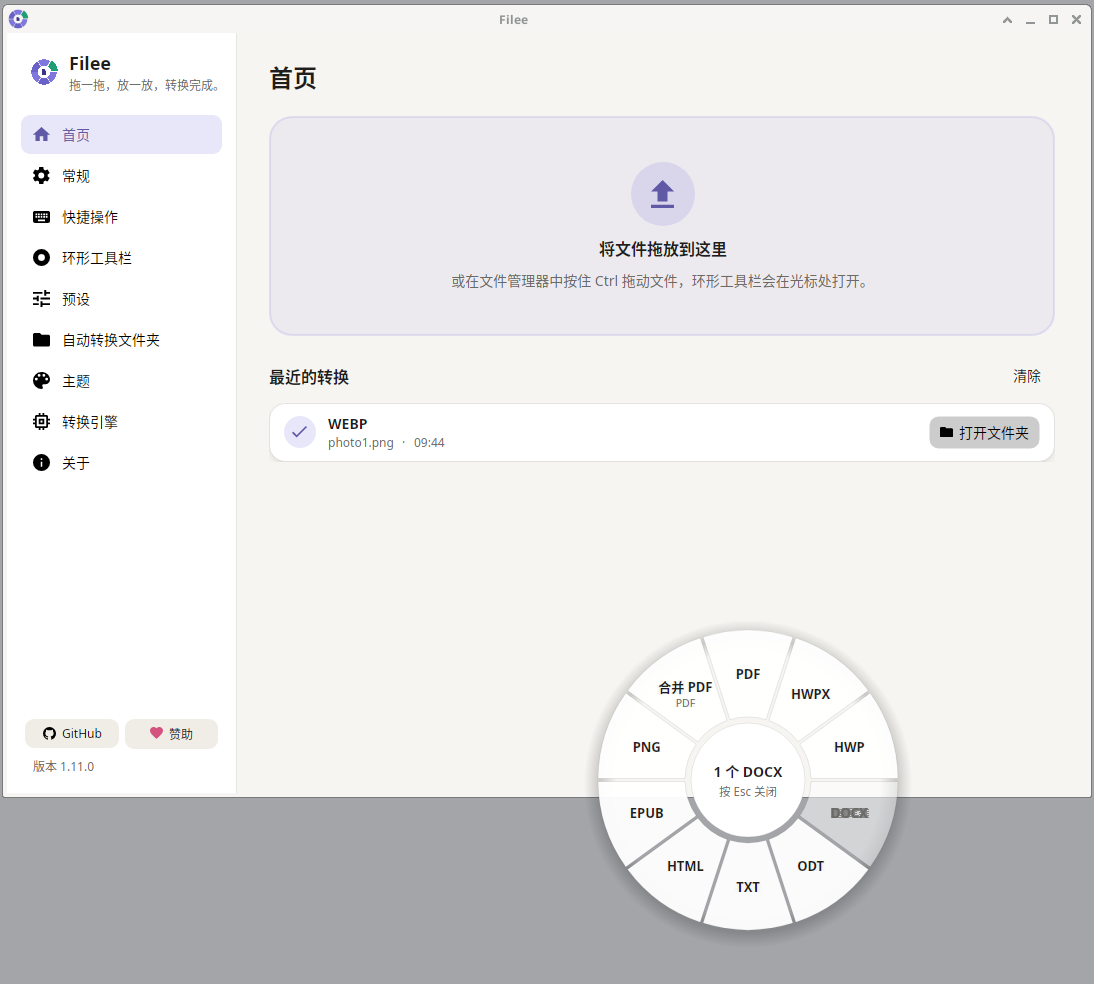
Converting a Word document. With a Chinese DOCX containing headings and a table, the ring changed to PDF, Merge PDF, HWPX, HWP, ODT, TXT, HTML, EPUB and PNG, so it really does offer different formats per file type. I opened the resulting PDF to check: the Chinese text displayed correctly, fonts were embedded and all the table content was there. Looking closely, the table’s right border stuck out slightly past the body text and the cell text sat a little close to the top border. No big deal for a test document, but for formal documents where layout matters, give the output a once-over yourself.
Command-line batch. I also tried a batch run from the command line: three PNGs to WEBP with one command, all done in about a second, with each result listed in the terminal and a final “Converted 3 of 3 file(s)”. If you handle piles of files regularly, you can put it in a script; the official docs say it returns exit codes and can output JSON.
filee convert *.png --to webp --quality 80 -o converted
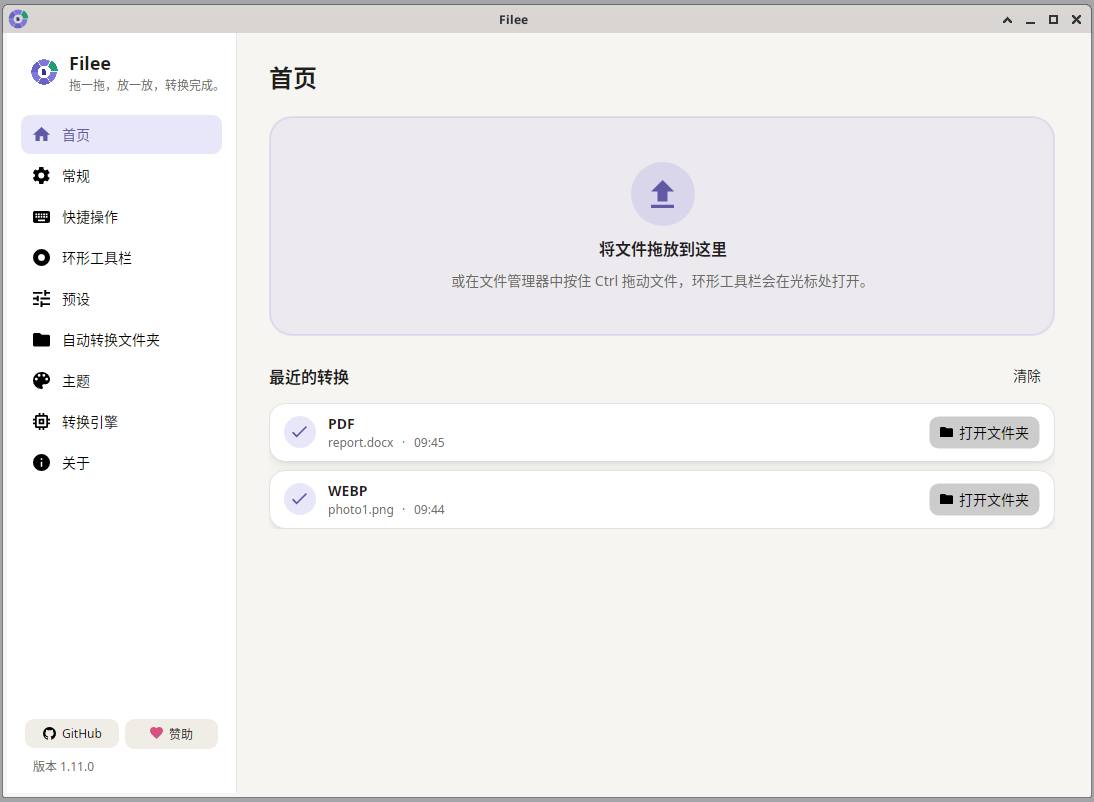
The home screen of the main window keeps a list of recent conversions, each with an “Open folder” button.
Common files and how to convert them
This table is organized by “the file you have”. Engine requirements come from the official format catalog and engine docs:
| What you want to do | Works? | Extra engine needed? |
|---|---|---|
| HEIC photo to JPG | Yes | No (saving to HEIC needs FFmpeg) |
| Word / Excel / PowerPoint to PDF | Yes, no Office install needed | No |
| PDF to Word (DOCX) | Yes | No, but complex layouts won’t come back 100% |
| Split or merge PDFs, export pages as images | Yes | No |
| Batch-convert images to WEBP, shrink them | Yes | No |
| MOV / MKV to MP4, extract MP3 from video | Yes | FFmpeg (about 100 MB) |
| Older formats like DOC, PPT, ODT | Yes | Mostly LibreOffice (about 420 MB) |
| EPUB to PDF | Yes | No; MOBI and AZW3 output needs Calibre |
| Markdown ↔ LaTeX | Yes | Mostly Pandoc (about 42 MB) |
| Subtitles SRT ↔ ASS | Yes | No |
It also converts Korean HWP/HWPX documents. That’s the developer’s home turf, and unless you work with Korean documents you probably won’t need it.
Things to know before you use it
- The Windows installer isn’t code-signed yet. The README says a signing certificate is in the works; until then, SmartScreen may block the installer and you’ll need to click “More info” → “Run anyway”. If that worries you, download from GitHub Releases and check the official SHA256.
- Installing needs admin rights once. The installer puts it in Program Files. If you’d rather not install, use the portable ZIP: unzip it and run Filee.exe.
- macOS and Linux are previews. The macOS build isn’t notarized, so the first time you open it you’ll have to allow it under Privacy & Security. On Linux the drag gesture needs X11; under Wayland you’re limited to the drop zone and the context menu.
- “Local processing” doesn’t mean it never goes online. Your files aren’t uploaded, and the privacy statement says no usage data is collected, but checking for updates and downloading optional engines do use the network.
- Don’t expect a scanned PDF to become an editable Word file. A scan is basically an image, and a normal PDF-to-DOCX conversion isn’t OCR.
- Test on a copy of important files first. Complex tables, unusual fonts and animated slides can all come out slightly different. The project has only been open source for three weeks and is moving fast, so if you hit a problem, open an issue on GitHub.
- Third-party components have their own licenses. Filee itself is MIT, but the engines it calls, like FFmpeg and LibreOffice, each have their own licenses. Check them separately before deploying it at a company or redistributing it.
Who it’s for
- Office workers who regularly convert HEIC, PDF and Office files and don’t want to upload work documents to third-party websites.
- Anyone handling dozens or hundreds of files at a time who wants presets or an auto-convert folder to cut out the repetition.
- People who like scripting, who can wire conversions into their own workflow with the
fileecommand.
If you only convert a picture or two a year, a web converter is still the easiest option. But if work files are involved, or you do this every week, Filee is worth keeping on your machine.
Download
- Website: filee.sh
- GitHub repo: KnifeLemon/Filee
- Download: GitHub Releases. On Windows, pick
win-Setup.exe(installer) orwin-Portable.zip(portable)


